
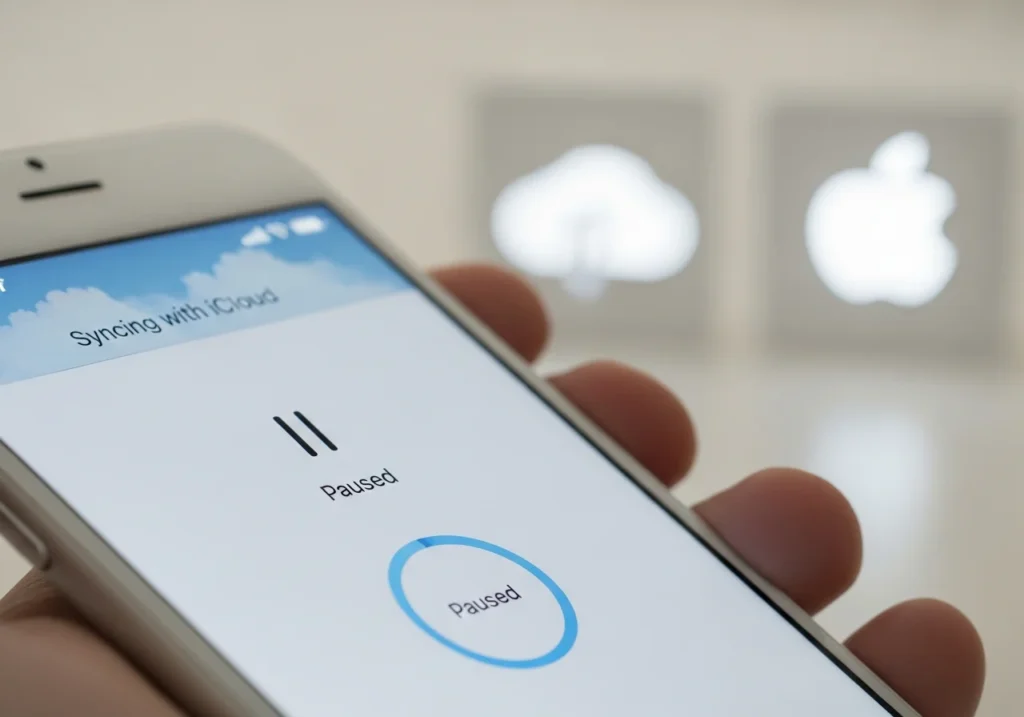
If you’ve seen the message “Syncing with iCloud Paused” on your iPhone, iPad, or Mac, you’re not alone. This notification appears when your device temporarily stops uploading or downloading content to iCloud whether it’s photos, files, notes, or backups.
The good news? It’s a common issue with simple solutions that usually take just a few minutes to fix.
Apple devices pause iCloud syncing for several reasons, including battery management, network problems, or storage limitations. Understanding why it happens and knowing the right steps to fix it can get your data syncing smoothly again.
What Does “Syncing with iCloud Paused” Mean?
When this message appears, your device has temporarily stopped syncing data with Apple’s cloud servers. This can affect:
- iCloud Photos
- iCloud Drive
- Notes
- Contacts
- Automatic backups
During the pause, changes you make won’t upload to iCloud, and updates from other devices won’t download to yours. For example:
- Photos you take won’t back up automatically
- Documents won’t sync across your devices
- Edits made on your Mac won’t appear on your iPhone
Apple pauses syncing as a protective measure to conserve battery, prevent incomplete uploads, or avoid data loss when storage is limited.
Common Reasons iCloud Syncing Pauses
1. Low Power Mode or Low Battery
Low Power Mode automatically pauses background activities, including iCloud syncing, to conserve battery life.
- Activates automatically at 20% battery
- Can be enabled manually via Settings → Battery → Low Power Mode
- Syncing usually resumes when your device charges above 80% or Low Power Mode is disabled
2. Weak or Limited Internet Connection
iCloud needs a stable internet connection. Weak Wi-Fi, intermittent signals, or mobile data issues can cause syncing to pause.
- Low Data Mode (on cellular or Wi-Fi) restricts background uploads, including iCloud
- Switching networks, moving closer to the router, or disabling Low Data Mode often resolves the issue
3. iCloud Storage Is Full
Each Apple ID includes 5GB of free iCloud storage. Once full, new uploads are paused.
- Photos, videos, app backups, and documents count toward this limit
- Free up space or upgrade to a paid plan (50GB, 200GB, or 2TB) to resume syncing
4. Outdated Software
Older iOS, iPadOS, or macOS versions can cause syncing bugs. Keeping your device updated ensures compatibility with iCloud servers.
5. Apple ID or Server Issues
Temporary iCloud outages or authentication issues (expired passwords, verification prompts) can interrupt syncing.
- Check Apple’s System Status page to confirm server status
6. Manual Pause or Settings Changes
You may have paused syncing in apps like Photos or disabled iCloud services in Settings → Apple ID → iCloud. Sometimes, updates or troubleshooting can unintentionally change settings, causing pauses.
How to Fix “Syncing with iCloud Paused”
Fix 1 — Disable Low Power Mode
- Open Settings → Battery
- Turn off Low Power Mode
- Plug in your device if battery is low
- Open Photos or Files to check if syncing resumes
Fix 2 — Check Your Internet Connection
- Ensure you’re connected to a reliable Wi-Fi or cellular network
- Switch between Wi-Fi and mobile data to test connectivity
- Restart your router if needed
- Disable Low Data Mode: Settings → Cellular → Cellular Data Options or Settings → Wi-Fi → i → Disable Low Data Mode
A strong, stable connection is essential for iCloud syncing.
Fix 3 — Manage iCloud Storage
- Settings → [Your Name] → iCloud → Manage Storage
- Review storage usage (Photos, Backups, Documents)
- Delete unnecessary files or old backups
- Or tap Change Storage Plan to upgrade
Once space is available, syncing should resume automatically. For Apple users who want to stay on top of their data, using tools to optimize iCloud usage can help free up space efficiently, manage backups, and ensure all your devices remain synced without interruptions.
Fix 4 — Update Device Software
- Settings → General → Software Update
- Install any available updates
- Restart your device
Regular updates improve compatibility with iCloud and resolve known syncing bugs.
Fix 5 — Sign Out and Back Into iCloud
- Settings → [Your Name] → Sign Out
- Enter your Apple ID password
- Choose data to keep on your device
- Restart and sign back in
Note: Re-syncing data may take time. Ensure you have a stable internet connection.
Fix 6 — Resume Sync Manually
Some apps allow manual syncing:
- Photos: Look for a “Resume Syncing” prompt at the bottom
- Files/iCloud Drive: Open the app and follow any on-screen prompts
Ensure your device is charged and connected to Wi-Fi.
Fix 7 — Check iCloud Server Status
- Visit Apple System Status
- Wait for Apple to resolve any outages if servers are down
How to Unpause iCloud Syncing on Mac
- Click Apple Menu → System Settings/Preferences → Apple ID → iCloud
- Toggle services off and back on to refresh syncing
- For iCloud Drive, click Options to manage folders
- Ensure your Mac is plugged in and connected to Wi-Fi
- Check syncing status in Finder by looking at cloud icons (up/down arrows)
If issues persist, try signing out and back into iCloud like on iOS.
Prevent Future iCloud Syncing Issues
- Keep your device charged to avoid Low Power Mode interruptions
- Monitor and manage iCloud storage regularly
- Use reliable Wi-Fi for large uploads
- Disable Low Data Mode unless needed
- Update software promptly
- Connect to power during backups for uninterrupted uploads
Following these practices ensures smoother syncing across your Apple devices. To make this even easier, you can try a Free iCloud Analyzer that gives insights into your storage, highlights unnecessary files, and helps you maintain a healthy, well-organized iCloud account. Following these practices ensures smoother syncing across your Apple devices.
Final Thoughts
The “Syncing with iCloud Paused” message is usually harmless. Most of the time, it’s caused by battery saving, network interruptions, or full storage.
Following the steps above disabling Low Power Mode, ensuring a strong connection, updating software, and managing storage will get your iCloud syncing back on track.
If problems persist, visit Apple Support for personalized assistance.
FAQs About iCloud Syncing Paused
Why does it say “Paused until connected to power”?
Low Power Mode or low battery prevents syncing to conserve energy. Plug in your device to resume.
Can I manually pause iCloud syncing?
Yes, in apps like Photos or by toggling iCloud services off in Settings → Apple ID → iCloud.
Does iCloud sync over mobile data?
Some services can, depending on settings. Large uploads usually wait for Wi-Fi. Manage usage via Settings → Cellular.
Why is only Photos syncing paused?
Photos require more bandwidth and storage. Weak connections or limited storage may pause Photos while other services continue.
How long does it take for syncing to resume?
Once the issue is resolved, syncing typically resumes in minutes. Large libraries or backups may take hours.