
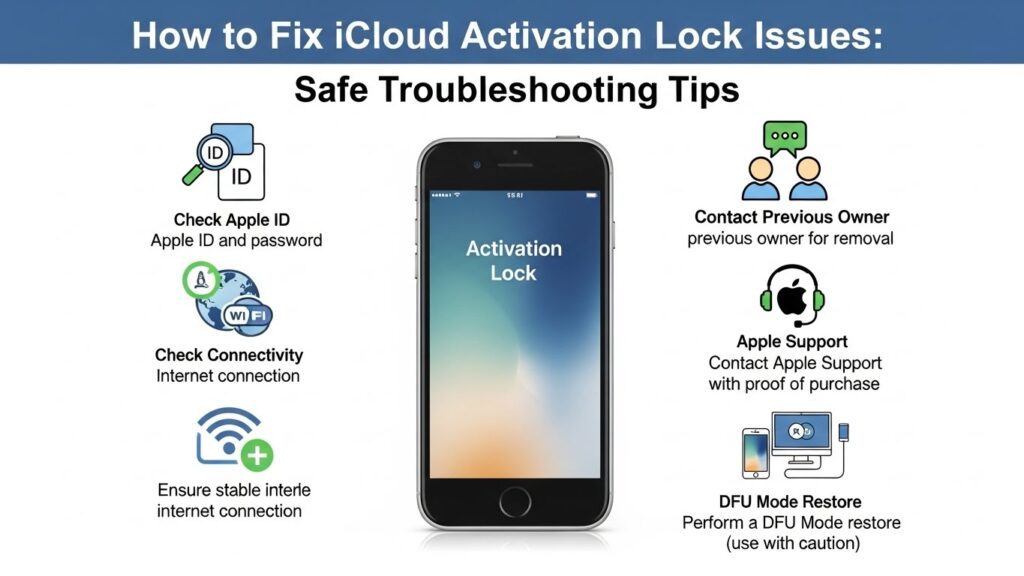
Activation Lock is a security feature built into Apple devices through Find My. It prevents anyone else from using your iPhone, iPad, Apple Watch, or Mac if it’s ever lost, stolen, or erased. As long as the device is linked to an Apple ID, the lock stays active even after a factory reset.
What Activation Lock Does and How It Protects Your Device
Activation Lock ensures:
- No one can erase or reactivate your device without your Apple ID.
- The device remains unusable if stolen or found by an unauthorized person.
- Your photos, files, and personal data stay safe even if the device leaves your possession.
This protection works automatically once Find My is enabled. Even an erased device will demand the original Apple ID to proceed.
When Activation Lock Usually Appears
You normally see the Activation Lock screen in these conditions:
- After a factory reset without signing out of iCloud.
- When restoring an iPhone that was still linked to someone’s Apple ID.
- When setting up a second-hand device still attached to the previous owner.
- When using a device involved in Lost Mode.
“iPhone Locked to Owner” – Meaning
The “iPhone Locked to Owner” message shows up during setup if the device is tied to an existing Apple ID.
To continue, you must enter that Apple ID and password not the one you use on your other devices.
If you bought the phone from someone else, this message means the device was not properly removed from their account.
How to Check if Your Device Is Stuck on Activation Lock

From the Setup Screen
If you’re stuck at the setup page and see:
- “Activation Lock”
- “iPhone Locked to Owner”
- “Enter Apple ID and Password”
…your device is locked.
The setup process will not continue until the linked Apple ID is entered.
Check IMEI/Serial Lock Status
You can verify lock status using official Apple channels:
- On the device setup screen, tap the info (i) icon to view IMEI or serial number.
- Contact Apple Support and request an Activation Lock status check.
- Apple will confirm if the device is locked and what steps are possible.
Avoid unofficial IMEI-checking websites. Many are inaccurate, outdated, or risky.
Verify a Used iPhone Before Buying
Before purchasing a second-hand device, always:
- Ask the seller to erase and set up the iPhone in front of you.
- Verify that no Apple ID login screen appears after reset.
- Ensure Find My shows as Off in Settings.
If the device asks for an Apple ID after reset, do not complete the purchase.
Official and Safe Ways to Fix Activation Lock
Unlock With Apple ID
The fastest and safest method is using the correct Apple ID:
- On the Activation Lock screen, enter the Apple ID email.
- Enter the password associated with the device.
- The device will unlock and proceed to setup.
This is the only method Apple guarantees.
Remove Lock via iCloud.com
If the owner has access to the Apple ID:
- Visit iCloud.com → Sign in.
- Go to Find Devices.
- Select the device.
- Click Erase iPhone.
- After erasing, choose Remove from Account.
Once removed, restart the device and the Activation Lock screen should disappear.
Reset Apple ID Password
If you’ve forgotten your password:
- Visit iforgot.apple.com.
- Enter your Apple ID.
- Follow the 2-factor authentication steps.
- Reset your password.
Once reset, return to your device and enter the new credentials.
Turn Off Find My iPhone
If you still have access to the device before resetting:
- Open Settings → your Apple ID.
- Tap Find My.
- Turn off Find My iPhone.
- Enter your Apple ID password to confirm.
Only then should you perform a factory reset.
How to Fix Activation Lock Without the Apple ID Password
If you don’t know the Apple ID password, you still have safe, Apple-approved options.
Contact Previous Owner
If you bought a used device:
- Ask the seller to sign in with their Apple ID.
- If they are not physically present, they can:
- Log in to iCloud.com → Remove the device from their account.
- Once removed, restart the device to continue setup.
If the seller refuses or is unreachable, you may face limitations.
Request Apple Support Assistance
Apple can help unlock a device only if clear proof of ownership is provided.
To request help:
- Visit support.apple.com.
- Choose iPhone → Activation Lock.
- Book a Genius Bar appointment or contact chat/phone support.
Apple Support may remove Activation Lock only for legitimate owners.
Required Proof of Purchase
Acceptable proofs include:
- An invoice from Apple or an authorized reseller.
- A carrier purchase receipt with IMEI/serial number.
- Refurbished device purchase receipt from a verified seller.
The document must show:
- Device serial/IMEI
- Purchase date
- Your name or matching details
When Apple Cannot Unlock
Apple will refuse to unlock the device if:
- The device was reported lost or stolen.
- You cannot provide valid proof of purchase.
- The seller used an unverifiable marketplace listing.
- Receipts are altered, blurry, or incomplete.
In such cases, the lock cannot be safely or legally removed.
Troubleshooting: iPhone Won’t Activate After Reset
Sometimes the issue is not Activation Lock but a setup activation failure.
Check Apple Server Status
Apple’s activation servers may be temporarily down.
- Visit Apple’s System Status page.
- Check the iOS Device Activation indicator.
- If it’s yellow/red, wait and try again later.
Fix Wi-Fi/SIM Issues
Activation requires stable connectivity.
Try these steps:
- Switch to another Wi-Fi network.
- Insert a working SIM card.
- Restart your router.
- Temporarily disable VPNs or firewall settings.
- Use mobile data instead of Wi-Fi if possible.
Activate via iTunes/Finder
If the device won’t activate over Wi-Fi:
- Connect your iPhone to a Mac or PC.
- Open Finder (macOS Catalina+) or iTunes.
- Choose Activate when prompted.
- Follow the on-screen instructions.
Use Recovery or DFU Mode
If activation fails repeatedly:
- Connect the device to your computer.
- Enter Recovery Mode.
- Choose Update (not Restore) to reinstall iOS.
- If issues persist, use DFU Mode to perform a deeper software reload.
These steps do not bypass Activation Lock—they simply fix setup failures.
Are iCloud Activation Lock Bypass Tools Safe?
Risks of Third-Party Tools
Online tools claiming to “bypass Activation Lock” are often risky.
Common dangers include:
- Data theft or Apple ID compromise
- Malware or spyware installation
- iPhones re-locking after a restart
- Permanent device damage
Apple does not authorize these tools.
DNS Bypass Limitations
“DNS Bypass” methods provide only temporary access to limited features:
- No full home screen access
- No iMessage, App Store, iCloud
- No proper device functionality
This is not a real unlock and is unreliable.
How to Avoid Scams
Avoid any service that:
- Promises a “permanent unlock” without Apple ID
- Requests IMEI numbers and payment
- Uses terms like “100% guaranteed unlock”
- Asks you to install unknown software
Most are scams or violate Apple’s security policies.
Safe Alternatives
If official solutions fail:
- Return the device to the seller.
- Ask for a replacement or refund.
- Buy only from trusted, verifiable sources.
- Use Apple Support for confirmation and guidance.
There is no safe third-party unlock for Activation Lock.
How to Prevent Activation Lock Issues in the Future
Sign Out of Apple ID Before Selling
Before giving away or selling your device:
- Go to Settings → your Apple ID.
- Tap Sign Out.
- Turn off Find My.
- Erase the device.
This guarantees the next owner won’t face Activation Lock.
Remove Device From Apple ID List
If you’ve sold or lost a device:
- Visit iCloud.com.
- Open Find Devices.
- Select the device → choose Remove from Account.
The device will no longer be associated with your Apple ID.
Check Activation Lock Before Buying
Always verify:
- The device has been erased.
- It does not show any Apple ID prompt.
- Find My is disabled.
If buying online, request a video reset proof from the seller.
Enable Two-Factor Authentication
2FA protects your Apple ID from unauthorized access, reducing the chances of accidental lockouts.
FAQs
1. Can I unlock Activation Lock without the previous owner?
Only if you can provide valid proof of purchase to Apple. Otherwise, it is not possible.
2. Does factory resetting remove Activation Lock?
No. Activation Lock remains tied to the Apple ID, even after an erase.
3. Apple ID is unknown what should I do?
Try checking old emails, past purchases, or visit iforgot.apple.com. Apple Support may help if you provide purchase proof.
4. Is it safe to pay online services promising instant unlocks?
No. Most are scams, unsafe, or violate Apple policies.
5. Why is my used iPhone showing “Locked to Owner”?
The seller did not remove the device from their iCloud account. They must remove it through iCloud.com.
6. Can Apple unlock a stolen device if I found one?
No. Apple will not unlock a device reported lost or stolen.
7. Is IMEI checking safe?
Only check with Apple Support. Many third-party IMEI sites are inaccurate.
8. What happens if I can’t provide proof of purchase?
Apple cannot unlock the device. You’ll need to return it to the seller.
Final Safety Tips and Best Practices
Summarize safest methods:
- Always try official Apple methods first.
- Use the correct Apple ID or remove the device through iCloud.com.
- Contact Apple Support with valid proof of purchase if needed.
Warn against risky actions:
- Avoid third-party bypass tools, software patches, or paid IMEI unlocks.
- Never share your Apple ID with unknown services.
Reinforce Apple-first approach:
Activation Lock exists to protect your data and device.
The safest, most reliable solutions always come directly from Apple’s official systems.
Whenever in doubt, contact Apple Support for secure, guided assistance.