
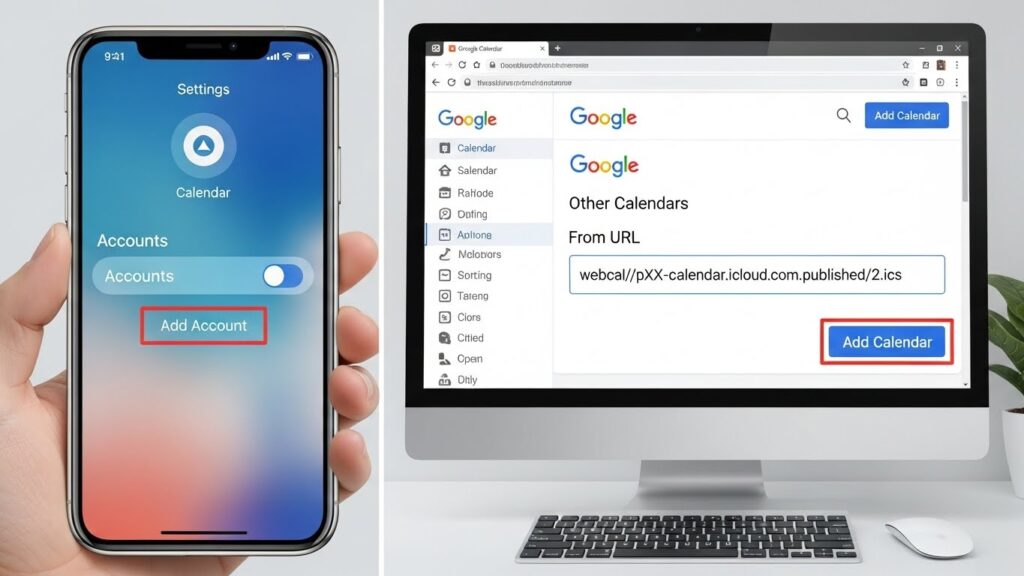
Integrating your iCloud Calendar with Google Calendar is a common need for users who want to view all their events in one place. Whether you use an iPhone, iPad, Mac, or Android device, there are multiple ways to achieve this. This guide explains everything you need to know, from simple URL subscriptions to using third-party sync tools, step by step.
What is iCloud Calendar and Google Calendar?
Overview of iCloud Calendar
iCloud Calendar is Apple’s cloud-based calendar service. It lets iPhone, iPad, and Mac users create, edit, and share events across all Apple devices. Events are automatically synced to iCloud, ensuring that changes on one device appear on all others.
Overview of Google Calendar
Google Calendar is a widely used cloud calendar service compatible with Android, iOS, and web platforms. It allows users to create events, set reminders, and share calendars with others. Its cross-platform availability makes it a popular choice for consolidating schedules.
Why Integrate iCloud Calendar with Google Calendar
- Access all your Apple events on Google Calendar.
- Consolidate work and personal schedules in one place.
- Use Google’s sharing, notifications, and collaboration features.
- Ensure cross-platform compatibility between iOS, Android, and desktop devices.
Methods to Add iCloud Calendar to Google Calendar
Method 1 – Subscribe Using iCloud Public Calendar URL
Subscribe to your iCloud calendar directly via a WebCal URL. This keeps your Google Calendar updated whenever your iCloud calendar changes.
Method 2 – Export iCloud Calendar as .ICS File and Import
Export a static snapshot of your iCloud calendar as an ICS file and import it into Google Calendar. Ideal if you don’t need continuous syncing.
Method 3 – Using Third-Party Sync Tools
Tools like SyncGene or CalendarBridge can automatically sync events between iCloud and Google Calendar, including two-way sync for advanced users.
Step-by-Step Instructions for URL Subscription Method
Enable Public Calendar Sharing in iCloud
- Open iCloud.com and sign in with your Apple ID.
- Click Calendar, then select the calendar you want to share.
- Click the Share Calendar icon (person icon) and enable Public Calendar.
Note: Public calendars are read-only in Google Calendar. Only your iCloud account can edit events.
Copy the Calendar URL (WebCal/iCal link)
- After enabling public sharing, copy the WebCal link provided by iCloud.
- The link usually starts with webcal:// and ends with .ics.
Add Calendar in Google Calendar via “Add by URL”
- Open Google Calendar on your desktop.
- On the left, click Other Calendars → Add by URL.
- Paste your iCloud WebCal URL and click Add Calendar.
Verify Calendar Appears in Google Calendar
- Your iCloud events should now appear under Other Calendars.
- Changes in iCloud will reflect in Google Calendar, though updates may take several hours.
Step-by-Step Instructions for .ICS Export/Import Method
Export iCloud Calendar as .ICS File
- Go to iCloud.com → Calendar.
- Click the Share Calendar icon → enable Public Calendar.
- Copy the URL and replace webcal:// with https://, then download the .ics file.
Import .ICS File into Google Calendar
- Open Google Calendar → Settings → Import & Export.
- Choose Import → select your downloaded .ics file.
- Pick the target Google Calendar and click Import.
Verify Events Have Been Imported Successfully
- Check your Google Calendar to ensure all events appear.
- Imported events are static and won’t auto-update from iCloud.
Step-by-Step Instructions Using Third-Party Tools
Setting Up SyncGene / CalendarBridge
- Sign up for a SyncGene or CalendarBridge account.
- Follow the tool’s instructions to link your Apple ID and Google account.
Connecting iCloud and Google Accounts
- Allow permissions for both calendars to access and sync events.
Configuring Sync Preferences
- Choose one-way or two-way sync.
- Select which calendars you want to sync.
Monitoring Updates and Sync Frequency
- Most tools allow you to set automatic updates (every 15–60 minutes).
- Check logs or dashboards to ensure sync is active.
Tip: Third-party tools may require paid plans for two-way or multiple calendar syncs.
Limitations and Considerations
Subscription is Read-Only
- Google Calendar cannot edit events from an iCloud public calendar.
- Changes must be made in iCloud.
Sync Delays Between iCloud and Google Calendar
- Updates can take several hours to appear in Google Calendar.
Event Editing Limitations
- ICS file imports are static.
- Any new events in iCloud require re-importing.
Privacy and Sharing Concerns
- Public calendar URLs can be accessed by anyone with the link.
- Only share URLs with trusted contacts.
Troubleshooting Common Issues
Calendar Not Appearing in Google Calendar
- Double-check the WebCal URL.
- Make sure the calendar is publicly shared in iCloud.
Missing Events After Import
- Ensure the full .ics file was downloaded.
- Large calendars may fail to import completely.
Problems with Sync Tools
- Verify account permissions.
- Check if the tool supports two-way sync for your plan.
Fixing iCloud URL / .ICS File Errors
- Replace webcal:// with https:// when downloading ICS.
- Re-copy the link from iCloud if the URL has changed.
Tips for Smooth Integration
Keep Calendar Links Updated
- Refresh your subscription periodically.
- If a calendar is renamed in iCloud, update the Google Calendar link.
Organize Events in Separate Calendars
- Avoid clutter by creating dedicated Google calendars for iCloud events.
Use Color-Coding for Easy Identification
- Assign a unique color to imported or subscribed calendars.
Regularly Check Sync Status
- Ensure updates are appearing and there are no sync errors.
Frequently Asked Questions (FAQs)
Can I Edit iCloud Calendar from Google Calendar?
No, subscribed iCloud calendars are read-only in Google Calendar. Edit events in iCloud directly.
Does Google Calendar Auto-Update iCloud Events?
Yes, but updates may take several hours due to sync frequency limitations.
Can I Sync Multiple iCloud Calendars?
Yes, each calendar must have its own public URL or be added via a third-party tool.
Are There Free Tools to Automate Sync?
Some tools offer limited free plans (e.g., SyncGene), but full automation often requires a paid plan.
By following these methods, you can successfully view and manage your iCloud Calendar events in Google Calendar, ensuring a seamless cross-platform experience.