
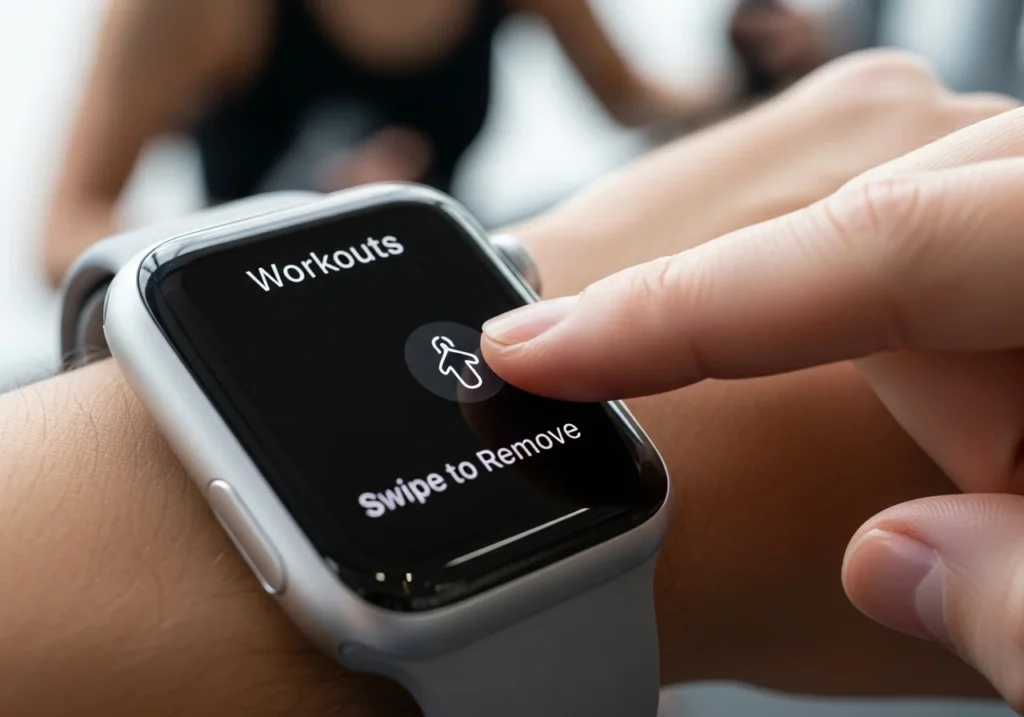
Deleting a workout on Apple Watch is simple once you know where to look but the option isn’t actually on the watch itself. This guide walks you through every method using the Fitness app, Health app, and connected third-party apps. You’ll also find fixes if a workout won’t delete.
Why You May Want to Delete an Apple Watch Workout
Accidental starts:
Maybe you bumped the display and started a workout while sitting on the couch.
Duplicate sessions:
Sometimes your watch logs the same workout twice after a sync issue.
Incorrect calorie data:
A faulty heart-rate reading can inflate your calorie burn.
Cleanup for fitness tracking:
Keeping your History clean helps you get accurate trends over time.
Why You’ll Love This Tip:
It keeps your fitness rings and trends accurate with just a few taps.
System Requirements
These methods work if you have:
- iOS 16 or later
- watchOS 9 or later
- Fitness app installed (comes pre-installed)
- Health app
- Optional: Third-party fitness apps like Strava, Nike Run Club, MyFitnessPal
How to Delete a Workout on Apple Watch (Using the Fitness App on iPhone)
This is the main way to delete any Apple Watch workout.
Why You’ll Love This Tip:
It’s fast and deletes the workout instantly across your devices.
Steps
- Open the Fitness app on your iPhone.
[Screenshot: Fitness app home] - Tap the Activity tab (bottom of the screen).
[Screenshot: Activity tab] - Scroll down and tap Show More under “Workouts.”
- Find the workout you want to delete and swipe left on it.
[Screenshot: swipe to delete] - Tap Delete.
- Choose Delete Workout & Data (recommended).
Safety Note: Deleted workouts cannot be recovered.
How to Delete a Workout from the Health App
The Health app gives you deeper control because it shows the raw workout data stored in iCloud. For managing and troubleshooting synced fitness data, iCloud storage tools for Apple users can help you review what health and workout data is stored and syncing across devices.
Fitness vs. Health:
- Fitness App = shows activity summaries.
- Health App = stores detailed workout metrics.
Steps
- Open the Health app.
- Tap the Browse tab.
- Search for Workouts.
- Scroll down to Show All Data.
- Swipe left on any workout you want to remove.
[Screenshot: Show All Data] - Tap Delete → Delete All Data (if needed).
Micro-Tip: Long-press a workout to open quick actions.
How to Remove a Workout from the Workout App History
Apple Watch shows workout history but does not allow deleting directly from the watch.
You can view it:
- Open the Workout app on your Apple Watch.
- Turn the Digital Crown to scroll through past sessions.
Limitations:
You can’t delete or edit workouts from the watch itself — you must use the iPhone.
How to Edit or Remove Workout Data (Distance, Calories, Time)
If the workout is mostly correct, editing might be better than deleting.
Steps
- Open the Health app.
- Go to Browse → Workouts.
- Select a workout.
- Tap Edit (top-right).
- Adjust metrics like:
- Distance
- Active calories
- Duration
- Tap Done.
Example:
If your run tracked 10 miles instead of 2 (GPS glitch), simply edit the distance.
How to Delete Workouts Imported from Third-Party Apps
If you use apps like Strava or Nike Run Club, they may re-sync workouts after you delete them unless you remove them from the source app.
Strava
- Open Strava → You → Activities.
- Open the activity.
- Tap ••• → Delete.
- Re-sync with Apple Health.
Nike Run Club
- Open NRC → tap your Run History.
- Select the run.
- Tap Options → Delete Run.
MyFitnessPal
- Open MyFitnessPal.
- Go to Diary → Exercises.
- Swipe left to delete a workout entry.
Micro-Tip: If a workout keeps coming back, disable “Allow Write Data” in the Health permissions for that app.
Troubleshooting if a Workout Won’t Delete
If the workout still appears, try these fixes:
1. Force Sync Fitness Data
- Open Settings → Apple ID → iCloud.
- Toggle Fitness off → wait → toggle back on.
2. Restart Apple Watch
- Hold the Side button → Slide to power off.
- Turn it back on.
3. Check Health Permissions
- Go to Settings → Health → Apps.
- Select the workout app.
- Ensure Allow Editing Data is enabled.
4. Re-enable Fitness Tracking
- Go to Settings → Privacy & Security → Motion & Fitness.
- Toggle Fitness Tracking off/on.
FAQs
Can I delete workouts directly on my Apple Watch?
No. You can only delete them on your iPhone through the Fitness or Health app.
Will deleting a workout affect my Activity rings?
Yes. The calories, minutes, and distance will update immediately.
Why does a deleted workout keep coming back?
A third-party app (Strava, NRC, etc.) may be re-syncing the data. Delete it from the original app.
Can I recover a deleted workout?
No Apple does not offer recovery for removed Health or Fitness data.
Why doesn’t my workout show in the Fitness app?
Your Apple Watch might not have synced. Restart both devices and open the Fitness app again.
How can I Find Apple Watch Phone Number?
If your Apple Watch is cellular-enabled, you can find Apple Watch phone number by going to the Watch app on iPhone → General → About → scroll to Mobile Number.