
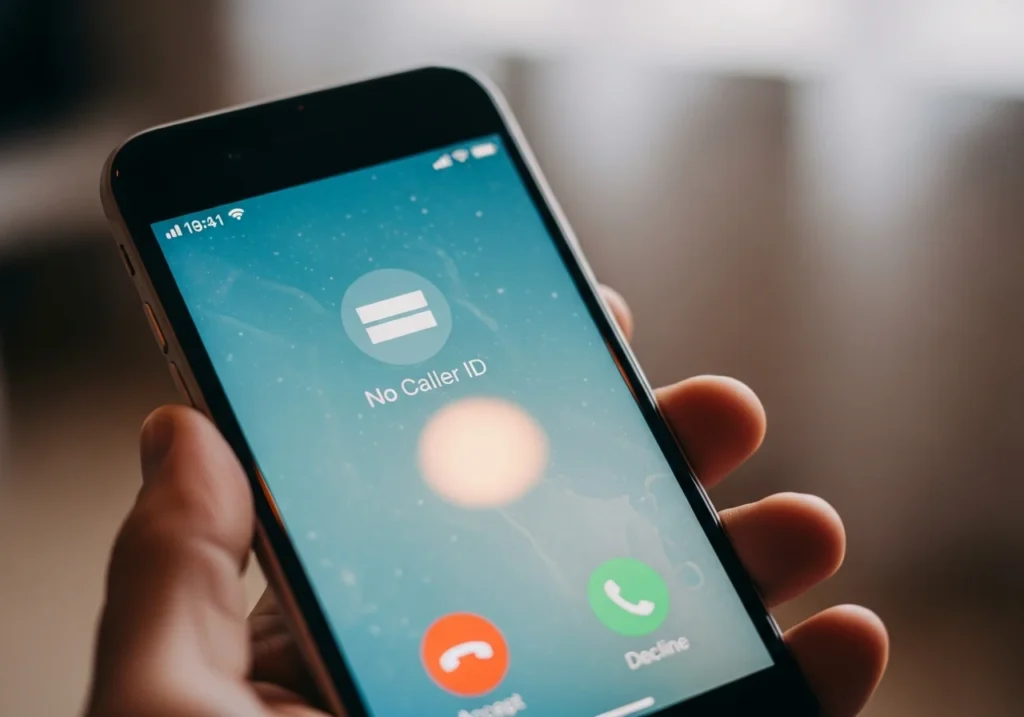
Dealing with calls labeled as No Caller ID on your iPhone can be frustrating and sometimes worrying. You may wonder who’s on the other end and whether it’s safe to answer. While iOS and carriers offer some tools to help, it’s important to set realistic expectations some anonymous calls cannot be fully unmasked due to privacy protections. This guide walks you through what “No Caller ID” means, how to identify these calls, and ways to manage or report them safely.
What “No Caller ID” Means on iPhone
Understanding Hidden and Anonymous Calls
When a call shows No Caller ID, it means the caller has deliberately blocked their number from appearing. These calls are anonymous, and your iPhone cannot display their number by default.
Difference Between Unknown Caller and Blocked Number
- Unknown Caller: This could be someone who isn’t in your contacts or someone whose number isn’t transmitting properly.
- Blocked Number / No Caller ID: The caller has intentionally hidden their number. iOS treats these differently and limits what you can see.
Why People Hide Their Caller ID
People hide their number for privacy reasons or business purposes. Unfortunately, some use it for telemarketing, spam, or scams. Knowing this helps you handle calls more cautiously.
Methods to Identify or Reveal No Caller ID Calls
While iPhones don’t have a built-in “unmask” feature, there are some practical ways to identify or trace hidden calls.
Method 1 Use the *69 Code to Redial the Last Call
- Open the Phone app.
- Dial *69 and press Call.
- Your carrier may return the number of the last incoming call, even if it was No Caller ID.
Note: This only works on the most recent call and may incur charges depending on your carrier.
Method 2 Use Trusted Third-Party Caller ID Apps
Some apps can help reveal or block anonymous calls:
- Truecaller – Identifies unknown callers, flags spam, and provides caller info.
- Hiya – Offers caller identification and fraud detection.
- RoboKiller – Automatically blocks spam and telemarketers.
How to use:
- Download and install the app from the App Store.
- Grant call and contact permissions as requested.
- Follow in-app instructions to identify or block No Caller ID calls.
Method 3 Contact Your Carrier for Assistance
Your carrier may provide services to trace or block anonymous calls. Steps vary by provider:
- Call your carrier’s support number.
- Ask if they offer call trace or anonymous call logging.
- Follow their instructions to report or block suspicious numbers.
Understanding Limitations What Works vs What Doesn’t
- Works: *69 redial, caller ID apps, carrier tracing, iOS silence/block features.
- Doesn’t Work: Fully revealing every hidden number without carrier involvement; guessing numbers manually is unreliable.
ou can also use free iCloud management software to keep your iPhone data organized and ensure contacts, call logs, and app settings are synced efficiently.
How to Manage No Caller ID Calls on iPhone
Enable “Silence Unknown Callers”
- Go to Settings > Phone > Silence Unknown Callers.
- Toggle it on.
Calls from unknown numbers will go straight to voicemail, but contacts and recent numbers will still ring.
Block Repeated No Caller ID Numbers
- If the same anonymous number appears, use your carrier or app-based blocking options.
Customize Notification Settings for Unknown Numbers
- Settings > Notifications > Phone: Adjust how unknown callers alert you.
- Enable banner or sound notifications selectively to reduce disturbances.
Reporting Unknown or Suspicious Calls
Reporting to Your Carrier
- Provide the date, time, and number if available.
- Some carriers allow spam call reporting via SMS or apps.
Reporting to Authorities or Anti-Spam Services
- FCC (U.S.) or local telecom authorities accept spam complaints.
- Use official online portals to submit No Caller ID or scam reports.
Using Apps to Detect Fraudulent Callers
- Apps like Truecaller and Hiya maintain community databases of known scam numbers.
- Report suspicious calls in-app to help others.
Common Issues & Troubleshooting
*69 Code Not Working on iPhone
- Ensure your carrier supports *69 service.
- Some carriers may disable it for No Caller ID calls.
Caller ID Apps Not Identifying the Caller
- Ensure app permissions are enabled.
- The number may not be in the app’s database.
Incoming Calls Still Showing No Caller ID
- Confirm iOS is updated.
- Check Settings > Phone > Silence Unknown Callers is configured correctly.
Tips for Handling No Caller ID Calls Safely
Avoid Answering Suspicious Calls
- If the caller is unknown, let them go to voicemail.
Use Built-In iOS Features to Reduce Spam
- Silence Unknown Callers and block numbers.
Keep iPhone Updated for Best Caller ID Functionality
- Updates may improve call identification and spam filtering.
Consider Trusted Third-Party Apps for Caller Identification
- Only download apps from the App Store with strong reviews.
If you want to keep a record of suspicious calls safely, learn how to Screen Record on iPhone for personal reference.
Disclaimer: Some methods may not work in all regions or with all carriers. Always use official services or apps, and respect privacy laws.
FAQs
Can You Always See No Caller ID on iPhone?
No. Privacy laws and carrier policies prevent iOS from revealing all anonymous numbers.
Are There Free Methods to Identify Hidden Callers?
*69 code (carrier-dependent)
Free apps like Hiya or Truecaller (limited functionality)
Is It Legal to Unmask Hidden Numbers?
Laws vary by region. Some methods may violate privacy rules, so use official carrier or app services.
How to Protect Yourself from Anonymous or Spam Calls?
Enable Silence Unknown Callers.
Use trusted caller ID apps.
Avoid sharing personal info over the phone.