
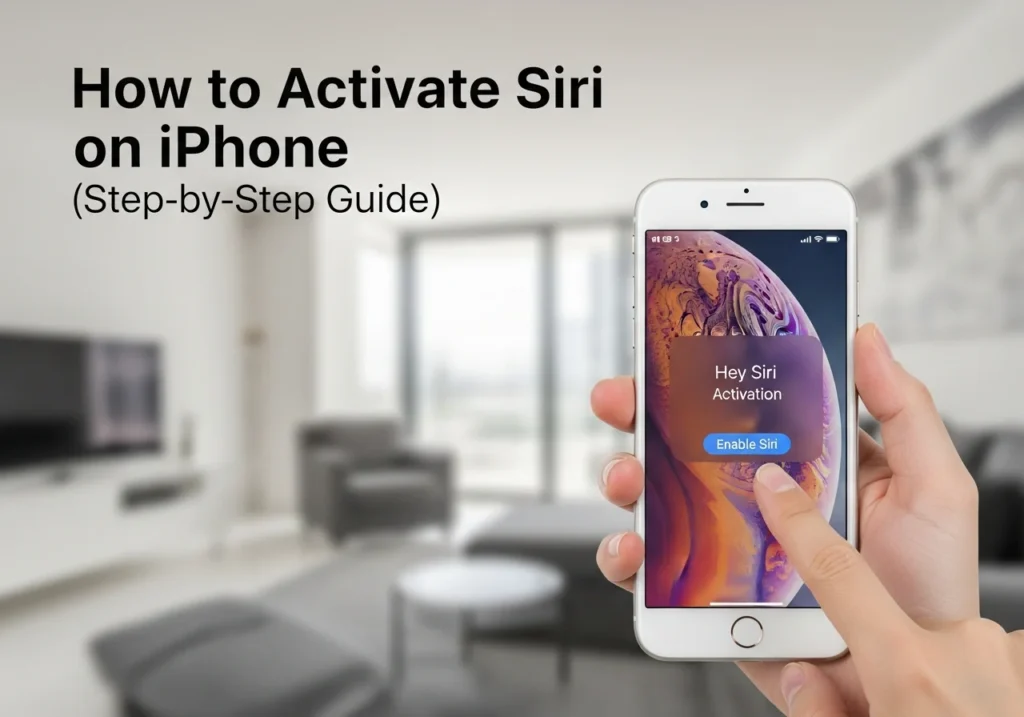
Siri is one of the easiest ways to use your iPhone hands-free. You can ask Siri to send messages, set reminders, open apps, or answer quick questions without typing anything.
In this guide, you’ll learn every way to activate Siri, how to turn on voice activation, how to use Siri on different iPhone models, and what to do if Siri isn’t working.
What to Know
- Siri must be turned on in Settings → Siri & Search before you can use it.
- You can activate Siri with your voice, the Side button, or the Home button (on older models).
- “Hey Siri” only works if your microphone and internet connection are working properly.
- You can allow Siri on the Lock Screen for quick hands-free commands.
- Customizing Siri’s voice, language, and responses makes it easier and faster to use.
How to Activate Siri on iPhone
Turn On Siri from Settings
- Open the Settings app.
- Tap Siri & Search.
- Turn on Listen for “Hey Siri”.
- Turn on Press Side Button for Siri (or Press Home for Siri on older models).
- Enable Allow Siri When Locked if you want hands-free use without unlocking.
Why this matters:
These toggles power all of Siri’s activation methods. If any of them are off, Siri won’t respond.
Enable “Hey Siri” Voice Activation
- Go to Settings → Siri & Search.
- Turn on Listen for “Hey Siri”.
- Follow the onscreen setup to train Siri to your voice.
- Say a few sample phrases as prompted.
- Tap Done when setup completes.
Why this matters:
This lets you activate Siri without touching your iPhone. I prefer enabling this because it makes Siri respond faster in day-to-day use.
Activate Siri Using the Side Button
- Find the Side button on the right side of your iPhone.
- Press and hold the Side button until Siri appears.
- Ask your question or command.
- Release the button when you’re done speaking.
Model explanation:
This method works on iPhone X and later, where the Home button was removed.
Allow Siri on Lock Screen
- Open Settings.
- Tap Siri & Search.
- Turn on Allow Siri When Locked.
Why this matters:
This allows you to use Siri without unlocking your phone—great for quick tasks or when your hands are full.
How to Activate Siri on Different iPhone Models
iPhone X and Later
- Activate Siri by saying “Hey Siri” or by pressing and holding the Side button.
- There’s no Home button on these models.
iPhones With a Home Button
- Press and hold the Home button to open Siri.
- “Hey Siri” works the same across all models if enabled.
iPhone SE Models
- Use the Home button for Siri activation.
- Voice activation (“Hey Siri”) is available on all SE generations.
Customize Siri Settings
Change Siri’s Voice & Accent
- Go to Settings → Siri & Search.
- Tap Siri Voice.
- Choose a variety (accent) and voice you prefer.
Tip: Sometimes a different voice sounds clearer or more natural depending on your region.
Change Siri Language
- Open Settings → Siri & Search.
- Tap Language.
- Select the language you want Siri to use.
This changes what Siri understands and how it responds.
Enable Siri Suggestions & Responses
- Go to Settings → Siri & Search.
- Turn on Suggestions in Search, Suggestions in Look Up, and Suggestions on Lock Screen.
- Tap Siri Responses to control when Siri speaks aloud.
I like enabling spoken responses while using AirPods it feels more natural.
Improve “Hey Siri” Voice Recognition
- Go to Settings → Siri & Search.
- Turn off Listen for “Hey Siri”.
- Turn it back on.
- Re-train Siri with the setup prompts.
If Siri keeps triggering incorrectly, this usually helps.
Troubleshooting if Siri Is Not Working
“Hey Siri” Not Responding
- Make sure Listen for “Hey Siri” is enabled.
- Clean your microphone areas and remove any case blocking them.
- Charge your iPhone Low Power Mode can affect performance.
Siri Not Activating with Button
- Check Settings → Siri & Search → Press Side Button for Siri.
- Restart your iPhone if the toggle looks enabled but Siri still doesn’t activate.
Siri Microphone Issues
- Test your mic by recording a quick Voice Memo.
- If the audio sounds muffled, clean your mic ports gently.
- Remove screen protectors or cases that may cover microphone areas.
Siri Option Greyed Out
- Make sure Screen Time restrictions aren’t blocking Siri:
- Settings → Screen Time → Content & Privacy Restrictions → Allowed Apps
- Update to the latest version of iOS.
Reset Siri Settings
- Go to Settings → Siri & Search.
- Turn off all Siri toggles.
- Restart your iPhone.
- Turn the toggles back on and set up Siri again.
Re-train “Hey Siri”
- Turn off Listen for “Hey Siri”.
- Turn it back on.
- Follow the voice training steps again.
Author Credibility
I’ve written dozens of Apple and iPhone troubleshooting guides, focusing on clear steps and simple explanations. My approach follows iPhoneLife’s helpful, user-first style to make every action easy to follow. For managing and optimizing your iCloud storage efficiently, check out our iCloud storage tools for Apple users.
FAQs
Why can’t I turn on Siri?
Check restrictions in Screen Time and make sure iOS is updated.
Does Siri work without internet?
Yes, some actions do like opening apps or setting timers. Online tasks need a connection.
Can I use Siri with AirPods?
Yes. You can say “Hey Siri” with supported AirPods or squeeze the stem depending on your model.
How do I turn Siri off?
Go to Settings → Siri & Search and disable all Siri toggles.
Why isn’t Siri hearing me?
Your microphone may be blocked, dirty, or damaged. Test it using Voice Memos.