
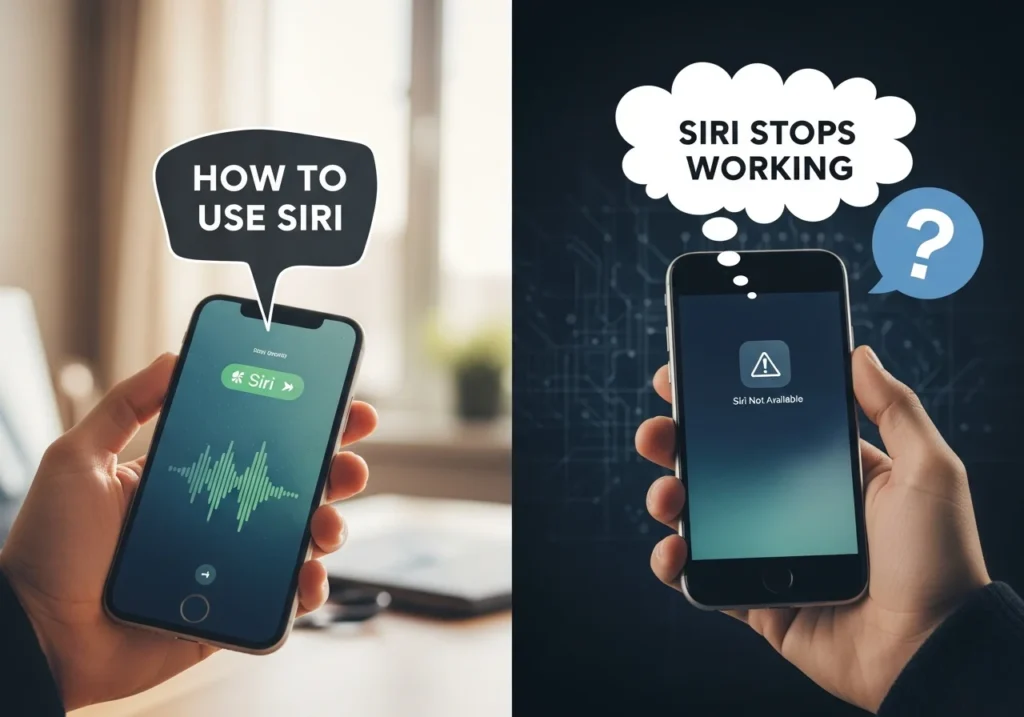
Introduction to Siri on Apple Devices
What Siri Can Do
Siri is Apple’s virtual assistant that can handle tasks across your devices. You can use it to:
- Make calls and send texts
- Set reminders, alarms, and calendar events
- Play music and control smart home devices
- Answer questions and provide directions
- Automate tasks with Siri Shortcuts
Pro Tip: Siri works best when you speak clearly and use simple commands.
Supported Devices
Siri is available on:
- iPhone & iPad
- HomePod & HomePod mini
- Apple Watch
- AirPods & compatible headsets
- Mac (limited functions)
How Siri Improves Productivity and Accessibility
Siri helps save time and keeps your hands free. It’s also a powerful accessibility tool for people with visual or mobility challenges. For example, you can use Siri to:
- Read and reply to messages
- Open apps
- Navigate without touching the screen
How to Use Siri Effectively
Activating Hey Siri
- Open Settings > Siri & Search.
- Toggle Listen for “Hey Siri” on.
- Follow the on-screen prompts to train Siri to recognize your voice.
- Test by saying: “Hey Siri, what’s the weather today?”
Pro Tip: Speak naturally, not too fast or slow.
Using Siri on HomePod
- Say “Hey Siri” followed by your request.
- Example: “Hey Siri, play relaxing music.”
- You can also use Siri to control HomeKit devices: “Turn off the bedroom lights.”
Siri on Apple Watch, AirPods, and Headsets
- Press and hold the Digital Crown on Apple Watch to activate Siri.
- On AirPods (2nd gen or later), double-tap or say “Hey Siri.”
- Compatible headsets may have a dedicated Siri button.
Using Siri Shortcuts for Quick Actions
Using Siri Shortcuts for Quick Actions. For users who want to maintain optimal device performance, an iCloud cleanup and insights tool can provide detailed storage analytics and help free up space automatically.
- Open Shortcuts app.
- Tap + to create a shortcut.
- Assign a Siri phrase to trigger it.
- Example: “Hey Siri, morning routine” to turn on lights, play music, and read the news.
Making Hands-Free Calls and Sending Messages
- “Hey Siri, call Mom.”
- “Hey Siri, send a message to John saying I’ll be late.”
- Siri can read incoming messages aloud and allow hands-free replies.
Setting Alarms, Reminders, and Calendar Events
- “Hey Siri, set an alarm for 7 AM.”
- “Remind me to water the plants at 5 PM.”
- “Schedule a meeting with Alex tomorrow at 3 PM.”
Voice-to-Text and Dictation with Siri
- Open any text field.
- Tap the microphone icon or say “Hey Siri, dictate.”
- Speak your message; Siri converts speech to text.
Common Issues When Siri Stops Working
Siri Not Responding to Voice Commands
- Siri may fail if Hey Siri is disabled or misconfigured.
- Background noise or microphone blockage can also cause issues.
Device-Specific Problems
- iPhone/iPad: Software glitches or outdated iOS.
- HomePod: Connectivity issues with Wi-Fi.
- Apple Watch: Out-of-range Bluetooth or low battery.
Siri Not Working After iOS or Software Updates
- Sometimes new updates reset or modify settings.
- Siri might require re-activation after a major update.
Microphone or Hardware Issues
- Blocked or damaged microphones prevent Siri from hearing commands.
- Test by recording a voice memo.
Troubleshooting Siri
Restarting Siri or Your Device
- Restart your iPhone, iPad, or HomePod.
- On iPhone: Settings > General > Shut Down, then power on.
Checking Siri Settings and Permissions
- Open Settings > Siri & Search.
- Ensure Listen for “Hey Siri”, Press Side/Home Button for Siri, and Allow Siri When Locked are on.
- Check app-specific Siri permissions in the same menu.
Resetting Siri Settings
- Open Settings > Siri & Search.
- Toggle Listen for “Hey Siri” off, then on again.
- Retrain Siri with your voice.
Updating iOS or HomePod Software
- Keep devices updated: Settings > General > Software Update.
- HomePod: Home app > HomePod > Settings > Update Software.
Checking Network Connection
- Siri requires Wi-Fi or cellular data for most requests.
- Switch to a stronger network if commands fail.
Adjusting Siri Language and Voice Feedback
- Settings > Siri & Search > Language: Choose your preferred language.
- Siri Voice: Choose a voice for clearer recognition.
Handling Screen Time or Restrictions
- Restrictions can block Siri.
- Check: Settings > Screen Time > Content & Privacy Restrictions > Allowed Apps.
Advanced Tips for Using Siri
Re-Training “Hey Siri” Voice Recognition
- Turn off Listen for “Hey Siri”, then on again.
- Follow the voice training prompts carefully.
Using Siri Shortcuts for Automation
- Combine multiple actions into one command.
- Example: “Hey Siri, bedtime” can set an alarm, dim lights, and play sleep sounds.
Optimizing Siri Performance Across Devices
- Keep all devices on the same Apple ID.
- Ensure microphones are clean and unobstructed.
Fun Commands to Explore
- “Tell me a joke.”
- “Flip a coin.”
- “What’s my heart rate?” (Apple Watch)
Preventing Siri Issues in the Future
Keep iOS and HomePod Software Updated
- Regular updates fix bugs and improve voice recognition.
Maintain Microphone and Device Functionality
- Avoid cases or covers that block microphones.
- Keep devices clean from dust and debris.
Best Practices for Consistent Siri Performance
- Speak clearly and naturally.
- Retrain Hey Siri if recognition declines.
- Restart devices periodically to prevent minor glitches.
Author Bio
Written by a tech enthusiast with years of experience in iOS and Apple ecosystems. Specializes in practical, step-by-step guides to help users maximize productivity and enjoyment with Apple devices.
FAQs
Why Is Siri Not Working After an Update?
Updates can reset settings. Re-enable Hey Siri and check permissions.
Can Siri Work Without Internet?
Limited offline commands (alarms, timers, music control). Most queries require Wi-Fi or cellular.
How to Reset Siri on HomePod or Apple Watch
HomePod: Home app > HomePod > Settings > Reset HomePod.
Apple Watch: Settings > Siri > Turn Off/On, then retrain.
What to Do If Siri Still Doesn’t Respond
Restart your device.
Check microphones and network connection.
Contact Apple Support if issues persist.