
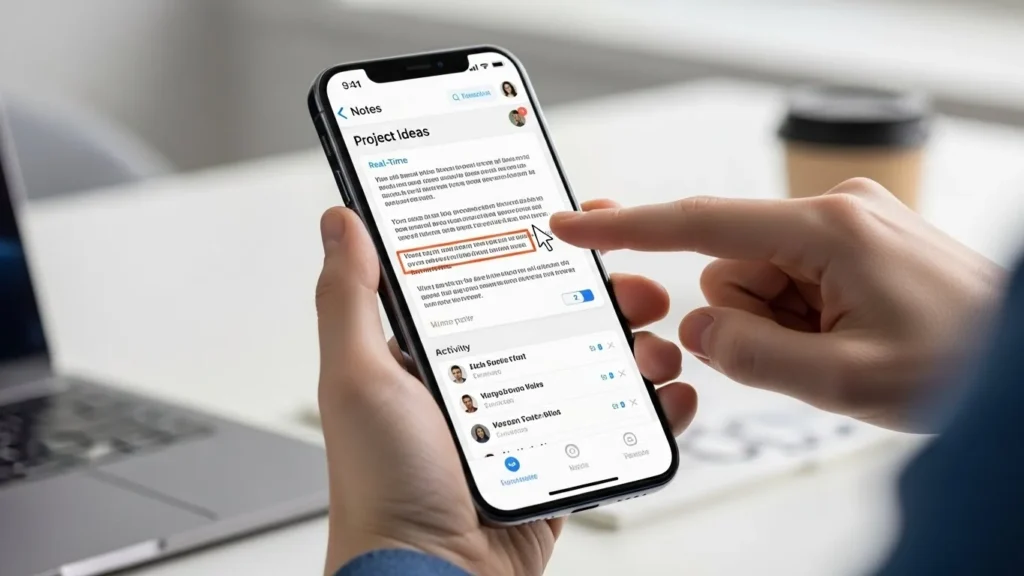
Why Sharing Notes on iPhone Is Useful
Sharing notes on your iPhone can save time, improve collaboration, and keep everyone on the same page. Whether you’re coordinating a work project, sharing a shopping list with family, or managing study notes with classmates, the iPhone Notes app makes it easy to share and collaborate in real time.
Devices and iOS Versions Covered
This guide applies to iPhone models running iOS 16 and later, including the iPhone 14, iPhone 15, and iPhone SE. Make sure you’re signed into iCloud to use all sharing and collaboration features.
Overview of Sharing and Collaboration Options
With iCloud integration, the Notes app allows you to:
- Share a single note via email, Messages, or a link.
- Collaborate on notes in real time with multiple people.
- Share entire folders for organized group projects.
- Set permissions to control who can view or edit.
Also Read:
iPhone Symbols on Top of the Screen
How to Share a Note on iPhone
Step-by-Step Guide to Sharing a Single Note
- Open the Notes app on your iPhone.
- Tap the note you want to share.
- Tap the More button (three dots) in the top-right corner.
- Select Share Note.
- Choose your sharing method: Messages, Mail, or Copy Link.
Send via Email, Message, or Link
- Messages: Sends a clickable link for collaborators to access the note.
- Mail: Sends the note’s content in an email.
- Copy Link: Lets you paste the link anywhere, like Slack or WhatsApp.
Setting Permissions: View or Edit
- After tapping Share Note, choose Share Options.
- Select Can Edit or View Only depending on what collaborators are allowed to do.
- Confirm by tapping Done.
Tip: Always choose Can Edit if you want team members to contribute in real time.
How to Collaborate on Notes Using iCloud
Adding People to a Shared Note
- Open the note and tap the More button.
- Tap Share Note → Add People.
- Enter the collaborator’s email or phone number.
- Tap Add and select Share Options to set permissions.
Real-Time Updates and Notifications
- Changes by collaborators appear instantly.
- You’ll receive notifications when someone edits the note.
- This ensures everyone is always working on the latest version.
Managing Collaborators: Remove or Change Permissions
- Open the shared note.
- Tap Add People → Manage Shared Note.
- To remove a collaborator, swipe left on their name and tap Remove.
- To change permissions, tap Can Edit or View Only next to their name.
Sharing Folders in the Notes App
How to Share an Entire Folder
- Open the Notes app and navigate to Folders.
- Tap Edit → select the folder to share.
- Tap Share Folder.
- Enter email addresses or choose Copy Link.
- Set folder permissions and tap Done.
Folder Permissions: Edit vs View Only
- Can Edit: Collaborators can add, delete, and edit notes.
- View Only: Collaborators can see notes but cannot make changes.
Tips for Organizing Shared Folders
- Create folders for specific projects or topics.
- Name folders clearly to avoid confusion.
- Regularly review permissions to keep the folder secure.
Troubleshooting Notes Sharing Issues
Notes Not Syncing
- Ensure you’re signed into iCloud.
- Check that iCloud Notes is enabled under Settings → [Your Name] → iCloud → Notes.
- Try restarting your iPhone.
iCloud Collaboration Problems
- Verify the recipient is using iCloud.
- Make sure both you and the collaborator have an active internet connection.
Cannot Add or Remove Collaborators
- Update your iOS to the latest version.
- Ensure you have editing permissions on the shared note.
Notes App Errors and Quick Fixes
- Force close and reopen the Notes app.
- Restart your device if errors persist.
- For persistent issues, sign out and back into iCloud.
Tips and Best Practices
Keep Shared Notes Organized
- Use clear titles and bullet points.
- Archive outdated notes to reduce clutter.
Use Folders for Team Collaboration
- Group related notes for each project.
- Assign naming conventions like “Project X – Meeting Notes”.
Maintain Privacy and Security
- Limit sharing to trusted collaborators.
- Avoid sharing sensitive information in public links.
Avoid Duplicate or Conflicting Edits
- Encourage collaborators to update notes in real time.
- Use version control by noting the last edit date.
FAQs
How Do I Share Notes With Someone Who Doesn’t Have iCloud?
You can send notes via email or copy a link, but real-time collaboration requires iCloud.
Can Multiple People Edit a Note at the Same Time?
Yes! With iCloud, collaborators can edit notes simultaneously, and changes appear instantly.
How Do I Stop Sharing a Note or Folder?
Open the note or folder.
Tap Add People → Stop Sharing.
Confirm removal of all collaborators.
What Happens If a Collaborator Deletes a Shared Note?
Deleting a note removes it for all collaborators. To prevent accidental loss, duplicate important notes before sharing.
Can I Share Notes With Non-Apple Users?
Yes, by sending a link or email, but editing requires an iCloud account.
Key Tips for Smooth Collaboration
- Always set clear permissions.
- Keep notes organized in folders.
- Monitor activity and updates regularly.
Recommended Practices for iPhone Note Sharing
- Use iCloud for seamless collaboration.
- Limit access to trusted collaborators.
- Regularly review and update shared notes to avoid confusion.