
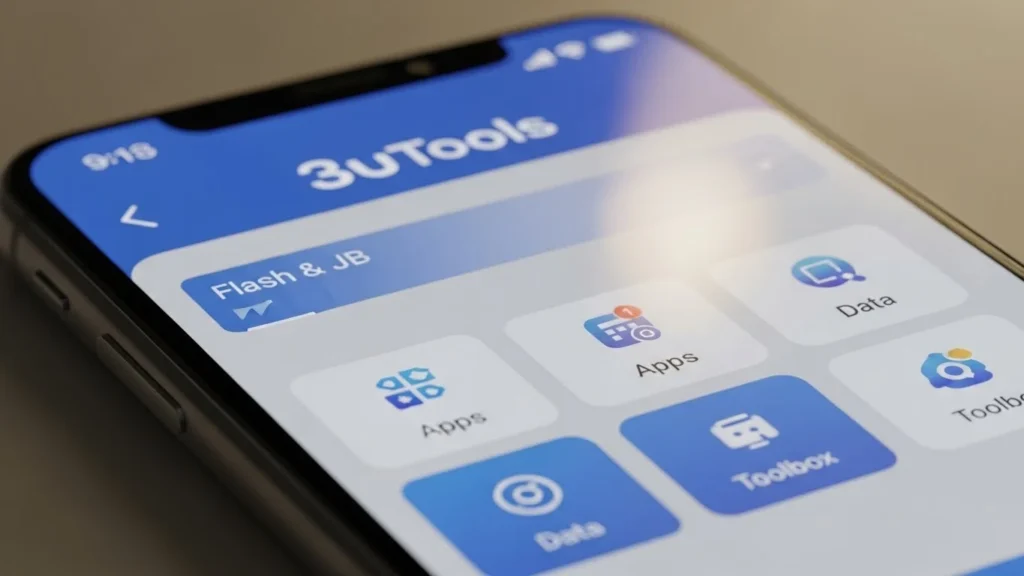
Managing your iPhone can sometimes feel tricky, especially when dealing with backups, restoring data, flashing firmware, or even jailbreaking. This is where 3uTools comes in a reliable, beginner-friendly iPhone system toolkit that makes managing your iOS device easy, safe, and efficient.
What is 3uTools?
3uTools is a powerful iPhone management software for Windows that combines multiple tools into one platform. It allows users to manage apps, files, photos, videos, and even perform iOS flashing or jailbreaking safely.
Key points:
- Free and beginner-friendly
- Combines multiple iOS tools into one interface
- Offers system monitoring, backup, restore, and file management
Why Use 3uTools for iPhone
Using 3uTools provides several benefits over relying solely on iTunes:
- All-in-One Toolkit: Backup, restore, flash, jailbreak, manage files, and apps in one place.
- User-Friendly Interface: Designed for beginners with easy navigation.
- Safe and Reliable: Reduces risk of data loss during iOS updates or flashing.
- Extra Features: Virtual location, custom ringtones, and real-time device monitoring.
Common iPhone Problems It Can Solve
3uTools is ideal for users facing:
- iPhone stuck on Apple logo or boot loops
- Slow performance or insufficient storage
- iOS update errors
- Backup and restore challenges
- Need for file or app management without Apple ID
How to Download and Install 3uTools
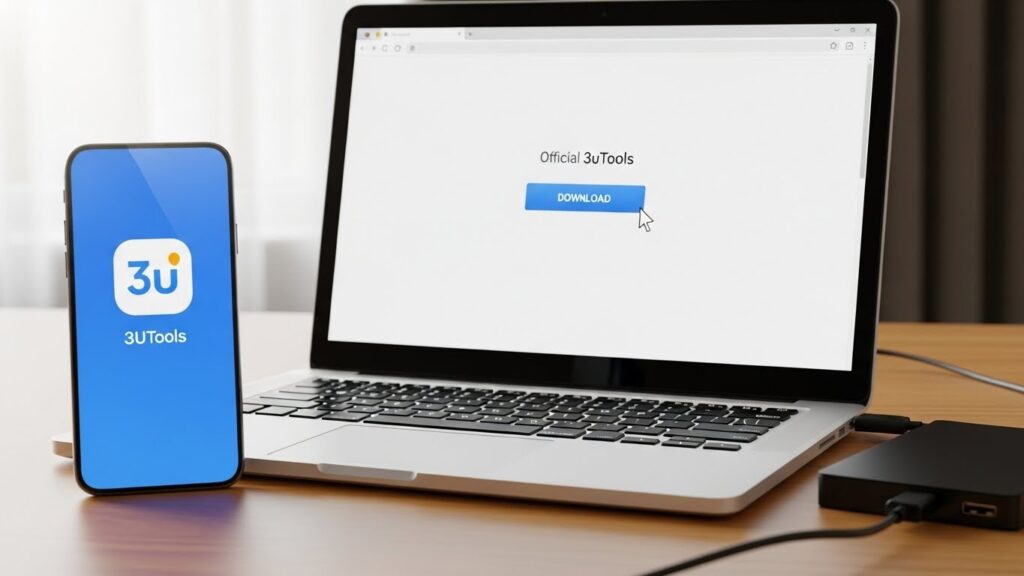
Step-by-Step Installation for Windows
- Visit the official 3uTools website.
- Click Download for Windows.
- Open the downloaded .exe file.
- Follow on-screen instructions and select installation path.
- Click Finish to complete installation.
System Requirements and Compatibility
| Requirement | Details |
| OS | Windows 7/8/10/11 (64-bit recommended) |
| CPU | Intel or AMD dual-core or higher |
| RAM | 2 GB minimum, 4 GB recommended |
| Storage | 200 MB free disk space |
| iOS Compatibility | iOS 5 to iOS 18+ |
Launching the Tool for the First Time
- Open 3uTools from the desktop shortcut.
- Connect your iPhone via USB.
- Wait for the device to be detected automatically.
- You’ll see a dashboard with device info, storage, battery health, and iOS version.
Top Features of 3uTools for iPhone
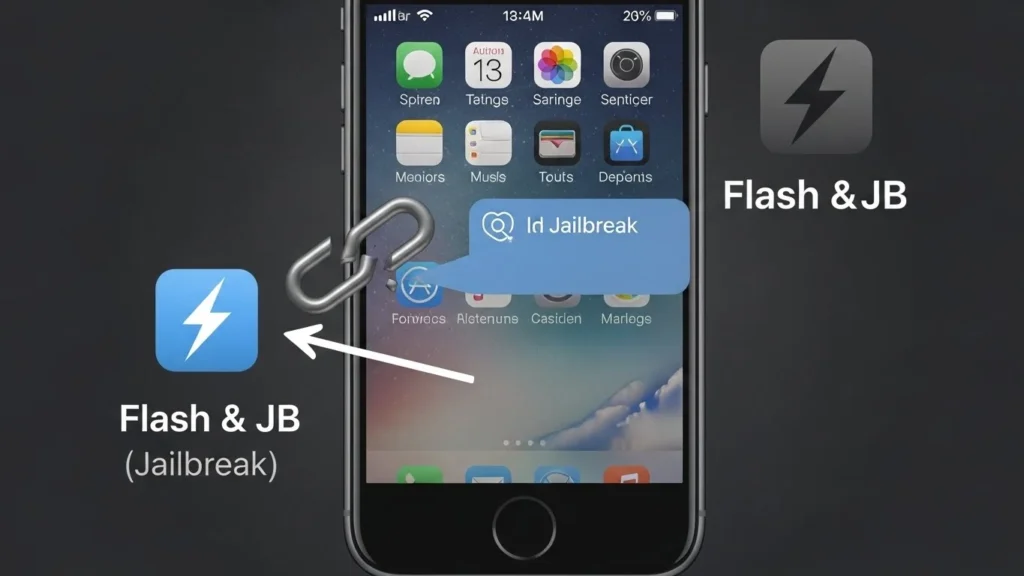
1. iOS Flashing (One-Click Flash)
- Flash iOS firmware safely without losing data (Fast Flash Mode)
- Retain Data Mode keeps your apps, photos, and settings intact
2. Backup and Restore
- Full backup of contacts, messages, apps, and media
- Easy restore to previous versions
3. Jailbreak Tools
- One-click jailbreak iPhone
- Safe and compatible with multiple iOS versions
4. Real-Time Device Monitoring
- Monitor battery health, storage, and performance
- Detect potential issues early
5. App Management Without Apple ID
- Install or uninstall apps without Apple ID
- Manage apps efficiently
6. File Management
- Transfer photos, videos, music, and documents
- Organize files directly from PC
7. Custom Ringtone Maker
- Create personalized ringtones from your favorite songs
8. Photo and Video Toolbox
- Compress, convert, or export media easily
9. Virtual Location Setting
- Spoof your iPhone location safely
10. Fast Flash Mode & Retain Data Mode
- Fast Flash: Reinstall iOS quickly
- Retain Data: Keep all personal data intact
How to Use 3uTools Step-by-Step
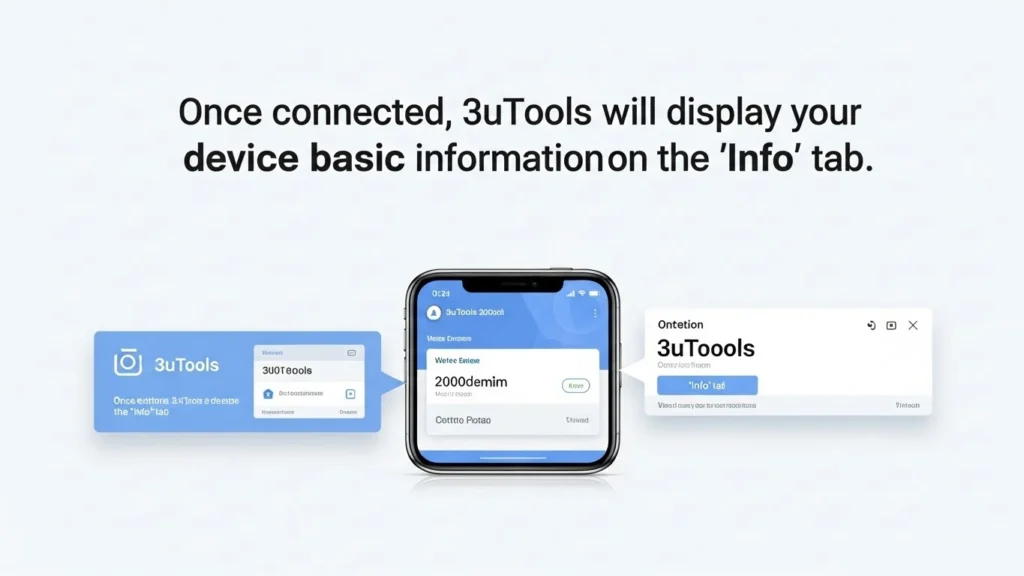
Backup and Restore Data
- Connect iPhone → Open 3uTools → Toolbox → Backup/Restore
- Select files to backup → Start backup
- Restore anytime by selecting Restore Backup
Flash iOS Firmware
- Go to Flash & JB → Choose firmware
- Select Retain Data Mode or Full Flash
- Click Flash → Wait until process completes
Jailbreak iPhone Safely
- Open Flash & JB → Jailbreak
- Follow instructions for your iOS version
- Reboot iPhone after completion
Manage Apps and Files
- Navigate to Apps or Files
- Install/uninstall apps or transfer files via drag-and-drop
Customize Ringtones
- Open Ringtone Maker → Select audio file
- Cut desired section → Save as ringtone
- Sync with iPhone
Use Virtual Location Feature
- Open Virtual Location → Enter desired GPS coordinates
- Click Go → iPhone location is updated
Monitor iPhone Health
- Check battery cycles, storage usage, and system info
- Optimize performance from Device Info tab
Troubleshooting Common 3uTools Issues
| Issue | Solution |
| Tool not opening | Reinstall 3uTools, run as administrator |
| iPhone not detected | Check USB cable, enable Trust This Computer, update drivers |
| Flashing errors | Use Retain Data Mode, ensure stable internet & USB connection |
| Jailbreak fails | Check iOS compatibility, retry with latest 3uTools version |
| File transfer problems | Update iTunes, restart 3uTools, reconnect device |
Tips for Best Results Using 3uTools
- Always backup before making changes
- Keep 3uTools updated for new features & fixes
- Use stable USB connection during flashing or restore
- Avoid interrupting processes to prevent data loss
FAQs
Is 3uTools safe to use?
Yes, it’s widely trusted and safe when downloaded from the official website.
Can I restore iPhone without losing data?
Yes, using Retain Data Mode during flashing or restoring backups.
Which iPhone models are supported?
All models from iPhone 4s to the latest iPhone 15 series.
Is jailbreaking safe with 3uTools?
Yes, when following instructions and using supported iOS versions.
Is there a free version of 3uTools?
Yes, the full software is free with optional paid services for advanced features.
Final tips:
- Backup regularly
- Keep software updated
- Use stable connections during flashing
- Explore features gradually to maintain iPhone health
With 3uTools, iPhone management has never been easier!