
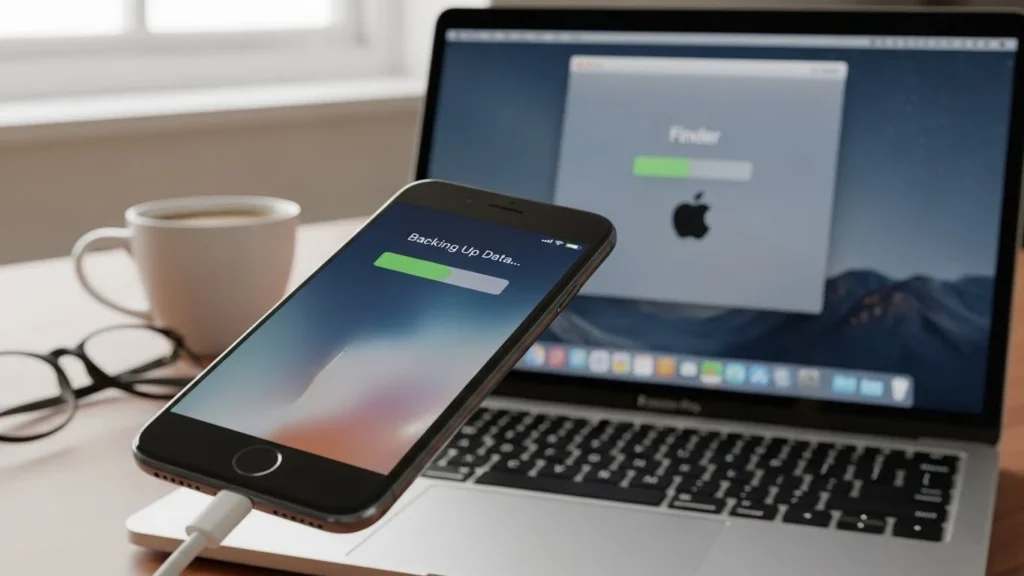
Backing up your iPhone is essential to keep your precious photos, contacts, messages, apps, and other data safe. Whether you accidentally delete files, lose your device, or upgrade to a new iPhone, having a reliable backup ensures you can restore your data without hassle. In this guide, we’ll explore the best tools to backup iPhone data, including iCloud alternatives, step-by-step instructions, troubleshooting tips, and recommendations for both beginners and advanced users.
Why iPhone Backups Are Important
Data loss can happen unexpectedly iPhone damage, software issues, or accidental deletions can all lead to permanent loss. Regular backups allow you to:
- Restore your iPhone in case of data loss
- Transfer data to a new device effortlessly
- Protect against accidental deletions or malware attacks
- Manage multiple devices with cross-platform backup solutions
Common Backup Methods
iPhone users have three primary backup options:
- iCloud Backup – Apple’s official cloud storage solution.
- iTunes / Finder Backup – Backup locally to your computer.
- Third-Party Backup Tools – iPhone backup software offering flexibility and extra features.
Before backing up, it’s important to follow precautions to prevent errors.
Precautions Before Backing Up
Before creating an iPhone backup, make sure you:
- Have enough storage space on iCloud or your computer
- Use trusted software from official sources
- Charge your device to at least 50% to avoid interruptions
- Keep a stable Wi-Fi connection for cloud backups
Best iPhone Backup Tools in 2025
Here’s a detailed list of top iPhone backup tools with features, pros, cons, and pricing.
| Tool | Key Features | Pros | Cons | Pricing |
| iCloud | Automatic cloud backup, sync across Apple devices | Easy, official, no extra software | Limited free storage (5GB), slower for large backups | Free 5GB, paid plans from $0.99/mo |
| iTunes / Finder | Local backup, full device restore | Free, reliable for offline backup | Requires computer, no cross-platform | Free |
| iMazing | Flexible backup, selective restore, app & media backup | Comprehensive, cross-platform, secure | Paid, learning curve for beginners | Starts at $44.99 |
| AltTunes / Softorino | Quick iPhone backup, media management | User-friendly, fast | Limited advanced features | $29.95 one-time |
| Wondershare MobileTrans | Full backup, restore, transfer, cross-platform | All-in-one solution, supports large backups | Paid, requires installation | Starts at $29.95/year |
| Tenorshare iCareFone | Backup & restore, selective data transfer | Easy interface, supports multiple data types | Paid, some features limited in free version | $35.95/year |
| Dr.Fone – Phone Backup | Flexible backup, restore, cross-device transfer | Comprehensive, supports all iOS versions | Paid, complex interface for beginners | Starts at $39.95/year |
How to Backup iPhone Data Safely
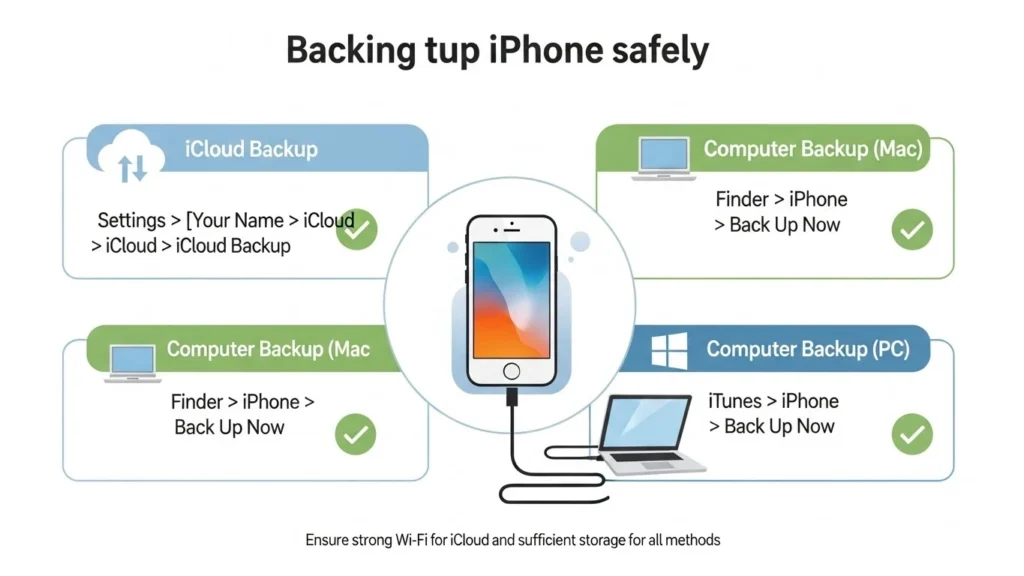
1. Backup Using iCloud
- Connect your iPhone to a Wi-Fi network.
- Go to Settings > [Your Name] > iCloud > iCloud Backup.
- Toggle iCloud Backup on.
- Tap Back Up Now and wait until the process finishes.
Tip: Enable automatic backups for hassle-free data protection.
2. Backup Using iTunes / Finder
- Connect your iPhone to a computer using a USB cable.
- Open iTunes (Windows/macOS Mojave or earlier) or Finder (macOS Catalina or later).
- Select your device and click Back Up Now.
- Optionally, encrypt your backup for extra security.
3. Backup Using Third-Party Tools
Example: iMazing
- Download and install iMazing on your computer.
- Connect your iPhone and select Backup.
- Choose Full Backup or Selective Backup.
- Click Back Up Now and wait for completion.
Other tools like AltTunes, MobileTrans, or Tenorshare iCareFone follow similar steps with user-friendly interfaces.
Tips for Safe Backups
- Always verify backup completion before disconnecting your device.
- Use encryption for sensitive data.
- Keep multiple backup copies (cloud + local) for extra security.
- Regularly update your backup to include new data.
Troubleshooting Common iPhone Backup Issues
1. Backup failed due to storage limits
- Check iCloud or computer storage.
- Delete unnecessary files or upgrade storage.
2. iPhone not recognized by computer
- Restart both iPhone and computer.
- Update iTunes or OS.
- Try a different USB cable/port.
3. Backup stuck or taking too long
- Ensure a stable Wi-Fi connection for iCloud.
- Avoid running heavy apps during backup.
- For large backups, consider third-party tools.
4. Restore issues after backup
- Check backup integrity.
- Ensure device iOS is compatible.
- Use official or trusted third-party software.
FAQs
Can I backup iPhone without iCloud or iTunes?
Yes, third-party tools like iMazing, MobileTrans, and AltTunes allow backup without iCloud or iTunes.
Which tool is best for large iPhone backups?
iMazing and Wondershare MobileTrans are ideal for large backups with selective restore options.
How often should I backup my iPhone?
Weekly backups are recommended, or enable automatic iCloud backup for daily protection.
Can I restore backup to another iPhone?
Yes, both iCloud, iTunes/Finder, and most third-party tools allow restoring to any compatible iPhone.
Conclusion
Backing up your iPhone is no longer optional it’s essential for data safety.
- For Beginners: iCloud or AltTunes offers easy, worry-free backups.
- For Advanced Users: iMazing or Wondershare MobileTrans provides comprehensive, cross-platform options with selective restore and large data management.
Final Tips: Always keep multiple backups, verify their integrity, and update them regularly. Choosing a trusted iPhone backup tool ensures your data is safe, secure, and easily recoverable when needed.