
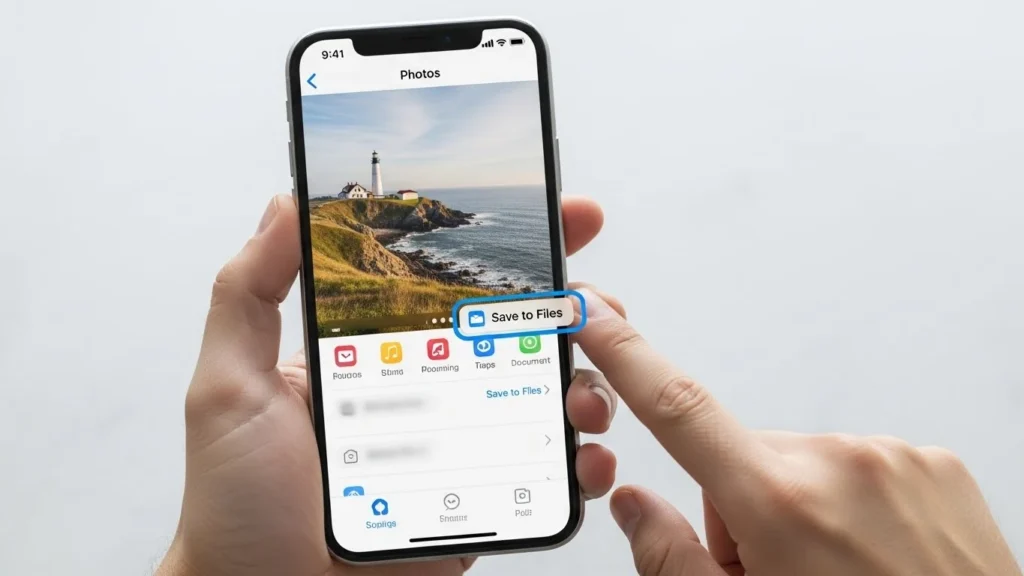
Converting your iPhone photos to PDF can make sharing, archiving, and organizing images much easier. Whether you want to email multiple images as a single document or keep important photos in a clean, professional format, saving photos as PDFs is a handy skill. In this guide, we’ll cover several simple ways to convert iPhone photos to PDF without needing advanced tools or technical skills.
Why Convert iPhone Photos to PDF?
PDF, or Portable Document Format, is widely used for sharing documents because it preserves formatting and quality across devices. Saving iPhone photos as PDF has several benefits:
- Keeps images organized in a single file
- Makes sharing multiple photos easier via email or messaging
- Preserves quality without compression like in some image formats
- Useful for archiving receipts, documents, or scanned notes
Common use cases include sending scanned documents, receipts, forms, presentations, or creating a professional photo portfolio.
Method 1: Save a Photo as PDF Using the Photos App
Your iPhone can turn photos into PDFs directly from the Photos app without any third-party tools.
Step-by-Step Instructions:
- Open the Photos app and select the photo you want to convert.
- Tap the Share icon (square with an arrow pointing up).
- Scroll down and select Print.
- On the printer preview screen, use a pinch-out gesture on the image to open it as a PDF.
- Tap the Share icon again.
- Choose Save to Files to store it on your iPhone or iCloud, or Share via email or messaging.
Tips & Edge Cases:
- This method works for single photos easily.
- If you want to save multiple photos, consider using the Files app method below.
- Make sure your iOS is up-to-date to see the Print to PDF option.
Method 2: Convert Multiple Photos to PDF Using the Files App
You can create PDFs from multiple images and combine them into one file using the Files app.
Step-by-Step Instructions:
- Open the Photos app and select the photos you want to combine.
- Tap the Share icon and choose Save to Files. Pick a folder in iCloud or On My iPhone.
- Open the Files app and navigate to the folder containing your images.
- Tap the Select button, choose all photos, then tap the More button (three dots) → Create PDF.
- The combined PDF is saved in the same folder. Tap it to rename, share, or move.
Tips:
- Images appear in the PDF in the order you select them.
- For better results, sort photos in Photos app first.
Method 3: Using Apple Books to Save Photos as PDF
Apple Books can also store and manage your PDFs after converting your images.
Step-by-Step Instructions:
- Open the photo in the Photos app.
- Tap Share → Print → Pinch-out gesture to open as PDF.
- Tap Share again and choose Books.
- The PDF is automatically saved in Apple Books for easy reading and sharing.
Tips for Managing PDFs in Apple Books:
- Use Collections in Books to organize PDFs.
- You can annotate PDFs directly in the app.
Alternative Methods: Third-Party Apps and Online Tools
If you want additional features like editing, annotations, or batch conversion, third-party apps can help.
Recommended Free Apps:
- Adobe Acrobat Reader – Convert and combine photos easily.
- PDF Expert – Manage, merge, and annotate PDFs.
- Scanner Pro – Great for scanning and PDF conversion.
Online Tools:
- Websites like ilovepdf.com or smallpdf.com allow you to convert iPhone images to PDF without installing apps.
Tips for Choosing Safe Apps:
- Stick to apps with good ratings on the App Store.
- Avoid apps requesting unnecessary permissions.
- Check for apps that work offline if privacy is important.
How to Combine Multiple Photos into a Single PDF
Combining photos into one PDF is easy using either Files app or third-party apps.
Using Files App:
- Select multiple images → Create PDF (as shown above).
Using Third-Party Apps:
- Apps like Adobe Acrobat or Scanner Pro allow you to drag, drop, and reorder pages before saving.
Tips:
- Arrange photos in the desired order before creating the PDF.
- High-resolution images may make the PDF file large—compress if needed.
Troubleshooting Common Issues
Print to PDF option not appearing:
- Ensure your iPhone runs iOS 11 or later.
- Restart the Photos app if the option is missing.
Conversion fails or PDFs appear blank:
- Recheck the image selection.
- Try saving images to Files app first, then create PDF.
iOS version-specific issues:
- Older iOS versions may lack direct PDF conversion. Consider using Books or third-party apps.
FAQs
Can I convert screenshots or Live Photos to PDF?
Yes, screenshots work like regular images. Live Photos convert as still images—videos won’t be included.
How do I combine multiple albums into one PDF?
Save images from all albums to a single Files app folder, then create PDF from that folder.
How can I share PDFs after conversion?
Use Share in Files or Books to email, message, or upload to cloud services.
Can this be done without third-party apps?
Absolutely Photos, Files, and Books apps on your iPhone handle PDF conversion natively.
Conclusion
Converting iPhone photos to PDF is simple and versatile:
- Single photo: Use Photos app → Print → Pinch-out → Save or Share.
- Multiple photos: Use Files app to combine into one PDF.
- For organization: Apple Books is perfect for managing PDFs.
- Extra features: Consider safe, free PDF converter apps.
Best Practices:
- Keep PDFs organized in Files or Books for easy access.
- Arrange images in the desired order before combining.
- Use cloud storage for backup and sharing convenience.
With these methods, you can easily convert and manage your iPhone images as PDFs perfect for work, school, or personal organization.