
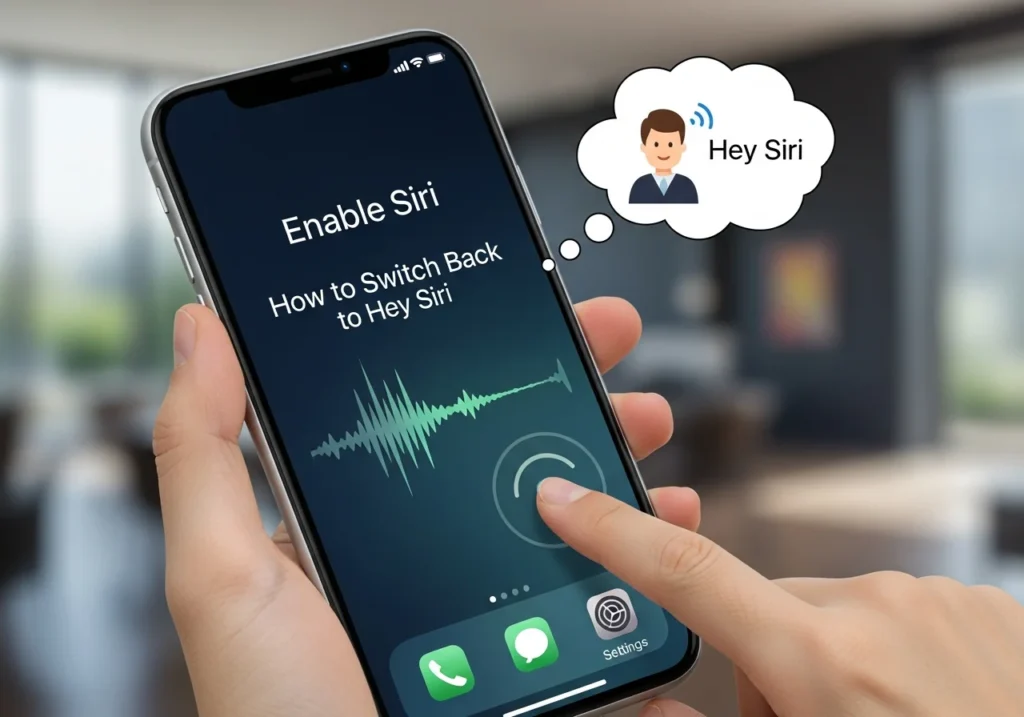
Apple’s iOS 17 brought subtle changes to Siri, including how you wake it with voice commands. Many users noticed that the familiar “Hey Siri” activation behaves differently or feels less responsive after updating. If you’re wondering how to restore the hands-free “Hey Siri” experience, this guide will walk you through it step by step, explain the benefits, and help you troubleshoot common issues.
By the end, you’ll know exactly how to switch back to Hey Siri on iPhone, customize your Siri settings, and make the most of your voice assistant.
What Changed in Siri with iOS 17
Apple made small but important tweaks to Siri in iOS 17:
- Wake-word changes: Siri now responds to both “Siri” and “Hey Siri,” but “Hey Siri” may need to be re-enabled manually after updating.
- Command differences: “Siri” alone can trigger Siri, but “Hey Siri” allows hands-free activation even when the device is locked or across the room.
- Impact on settings: Existing Siri settings may revert or reset, requiring you to retrain Siri to recognize your voice.
Understanding these changes helps ensure your hands-free voice assistant works reliably.
How to Switch Back to Hey Siri on iPhone
Follow these steps to restore “Hey Siri” functionality on iOS 17:
- Open Settings on your iPhone.
- Scroll down and tap Siri & Search.
- Enable “Listen for Hey Siri” by toggling it on.
- Train Siri to recognize your voice:
- Tap Continue when prompted.
- Repeat the phrases displayed on the screen.
- Test Hey Siri by saying “Hey Siri” followed by a command, such as “What’s the weather?”
Your iPhone should now respond to “Hey Siri” just like before the update.
Customizing Hey Siri Settings
Once “Hey Siri” is active, you can tailor it to your preferences:
- Adjust Siri voice and language: Tap Siri Voice to pick your preferred voice and accent.
- Select apps that can access Siri: Go to Siri & Search → App Support to control which apps respond to Siri.
- Enable or disable hands-free mode: Useful if you want to prevent accidental activations in noisy environments.
These tweaks help make your Siri experience faster, more accurate, and personalized.
Troubleshooting Hey Siri Issues
If “Hey Siri” isn’t working properly, try these solutions:
- Hey Siri not responding:
- Ensure “Listen for Hey Siri” is enabled.
- Make sure your iPhone isn’t muted or in Do Not Disturb mode.
- Siri misinterprets commands:
- Retrain Siri with your voice in Siri & Search.
- Restart iPhone or reset Siri settings:
- Go to Settings → Siri & Search → Turn Off, then turn it back on.
- Verify microphone and iOS version:
- Make sure your iPhone microphone is clean and functional.
- Keep iOS updated to the latest version (iOS 17.0+ tested).
Tips for Using Hey Siri Effectively
- Hands-free use while driving: Activate “Hey Siri” to make calls, send texts, or get directions safely.
- Accessibility features: Combine Hey Siri with VoiceOver or AssistiveTouch for easier iPhone navigation.
- Productivity tips: Use Siri to set reminders, schedule calendar events, and manage smart home devices without touching your iPhone.
Final Thoughts
Switching back to “Hey Siri” ensures your iPhone voice assistant remains hands-free, fast, and efficient. Keep iOS updated for optimal performance, review your Siri permissions regularly, and explore integrating Siri with your favorite productivity apps.
By following these steps, you’ll get the full benefit of Siri hands-free mode on iOS 17, making everyday tasks simpler, safer, and more convenient. For enhanced iCloud performance and storage efficiency, consider using our iCloud optimization platform.
FAQs
Can I use Hey Siri offline?
Some Siri functions, like controlling device settings, work offline, but most information requests require an internet connection.
How do I retrain Siri to recognize my voice?
Go to Settings → Siri & Search → Listen for Hey Siri, toggle it off, then on, and follow the voice training prompts.
Why does Hey Siri stop working after updating iOS?
Updates can reset settings. Re-enabling and retraining Hey Siri usually fixes the issue.
Can I temporarily disable Hey Siri?
es. Go to Settings → Siri & Search → Listen for Hey Siri and toggle it off.