
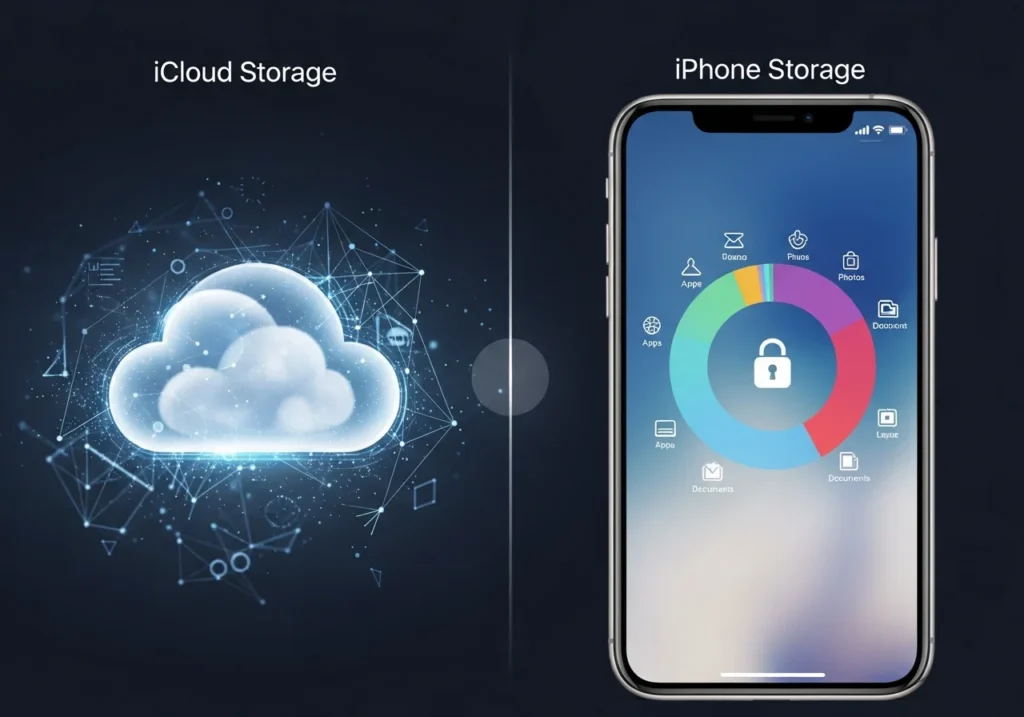
iPhone storage is the physical space on your device where apps, photos, system files, and downloads live.
iCloud storage is Apple’s cloud space on remote servers used for backups, synced data, and iCloud Photos.
Think of iPhone storage as your desk, and iCloud storage as a locker you can open from any device.
For users who want better control, we also recommend exploring our guide on iCloud storage tools for Apple users helpful for optimizing backups, managing files, and keeping your cloud space organized.
| Feature | iPhone storage | iCloud storage |
| Location | On the device (local) | On Apple’s servers (cloud) |
| Purpose | Run apps, store files, system data | Backups, syncing, shared libraries |
| What it stores | App data, downloads, cached files, photos (if stored locally) | iCloud Backup, iCloud Photos, iCloud Drive, Contacts, Calendars |
| How it fills up | Installing apps, saving photos/videos, cached files | Uploading backups, photos, files, app data synced |
| How you manage it | Settings → General → iPhone Storage | Settings → [your name] → iCloud → Manage Storage |
| Does it free device space? | No — it’s local | Sometimes — with “Optimize iPhone Storage” and offloading choices |
What Is iPhone Storage?
iPhone storage is the physical space inside your iPhone.
It holds the operating system, apps, app data, downloads, photos and videos you keep locally.
- Found in: Settings → General → iPhone Storage.
- Shown as: used vs available.
- Examples of items stored locally:
- App binaries and app caches.
- Photos and videos saved to the Photos app.
- Downloaded music, podcasts, offline maps.
- Message histories and attachments (if stored on device).
Visual: imagine opening your iPhone and seeing files on the screen those are in iPhone storage.
What Is iCloud Storage?
iCloud storage is Apple’s online storage tied to your Apple ID.
It keeps data on Apple servers and syncs it across your devices.
- Found in: Settings → [your name] → iCloud.
- Used for:
- iCloud Backup (device settings, app data, Home screen layout).
- iCloud Photos (photo library sync and shared albums).
- iCloud Drive (documents and files).
- Mail, Contacts, Calendars, and app-specific data.
- Accessed from any device or icloud.com.
Analogy: iCloud is a remote locker you send things there and access them from other devices. If you’re unsure what’s taking up space, you can also follow our step-by-step guide to Check iCloud Storage Usage to understand exactly which apps and services are consuming your cloud storage.
Key Differences
Location
- iPhone storage: physically on the device.
- iCloud storage: stored remotely on Apple’s servers.
Purpose
- iPhone storage: running apps and keeping files accessible offline.
- iCloud storage: backup and sync across devices.
What they store
- iPhone: app files, cached data, downloaded media, local copies of photos.
- iCloud: backups, synchronized photo library (or full-resolution originals), documents, contacts.
How they fill up
- iPhone: installing apps, saving videos/photos, app caches.
- iCloud: backups, uploaded photos/videos, iCloud Drive files, app data synced to iCloud.
How you manage them
- iPhone: delete apps, clear caches, offload unused apps, delete large local files.
- iCloud: buy more plan space, delete old backups, manage iCloud Drive and Photos settings.
Does iCloud Free Up iPhone Storage?
Short answer: Sometimes.
- Optimize iPhone Storage (iCloud Photos):
- Keeps small thumbnails on iPhone.
- Stores full-resolution originals in iCloud.
- Frees local space when enabled: Settings → Photos → Optimize iPhone Storage.
- iCloud Backup:
- Backs up device data to the cloud but does not automatically remove local files.
- Backups don’t free space on the device by themselves.
- iCloud Drive / Files:
- Moving documents to iCloud Drive stores them in the cloud; you can remove local copies to free space.
- Offloading apps:
- Offloading (Settings → App Name → Offload App) removes app but keeps documents and data on device; iCloud doesn’t offload apps automatically.
Example:
- You turn on Optimize iPhone Storage and your large photo library moves full-res images to iCloud local device space reduces.
- But if messages, downloads, or apps remain local, your iPhone can still be full.
Why Your iPhone Shows “Storage Full” — Even With iCloud
Common reasons:
- Photos are still stored locally (Optimize iPhone Storage not enabled).
- Large apps or games installed take up space.
- Messages and attachments (videos, GIFs, PDFs) saved on device.
- App caches and temporary data build up.
- Multiple device backups or large iCloud backups do not reduce local storage.
- Downloaded media (offline music, podcasts, videos).
- System updates requiring free space to install.
Remember: iCloud can sync and back up, but it won’t magically remove every local file.
How to Free Up iPhone Storage (Step-by-step)
Follow these Apple-style steps. Short, clear, and on-screen.
1. Check what’s using space
- Open Settings → General → iPhone Storage.
- Tap any category or app to see details.
2. Remove or offload large apps
- In iPhone Storage tap an app → Offload App or Delete App.
- Offload removes the app but keeps its documents.
3. Manage Photos
- Enable Settings → Photos → Optimize iPhone Storage.
- Delete duplicates and burst photos.
- Move full-resolution files to a computer or external drive if needed.
4. Clear Messages attachments
- Settings → General → iPhone Storage → Messages.
- Delete large attachments and old conversations.
5. Remove downloaded media
- Open Music/Podcasts/Netflix and delete offline content.
6. Clear Safari cache
- Settings → Safari → Clear History and Website Data.
7. Delete old backups and unnecessary iCloud files
- Settings → [your name] → iCloud → Manage Storage.
- Delete device backups you don’t need.
- Remove large files from iCloud Drive if you want to free cloud space.
8. Restart and update
- Restart iPhone to clear temporary caches.
- Install iOS updates; sometimes they optimize storage management.
iCloud Storage Plans & When You Need Them
Apple gives 5 GB free per Apple ID. That fills quickly with backups and photos.
Common upgrade plans (typical tiers):
- 50 GB: for light photo users and one device backup.
- 200 GB: family sharing, bigger photo libraries.
- 2 TB: heavy users, multiple devices, iCloud Drive power users.
When to upgrade:
- You see “Not Enough iCloud Storage” during backup.
- You want full-resolution iCloud Photos for multiple devices.
- You have many device backups or large iCloud Drive files.
- You share storage with family and need larger quota.
Tip: check Settings → [your name] → iCloud → Manage Storage to see what’s using space before upgrading.
Final Summary
- iPhone storage is local. It runs apps and holds files you use directly.
- iCloud storage is cloud-based. It backs up and syncs data across devices.
- iCloud can help free device space (e.g., Optimize iPhone Storage), but it does not automatically clear all local files.
- To fix “storage full”: check Settings → iPhone Storage, offload/delete large apps, enable optimization for Photos, and manage iCloud backups.
- If you need more cloud room, upgrade from the free 5 GB to a paid plan.
Need a short step checklist you can copy to your iPhone screen? I can create one-sized instructions for quick reference.
FAQs
What happens when iCloud storage is full?
Backups stop.
iCloud Photos won’t upload new photos.
Syncing and some services may pause until you free space or upgrade.
Why is my iPhone storage full even with iCloud?
Because many items remain stored locally (apps, messages, cached media). iCloud sync/backup doesn’t automatically delete local copies.
Is iCloud Backup the same as iCloud Photos?
No. iCloud Backup saves device settings and app data for restore. iCloud Photos syncs your photo library across devices.
Does deleting photos on iPhone delete them from iCloud?
If iCloud Photos is enabled, deleting on one device deletes across all devices and iCloud. If iCloud Photos is off, deleting only removes the local copy.
Does iCloud free up iPhone storage automatically?
Only when you enable features like Optimize iPhone Storage or move files to iCloud Drive. Backups alone don’t free local space.
How do I see what’s using iCloud storage?
Go to Settings → [your name] → iCloud → Manage Storage to view usage by service.
Can I use iCloud to offload apps?
iCloud doesn’t offload apps automatically. Use Offload App in iPhone Storage to remove the app but keep its data.
How can I reduce both iPhone and iCloud storage use?
Delete unwanted photos and videos (or move to an external drive).
Delete old device backups.
Remove large files from iCloud Drive.
Turn off app data syncing for apps you don’t need in iCloud.