
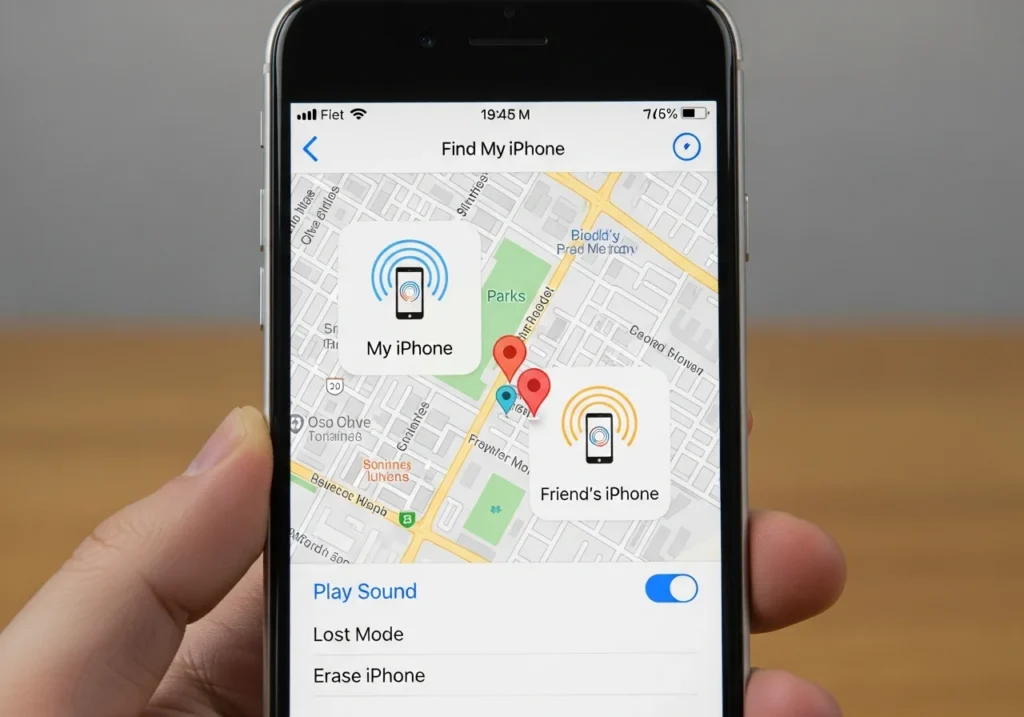
Losing your iPhone or helping a friend locate theirs can be stressful. Apple’s Find My iPhone for a Friend feature makes it easy to track devices, locate family members, and even find other Apple products like iPads, Macs, or AirTags. This guide walks you through everything you need to know in a simple, beginner-friendly way.
What is “Find My iPhone for a Friend” and Why It’s Useful
Find My iPhone for a Friend allows you to:
- Locate a friend’s iPhone when it’s lost or misplaced
- Track devices for family members via Family Sharing
- Ensure safety by quickly finding someone’s device in an emergency
Common scenarios:
- Helping a friend track a lost iPhone at a coffee shop
- Checking the location of a family member for safety
- Finding misplaced devices like iPads, Macs, Apple Watches, or AirPods
Setup & Preparation
Before you can help a friend locate their device, make sure all settings are properly enabled.
1. Enable Find My iPhone
- Open Settings on the iPhone.
- Tap your Apple ID at the top, then go to Find My.
- Tap Find My iPhone and turn it on.
- Enable Send Last Location so the device shares its location if battery is low.
2. Enable Location Sharing with Friends or Family
- Open Settings > Privacy > Location Services and ensure it’s on.
- Go to Find My > Share My Location.
- Choose friends or family to share your location with.
- Confirm Family Sharing is set up for tracking family devices.
3. Check Apple ID and iCloud Settings
- Ensure the device is signed in with the correct Apple ID.
- Verify iCloud is enabled and has Find My iPhone active.
You can also use an iCloud cleanup and insights tool to monitor your storage, remove clutter, and get useful insights into your iCloud account’s health.
How to Locate a Friend’s iPhone Using the Find My App
Once setup is complete, follow these steps:
- Open the Find My app on your iPhone.
- Tap the People tab to see shared locations.
- Select your friend’s name to view their device on the map.
- Tap Directions for navigation to their location.
- Use Notify When Found if the device is offline.
Tip: You can also send a sound to the device to make it easier to locate.
Tracking Family Members’ Devices via Family Sharing
- Open the Find My app and tap Devices.
- Tap a family member’s device to view its location.
- Use Play Sound, Directions, or Mark as Lost for additional help.
Family Sharing makes it simple to track iPhones, iPads, Macs, and Apple Watches in one place.
Tracking Other Apple Devices
Apple’s ecosystem allows tracking of multiple devices:
- Find My iPad, Mac, or Apple Watch: Works the same way as iPhone tracking.
- AirTags: Track personal items like keys, bags, or wallets.
- AirPods: Locate your earbuds when they’re out of sight.
Practical example: Use Find My iPhone for a Friend to locate a misplaced Apple Watch at home.
Troubleshooting Common Issues
Sometimes devices can’t be located. Here’s how to fix common problems:
- Device Offline or Turned Off: Enable Notify When Found to get updates.
- Permissions Issues: Make sure your friend has shared their location with you.
- Location Not Updating: Check internet connection and battery life.
For advanced monitoring, an iCloud Data Analyzer can help you track device backups, detect potential syncing problems, and ensure all your Apple devices are properly backed up.
Privacy, Safety & Ethical Considerations
Tracking a device comes with responsibilities:
- Always get permission from the device owner.
- Avoid using Find My to track people without consent his can be illegal.
- Apple provides privacy safeguards, including end-to-end encryption for shared locations
Conclusion
Using Find My iPhone for a Friend is simple and practical when used responsibly:
- Enable Find My iPhone and location sharing in advance.
- Use the Find My app to locate lost devices quickly.
- Track other Apple devices like Macs, AirPods, and AirTags.
- Always respect privacy and get permission before tracking someone.
By following these steps, you can help friends and family locate devices safely and effectively.
FAQs
Can you track without permission?
No. The owner must enable location sharing.
How accurate is Find My iPhone?
Typically accurate within a few meters when the device has an active internet connection.
How to stop sharing your location
Open Find My > Share My Location and select Stop Sharing.