
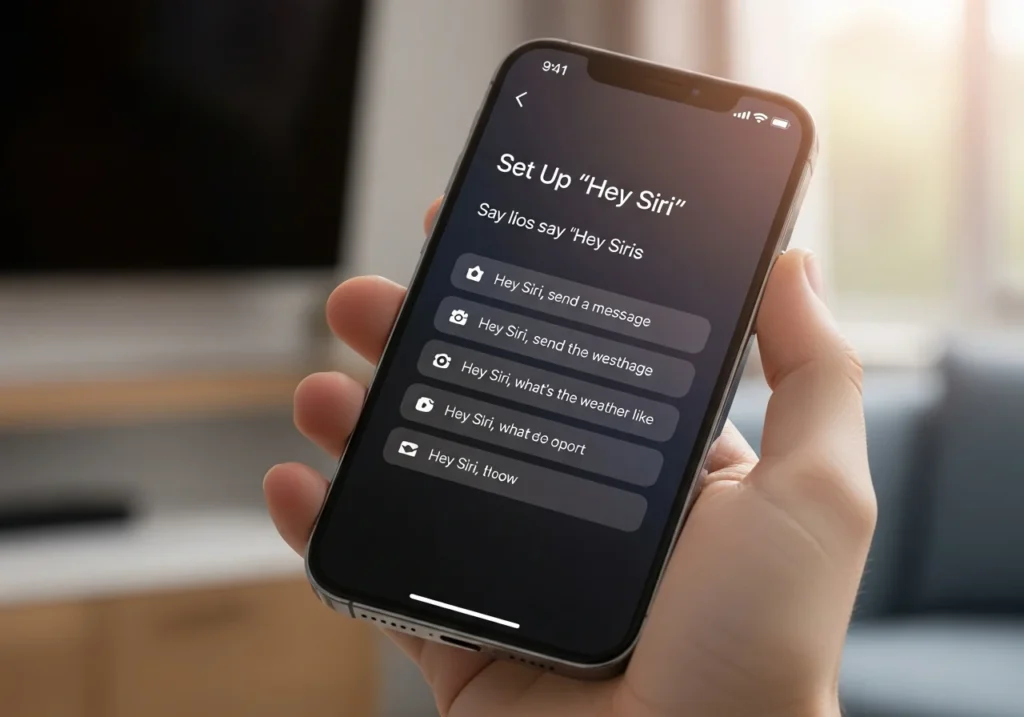
Want to control your iPhone without touching it? Hey Siri makes this possible. By enabling the hands-free voice assistant, you can send messages, set reminders, get directions, control music, and more just by speaking. This guide will walk you step by step through setting up Hey Siri on your iPhone, customizing it, troubleshooting common issues, and using it effectively.
Why Use Hey Siri on iPhone
Hey Siri is Apple’s voice assistant that responds to your voice, even when your iPhone is locked. Here’s why you might want to enable it:
- Hands-free convenience: Perfect for driving, cooking, or multitasking.
- Accessibility: Helps users with limited mobility or vision impairments.
- Productivity: Quickly send texts, set reminders, check the weather, or launch apps.
Compatible iPhones & iOS Versions:
Hey Siri works on iPhone 6s and later running iOS 9 or newer. For the best experience, ensure your device is updated to the latest iOS.
How to Set Up Hey Siri on iPhone
Follow these simple steps to enable Hey Siri:
- Enable Siri in Settings
- Open Settings → Siri & Search.
- Toggle Listen for “Hey Siri” on.
- Turn on Hey Siri Feature
- If prompted, tap Continue to start voice setup.
- Train Siri to Recognize Your Voice
- Speak the phrases shown on your screen.
- Siri learns your voice for better recognition.
- Test Hey Siri Functionality
- Say “Hey Siri” followed by a command, e.g., “What’s the weather?”.
- If Siri responds, setup is complete.
Customizing Hey Siri Settings
Once Hey Siri is active, you can adjust it to your preferences:
- Change Siri voice and language: Settings → Siri & Search → Siri Voice.
- Control app access: Settings → Siri & Search → choose apps Siri can interact with.
- Enable/disable hands-free mode: Decide if Siri works only when plugged in or anytime.
Troubleshooting Hey Siri Issues
If Hey Siri isn’t responding or misinterprets commands, try these fixes:
- Hey Siri not responding: Ensure Listen for “Hey Siri” is enabled and the iPhone is not muted.
- Siri misinterprets commands: Retrain Siri to recognize your voice in Settings.
- Restart iPhone: Sometimes a simple reboot fixes issues.
- Reset Siri settings: Settings → Siri & Search → Turn off and then turn on Siri again.
- Check microphone & iOS: Clean the microphone and update your iPhone to the latest iOS version.
Tips for Using Hey Siri Effectively
- Hands-free use: Ideal for driving, exercising, or cooking.
- Try common commands: “Send a message to [contact],” “Set a reminder for 3 PM,” “Play [song name].”
- Boost productivity: Combine Siri with Shortcuts for automated tasks.
Final Thoughts
Enabling Hey Siri can make your iPhone more convenient, accessible, and productive. Remember to:
- Keep your iOS updated for the best performance.
- Review Siri permissions regularly to maintain privacy.
- Combine Hey Siri with Shortcuts and other iPhone features for maximum efficiency.
By following this guide, you’ll have hands-free control of your iPhone in minutes, helping you stay productive and connected without touching your device. For managing your iPhone storage efficiently, you can also use our iCloud storage management software.
Author Note: This guide is tested on iPhone 12 and iPhone 14 running iOS 18. Steps may vary slightly on older devices.
FAQs
Can I use Hey Siri offline?
Limited offline commands are available for iOS 15 and later, but most features require an internet connection.
How do I retrain Siri to recognize my voice?
Settings → Siri & Search → Turn off Listen for “Hey Siri”, then turn it back on and follow the setup prompts.
Why does Hey Siri stop working sometimes?
Check microphone access, iOS updates, or if your device is in Low Power Mode, which may disable Hey Siri.
Can I temporarily disable Hey Siri?
Yes, toggle Listen for “Hey Siri” off in Settings → Siri & Search.
How do I change Siri’s voice or language?
Settings → Siri & Search → Siri Voice → select preferred voice and language.