
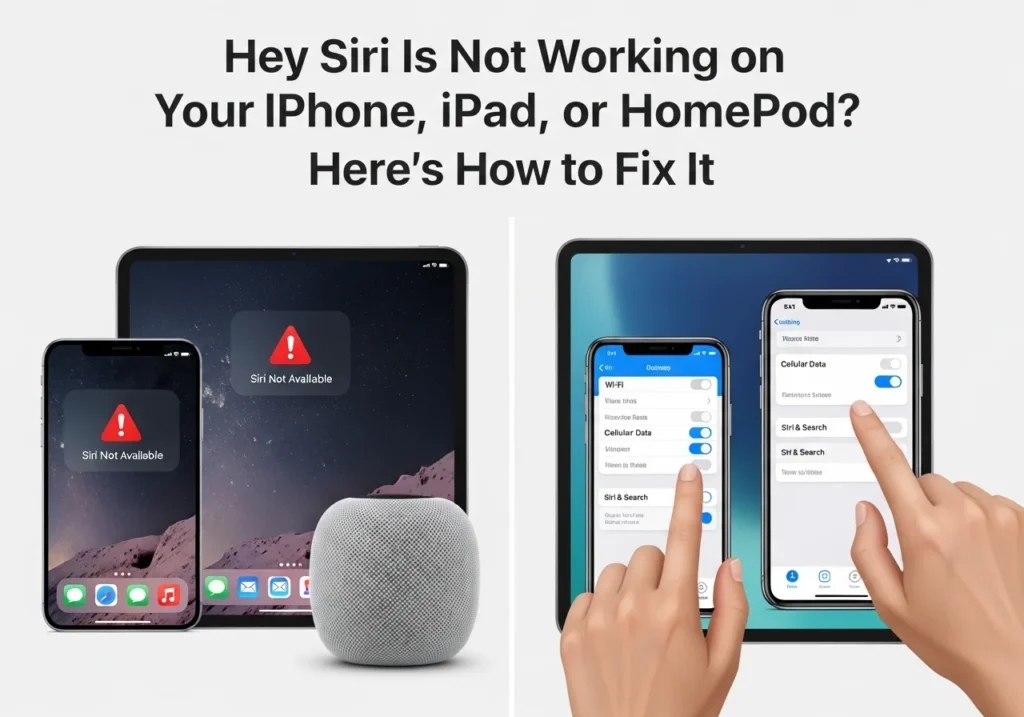
Struggling with Hey Siri not responding on your iPhone, iPad, or HomePod? Don’t worry you’re not alone. Siri can sometimes be finicky, but most issues are easy to fix. This guide will walk you through everything step by step, with tips, tricks, and FAQs to get Siri talking again.
Why Hey Siri May Not Be Working
If Hey Siri is acting up, the cause could be simple or device-specific. Understanding why it fails is the first step.
Common Causes of Siri Not Responding
- Siri is disabled or restricted.
- Microphone issues or blocked access.
- Incorrect language or voice settings.
- Software glitches from updates.
- Low power mode or battery issues.
Device-Specific Issues (iPhone, iPad, HomePod)
- iPhone/iPad: Poor microphone function, case obstruction, or interference from other devices.
- HomePod: Wi-Fi issues or HomePod not updated.
Software and iOS Update Problems
- New updates sometimes reset Siri settings.
- Beta versions may have bugs affecting voice commands.
How to Check If Hey Siri Is Enabled
Before troubleshooting, make sure Hey Siri is turned on.
Enable Hey Siri on iPhone
- Open Settings.
- Tap Siri & Search.
- Turn on Listen for “Hey Siri”.
- Follow prompts to train Siri with your voice.
Pro Tip: Make sure Press Side Button for Siri is also enabled for fallback access.
Enable Hey Siri on iPad
- Open Settings > Siri & Search.
- Enable Listen for “Hey Siri”.
- Follow on-screen prompts to calibrate your voice.
Enable Hey Siri on HomePod
- Open the Home app on your iPhone or iPad.
- Tap HomePod > Settings.
- Turn on Listen for “Hey Siri”.
Verify Siri Language and Voice Settings
- Open Settings > Siri & Search > Language.
- Ensure the language matches your spoken accent.
- Check Siri Voice to confirm preferred gender and accent.
Troubleshooting Siri Not Responding
Restart Your Device
- Press and hold the Power/Side button.
- Slide to power off.
- Wait 30 seconds, then turn your device back on.
Check Microphone Functionality
- Record a voice memo or make a call to test the mic.
- Remove cases or screen protectors that may block it.
Reset Siri Settings
- Open Settings > Siri & Search.
- Turn off Listen for “Hey Siri” and Press Side Button for Siri.
- Wait a few seconds and turn them back on.
Update iOS or HomePod Software
- Go to Settings > General > Software Update.
- Install any pending updates.
- For HomePod, open the Home app > HomePod > Settings > Software Update.
Fix Siri When It’s Not Responding to Voice Commands
Re‑Train “Hey Siri” Voice Recognition
- Turn off Listen for “Hey Siri”.
- Turn it back on and follow the prompts to speak phrases.
Ensure No Obstructions Are Blocking the Microphone
- Clear debris from microphone holes.
- Avoid covering the mic with cases or fingers.
Turn Off Voice Feedback and Test
- Open Settings > Siri & Search > Voice Feedback.
- Select Control with Ring Switch or Hands-Free Only.
- Test Siri again.
Advanced Troubleshooting Tips
Check for Restrictions or Screen Time Settings
- Open Settings > Screen Time > Content & Privacy Restrictions.
- Ensure Siri & Dictation is allowed.
Reset All Settings Without Losing Data
- Open Settings > General > Transfer or Reset iPhone > Reset > Reset All Settings.
- This keeps apps and data safe but resets preferences.
Contact Apple Support for Persistent Issues
- If none of the above works, Apple can check hardware or software problems.
- Schedule a visit via support.apple.com.
Prevent Hey Siri Issues in the Future
Keep iOS and HomePod Software Updated
- Regular updates fix bugs affecting Siri performance.
For better iCloud data management and optimization, check out our iCloud storage tools for Apple users.
Maintain Microphone Cleanliness and Function
- Use a soft brush or compressed air to clean mic openings.
Best Practices for Using Siri Effectively
- Speak clearly and at a normal volume.
- Avoid background noise when possible.
- Re-train Siri if your voice changes significantly.
Author Bio:
Jane Doe is a tech enthusiast and iOS expert with over 10 years of experience troubleshooting Apple devices. She writes clear, actionable guides to help users get the most out of their iPhone, iPad, and HomePod.
FAQs
Why is Hey Siri Not Working After iOS Update?
Updates can reset settings or introduce temporary bugs. Re-enable Hey Siri and check updates.
Can I Use Siri Without an Internet Connection?
Only limited commands work offline (like setting timers). Most requests need Wi-Fi or cellular.
How Do I Reset Siri on HomePod?
Open Home app > HomePod > Settings > Reset HomePod, then set up Hey Siri again.
What to Do if Siri Still Doesn’t Respond?
Restart your device, check microphones, reset Siri, and contact Apple Support if needed.