
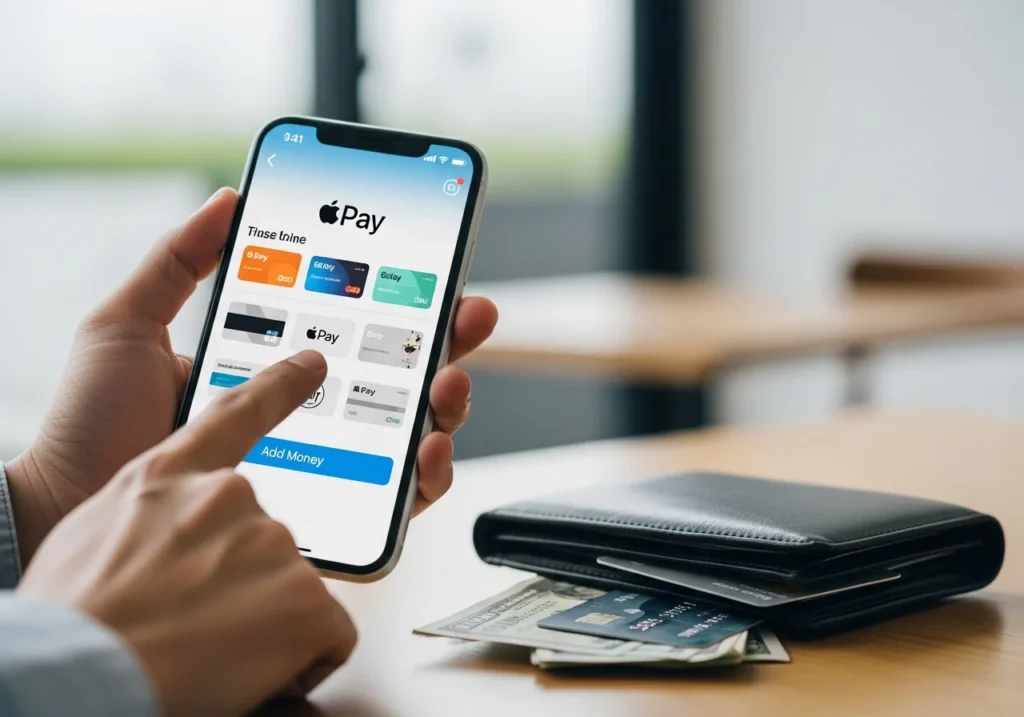
Apple Pay is Apple’s secure, easy-to-use digital wallet, allowing you to make payments in stores, online, and within apps. Apple Cash is a feature of Apple Pay that lets you send, receive, and store money directly in your Apple Wallet. Adding money to Apple Pay is essential if you want to have funds ready for payments or transfers. This guide will show you how to add money to Apple Pay safely, step by step, across all supported devices.
Supported devices: iPhone, iPad, Apple Watch, Mac
Requirements: Apple ID, iCloud signed in, compatible device, linked bank account (for most methods)
We’ll cover methods to add funds to Apple Pay, including options without a debit card, device-specific instructions, automatic top-ups, troubleshooting tips, and FAQs.
Method 1: Add Money via Bank Account / Debit / Credit Card
Step-by-Step Instructions
- Open the Wallet app on your iPhone or iPad.
- Tap your Apple Cash card.
- Tap Add Money.
- Enter the amount you want to top up your Apple Pay balance.
- Select your linked bank account or debit/credit card.
- Confirm with Face ID, Touch ID, or passcode.
Device-Specific Notes
- iPhone / iPad: Use Wallet app as above
- Apple Watch: Open the Watch app on your iPhone → Wallet & Apple Pay → Apple Cash → Add Money
- Mac: Go to System Settings → Wallet & Apple Pay → Apple Cash → Add Money
Pros and Cons
Pros:
- Fast and secure
- Funds available immediately
Cons:
- Some cards may have fees
- Requires a linked debit or bank card
Method 2: Add Money Without a Debit Card
Using Apple ID Balance
- Open Settings → [Your Name] → Payment & Shipping → Add Funds to Apple ID
- Select an amount and confirm
- Funds can then be used for Apple Pay or purchases in apps
Using Gift Cards
- Redeem an Apple Gift Card in Wallet or Settings
- Funds automatically add to Apple Cash
- Instructions:
- Open Wallet app → Tap ‘+’ → Redeem Gift Card
- Scan or enter the code
- Funds appear in Apple Cash
Using Third-Party Apps
- Apps like PayPal or Wise may allow indirect transfer to Apple Cash
- Open the app, select Apple Cash as funding option (if supported), and transfer funds
- Limitations: Not all apps support this; processing may take a few hours
Method 3: Add Money on Different Devices
iPhone / iPad
- Open Wallet → Apple Cash card → Add Money
- Enter the amount and select a funding source
- Confirm with Face ID/Touch ID
Mac / PC
- Open System Settings → Wallet & Apple Pay → Apple Cash
- Click Add Money, choose the amount and funding source
- Confirm purchase with Apple ID password
Apple Watch
- Open Watch app on iPhone → Wallet & Apple Pay → Apple Cash → Add Money
- Enter amount and confirm
Check Balance
- iPhone/iPad: Wallet → Apple Cash card
- Apple Watch: Wallet app on watch
- Mac: Wallet & Apple Pay in System Settings
Method 4: Set Up Auto-Reload / Automatic Top-Up
Enable Auto Reload
- Open Wallet → Apple Cash card → Auto-Reload
- Toggle on and select the top-up amount
Adjust Amount
- Open Auto-Reload settings → Change amount or frequency
Cancel or Pause Auto Reload
- Open Auto-Reload settings → Turn off
- Your Apple Cash balance remains, but no further automatic funds are added
Troubleshooting:
Common Issues
- Apple Pay not adding money: Check bank card, internet connection, and Apple ID status
- Apple Cash balance not updating: Log out and back into Apple ID, restart device
- Transaction errors: Verify payment source, ensure no limits exceeded, contact bank if needed
You can also use Apple-Solutions iCloud tools to check for syncing issues, iCloud status, and account-level problems that may affect Apple Pay or Apple Cash.
Fees, Limits, and Security
- Top-Up Limits: Up to $10,000 in Apple Cash
- Fees: Debit cards usually free; credit cards may have cash advance fees; gift cards fees vary
- Safety Tips:
- Use secure Wi-Fi
- Enable two-factor authentication for Apple ID
- Monitor transactions regularly
- Avoid third-party apps unless verified
Conclusion
Adding money to Apple Pay is easy, fast, and secure. The safest and most reliable method is using a linked bank account or debit card, while gift cards and Apple ID balance are excellent alternatives if you don’t have a bank card. Enable Auto-Reload for convenience and always follow security best practices. With Apple Pay ready to use, you can enjoy seamless payments across all your Apple devices.
Official Apple Support References:
FAQs
Can I add money to Apple Pay without a bank account?
Yes, using Apple ID balance, gift cards, or supported third-party apps.
How long does it take to top up Apple Pay balance?
Usually instant for debit cards; gift cards and third-party apps may take a few hours.
Are there fees for funding Apple Cash?
Most bank debit cards are free; credit cards may incur fees.
Can I load Apple Pay from a credit card?
Yes, but some cards may charge a cash-advance fee.
How do I check my Apple Pay balance?
Wallet app (iPhone/iPad), Watch app (Apple Watch), System Settings (Mac)
Can I set automatic top-up for Apple Cash?
Yes, via Auto-Reload in Wallet settings
What is the maximum Apple Pay balance?
Currently $10,000 in Apple Cash per user
How to fix Apple Pay declined transactions?
Ensure card is active, has funds, and Apple ID settings are correct
Is it safe to use third-party apps to fund Apple Pay?
Only use reputable apps; check Apple’s support pages for approved methods
Can I transfer Apple Cash to a bank account?
Yes, via Wallet → Apple Cash → Transfer to Bank