
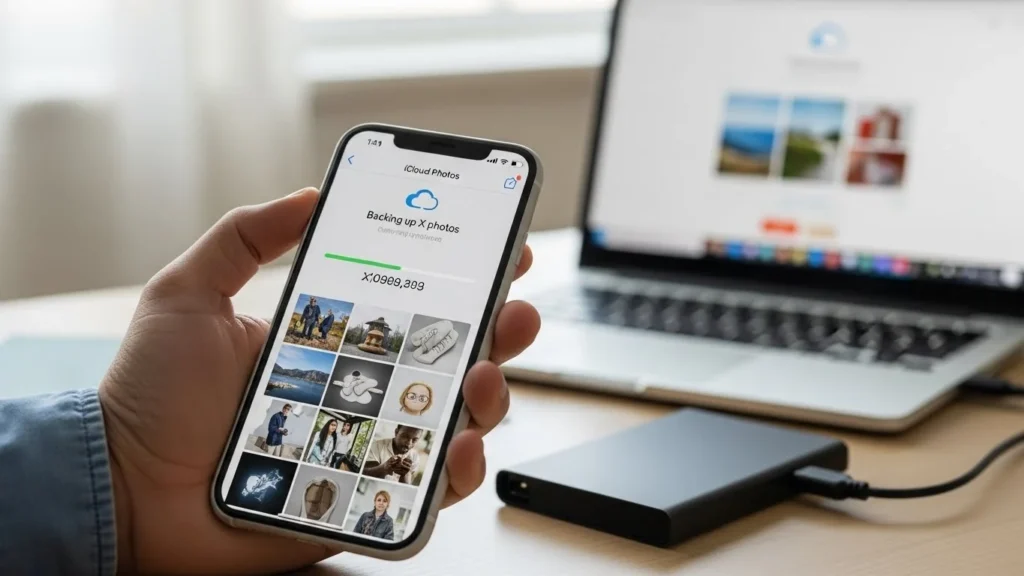
Backing up your iCloud Photos to an external hard drive is a smart way to protect your memories. Whether it’s family photos, travel pictures, or important work images, relying solely on iCloud can be risky. This guide will show you beginner-friendly methods to safely save your photos offline, handle large libraries, and troubleshoot common issues.
Why You Should Backup iCloud Photos
Even though iCloud is convenient, it’s not foolproof. Here’s why offline backups matter:
- Accidental deletion – Deleting a photo on one device removes it from all devices synced with iCloud.
- Account issues – Hacked Apple ID or password issues can make your photos temporarily inaccessible.
- Storage limitations – iCloud storage can fill up, and paying for extra storage isn’t always ideal.
- Peace of mind – A local copy ensures your memories are safe even if iCloud experiences downtime.
Common concerns users have:
- “Will I lose photo quality?”
- “Can I backup everything at once?”
- “Do I need a Mac, or can I do it from Windows?”
This guide answers all of that.
Methods to Backup iCloud Photos to External Hard Drive
There are multiple ways to move your iCloud Photos to an external drive. We’ll cover manual methods, Apple’s official apps, and third-party tools.
1. Using iCloud Website (Manual Download)
Best for: Small to medium libraries, one-time backup.
Steps:
- Connect your external hard drive to your computer.
- Open iCloud.com in a browser and sign in with your Apple ID.
- Click Photos.
- Select the photos or albums you want to backup.
- Use Shift + Click to select multiple photos.
- Click the Download icon.
- Choose your external hard drive as the destination.
Pros:
- No need to install software
- Works on any computer
Cons / Pitfalls:
- Not practical for very large libraries
- Can be slow for thousands of photos
- Downloads may be limited to batches of 1,000 photos
2. Using Photos App / iCloud for Mac
Best for: Mac users with large libraries wanting smooth integration.
Steps:
- Connect your external hard drive to your Mac.
- Open Photos app.
- Go to Photos > Preferences > iCloud, and ensure iCloud Photos is enabled.
- Click Download Originals to this Mac.
- Wait for your library to sync fully.
- Select all photos (Command + A) and drag them to your external drive.
Pros:
- Preserves full resolution and metadata
- Can handle large libraries
Cons / Pitfalls:
- Requires enough free space on Mac before transfer
- Sync can take hours for huge libraries
3. Using iCloud for Windows PC
Best for: Windows users who want seamless integration.
Steps:
- Install iCloud for Windows from Apple’s website.
- Sign in with your Apple ID.
- Enable Photos in the app settings.
- Choose Download new photos and videos to my PC.
- Connect your external drive and copy the photos folder over.
Pros:
- Automatically keeps downloaded photos updated
- Simple folder-based access
Cons / Pitfalls:
- Windows Explorer sync can sometimes fail
- May need multiple passes for very large libraries
4. Using Third-Party Tools (e.g., MultCloud)
Best for: Users who want cloud-to-cloud backup or advanced automation.
Steps:
- Sign up for a service like MultCloud.
- Add your iCloud account.
- Connect your external drive or cloud storage destination.
- Select your iCloud Photos folder and choose Backup / Transfer.
- Start the transfer and monitor progress.
Pros:
- Can automate regular backups
- Useful for very large libraries
- Supports multiple cloud accounts
Cons / Pitfalls:
- Some services require subscriptions for large transfers
- Trusting third-party apps requires caution
5. Cloud-to-Cloud or Alternative Solutions
If you want redundancy without a local drive:
- Backup iCloud Photos to Google Drive, OneDrive, or Dropbox.
- Use apps like AnyTrans or iMazing for batch transfer.
Managing Large Libraries Efficiently
- Download in batches or by albums to avoid slow transfers.
- Check for duplicates to save space.
- Verify metadata (dates, location info) after backup.
- Use high-capacity external drives (SSD preferred for speed).
Common Issues and Troubleshooting
| Problem | Solution |
| iCloud photos not downloading | Check Wi-Fi, sign out and back in, try smaller batches |
| External hard drive not recognized | Reformat to compatible format (ex: exFAT), check cables |
| Download stuck or slow | Pause and resume, restart computer, download smaller batches |
| File format or quality issues | Ensure “Download Originals” selected in Photos/iCloud settings |
Tips for Safe and Efficient Backup
- Use reliable external drives (avoid cheap, low-quality drives).
- Maintain secondary backup (cloud or another external drive).
- Regularly update backups to include new photos.
- Avoid interruptions during transfer (don’t disconnect mid-copy).
- Consider incremental backups for very large libraries.
FAQs
Can I backup all iCloud photos at once?
Yes, but for very large libraries, it’s better to download in batches to avoid errors.
Can I backup iCloud photos without a computer?
You can use iOS devices with third-party apps, but for large libraries, a computer is more efficient.
How long does it take to backup large libraries?
Depends on library size and transfer speed; thousands of photos may take several hours to a full day.
Will downloading iCloud photos affect storage?
Not on iCloud itself, but local storage will be used on your Mac/PC during the download.
What’s the best tool for iCloud photo backup?
For most users: Photos app on Mac or iCloud for Windows. For automation: MultCloud or AnyTrans.
Conclusion / Takeaways
- Best method for most users: Use Photos app on Mac or iCloud for Windows for full-resolution downloads.
- Advanced workflows: Third-party cloud managers are great for automated or cloud-to-cloud backups.
- Safety tips: Keep a secondary backup, verify files, and update regularly.
Backing up your iCloud Photos to an external hard drive may take some effort initially, but it gives you peace of mind and a secure offline copy of your memories.