
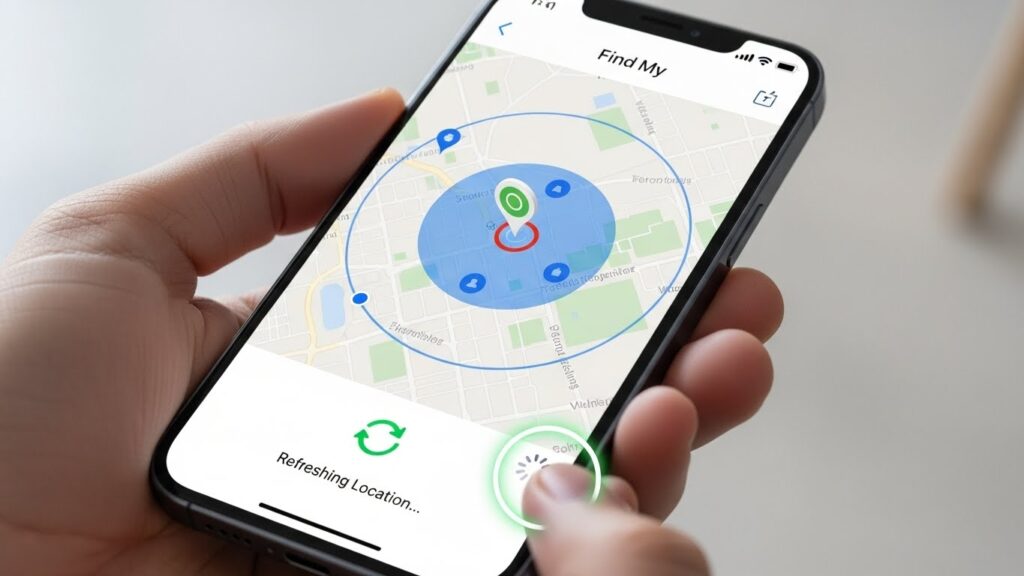
AirTags are Apple’s sleek, small tracking devices that help you locate your belongings using the Find My app. While AirTags update their location automatically, sometimes you may need to refresh the location manually to see the latest data. This guide explains how AirTag location updates work, how to manually refresh them, and how to troubleshoot common issues.
What is AirTag and How It Tracks Location
AirTags use Bluetooth and Apple’s Find My network to report their location. Each AirTag communicates with nearby Apple devices anonymously to update its location in the Find My app. This allows you to track items like keys, bags, or wallets even if you’re not nearby.
Why AirTag Location Updates May Be Delayed
Location updates depend on several factors:
- Bluetooth range – AirTags rely on nearby devices.
- Network connectivity – Updates occur when an AirTag connects to the Find My network.
- Distance from your iPhone – Faraway AirTags may update less frequently.
- Battery level – Low battery can delay updates.
Devices and iOS Versions Covered
- iPhone, iPad, or iPod touch with iOS 14.5 or later
- AirTag devices running the latest firmware
- Apple ID with Find My enabled
How AirTag Location Updates Automatically
Understanding Automatic Updates
AirTags update their location periodically without user intervention. When within Bluetooth range, your iPhone can detect its location instantly. Otherwise, AirTags rely on other nearby Apple devices in the Find My network to relay their location.
How the Find My Network and Bluetooth Affect Updates
- Bluetooth: Essential for your iPhone to detect AirTag directly.
- Find My Network: Uses nearby iPhones, iPads, and Macs to report AirTag location anonymously.
Limitations of Automatic Updates
- AirTags out of Bluetooth range may update less frequently.
- Updates are slower in areas with few Apple devices.
- Location might appear outdated until the AirTag comes near another Apple device.
How to Refresh AirTag Location Manually
Sometimes, you may need to force an update to see the current location.
Step-by-Step Guide Using the Find My App
- Open the Find My app on your iPhone.
- Tap the Items tab at the bottom.
- Select the AirTag you want to refresh.
- Pull down on the screen to manually refresh the location.
- Wait a few seconds – the map will update if the AirTag is in range or recently detected.
Using iPhone Location Services to Trigger Refresh
- Ensure Location Services are enabled:
- Go to Settings > Privacy > Location Services.
- Turn on Location Services.
- Scroll to Find My and set access to While Using the App.
This helps your iPhone detect AirTags more quickly.
Tips for Faster Manual Location Updates
- Move closer to the AirTag for a direct Bluetooth update.
- Make sure your iPhone has cellular or Wi-Fi access.
- Disable Airplane Mode and check battery levels.
Troubleshooting AirTag Location Issues
AirTag Not Showing in Find My App
- Ensure you are signed in with the correct Apple ID.
- Check that AirTag is paired properly.
- Restart your iPhone and open Find My again.
Location Stuck or Outdated
- Pull down to refresh manually.
- Bring your iPhone closer to the AirTag for faster updates.
- Confirm Location Services are enabled.
AirTag Offline or Disconnected
- Offline AirTags show the last known location.
- Wait for another device in the Find My network to detect it.
- If still offline, replace the AirTag battery.
Resetting AirTag for Accurate Updates
- Remove the AirTag from your Apple ID:
- Open Find My > Items > AirTag > Remove Item
- Press and hold the battery compartment to remove and reinsert the battery.
- Re-pair the AirTag with your iPhone.
AirTag Lost Mode and Location Accuracy
How Lost Mode Affects Location Updates
- Lost Mode sends notifications when your AirTag is detected by other devices.
- It helps track AirTags even when out of Bluetooth range.
Receiving Notifications When AirTag Location Changes
- Ensure Lost Mode is enabled:
- Open Find My > Items > AirTag > Lost Mode
- Turn on Notify When Found.
Improving Location Accuracy in Crowded Areas
- Move the AirTag closer to areas with higher Apple device density.
- Keep the AirTag visible or unobstructed for better Bluetooth detection.
Also Read:
Best iPhone System Repair Tools
Best Practices for AirTag Location Tracking
Keeping AirTag Within Effective Bluetooth Range
- Ideal range: up to 30 feet (10 meters) for direct iPhone updates.
Optimizing iPhone and iCloud Settings
- Enable Find My network in Settings > Apple ID > Find My.
- Keep iOS updated to the latest version.
Privacy and Security Considerations
- Only share location with trusted contacts.
- Lost Mode prevents unauthorized tracking.
Avoiding Delayed or Incorrect Updates
- Avoid placing AirTags in metal containers or behind walls.
- Replace batteries when low.
- Ensure your iPhone’s Wi-Fi and Bluetooth are always on.
FAQs
How Often Does AirTag Location Update Automatically?
Usually every few minutes when near Apple devices.
Updates are less frequent when AirTag is far or offline.
Can I Force an Instant Refresh?
Yes, by pulling down in the Find My app or moving closer to the AirTag.
Why Is My AirTag Location Not Updating in Find My?
AirTag may be out of Bluetooth range or offline.
Check battery level and Location Services.
Does Battery Level Affect Location Updates?
Yes, low battery can delay updates.
Replace the battery if necessary.
Can Multiple Devices Track the Same AirTag?
Yes, multiple devices using the same Apple ID can track the AirTag.
Notifications are sent to all linked devices.
Key Tips for Accurate Location Updates
- Keep AirTag in Bluetooth range.
- Enable Location Services and Find My network.
- Replace low batteries promptly.
Recommended Practices for Effective AirTag Tracking
- Enable Lost Mode for high-value items.
- Refresh manually if locations appear stuck or delayed.
- Keep iPhone and AirTag up to date with latest firmware.