
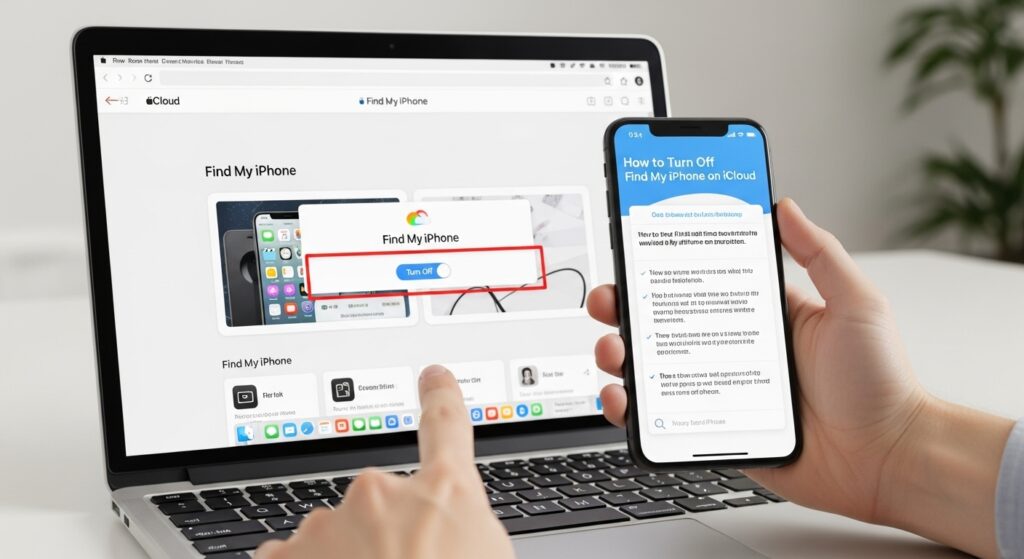
Turning off Find My iPhone might feel tricky if you’ve never done it before. Whether you’re selling, repairing, or troubleshooting your device, it’s a crucial step to keep things secure and hassle-free. This guide walks you through everything: step-by-step instructions, troubleshooting tips, best practices, and answers to the most common questions.
What Is Find My iPhone and Why You Might Turn It Off
Overview of Find My iPhone
Find My iPhone is Apple’s built-in security feature that helps you locate lost or stolen devices. It also protects your data by requiring your Apple ID and password to erase or reactivate your device.
Key points:
- Works on iPhone, iPad, Mac, and Apple Watch.
- Tracks your device’s location via the Find My network.
- Prevents unauthorized use with Activation Lock.
How It Works with iCloud
When enabled, Find My iPhone links your device to your Apple ID through iCloud:
- You can track your device remotely.
- You can lock or erase it from iCloud.com.
- Activation Lock stops anyone else from using your device without your Apple ID.
Reasons to Turn It Off
You might need to disable it for:
- Selling or trading your device
- Getting repairs or servicing
- Setting up the device for a family member or new user
- Troubleshooting iCloud or Activation Lock issues
How to Turn Off Find My iPhone on iPhone or iPad
Step-by-Step Instructions
- Open Settings.
- Tap your Apple ID name at the top.
- Go to Find My → Find My iPhone.
- Toggle Find My iPhone off.
- Enter your Apple ID password to confirm.
- Tap Turn Off.
Why this matters: Turning it off removes Activation Lock, making it safe to reset, sell, or repair your device.
Turning Off Without Apple ID Password
Legally, this isn’t possible—Apple requires the password for security. If you’ve forgotten it:
- Use Apple ID account recovery
- Contact Apple Support with proof of purchase
Common Issues
- Toggle greyed out: Device may be restricted or managed (company/MDM settings).
- Password rejected: Check your Apple ID credentials or reset the password.
How to Turn Off Find My iPhone on Mac
Access iCloud Settings
- Click Apple Menu () → System Settings (or System Preferences).
- Select Apple ID → iCloud.
Step-by-Step Instructions
- Locate Find My Mac in iCloud settings.
- Uncheck Find My Mac.
- Enter your Apple ID password to confirm.
- Restart Mac if prompted.
Troubleshooting
- Cannot uncheck: Ensure FileVault is disabled.
- Device offline: Connect your Mac to the internet for changes to sync.
How to Turn Off Find My iPhone Remotely via iCloud.com
Logging In
- Go to iCloud.com.
- Sign in with your Apple ID.
Removing Devices
- Click Find iPhone → All Devices.
- Select the device you want to remove.
- Click Remove from Account after erasing.
Erasing & Deactivating Devices
- Choose Erase iPhone/iPad/Mac first.
- Wait for the device to reset.
- Once erased, select Remove from Account.
Tip: Ideal if your device is lost, sold, or you no longer have it physically.
How to Turn Off Find My Apple Watch
Using iPhone
- Open the Watch app.
- Tap All Watches → i next to your watch.
- Tap Unpair Apple Watch.
- Enter your Apple ID password to disable Find My.
Directly on the Watch
- Go to Settings → Apple ID → Find My.
- Toggle Find My Apple Watch off.
Common Errors and Fixes
- Password prompt fails: Reset Apple ID password.
- Watch offline: Connect to iPhone and Wi-Fi.
Preparing Your Device for Resale, Repair, or Transfer
- Sign Out of iCloud and Disable Find My iPhone
Always disable Find My before selling or repairing and sign out of Apple ID on all devices. - Erase All Content and Settings
- Go to Settings → General → Transfer or Reset iPhone → Erase All Content and Settings.
- Confirm erasure.
- Verify Device Removal from iCloud
- Check iCloud.com → Find iPhone → All Devices
- Ensure the device no longer appears
Troubleshooting Find My iPhone Issues
- Button Greyed Out: Device managed by MDM or supervised mode; contact administrator or Apple Support.
- Apple ID Verification Problems: Ensure credentials are correct and enable two-factor authentication if required.
- iCloud Security Lock / Activation Lock Errors: Only removable by Apple with proof of purchase.
- Forgot Apple ID or Password: Use Apple ID recovery.
Additional Tips & Best Practices
- Turn Off for Family Devices: Use Family Sharing settings carefully.
- Backup Before Disabling: Save photos, messages, and app data.
- Ensure Security During Device Transfer: Remove all personal accounts and data.
FAQs About Turning Off Find My iPhone
Can I turn it off without Apple ID?
Not legally—you must recover or reset your Apple ID.
How to turn off before selling a device?
Disable Find My iPhone and erase all settings.
Why can’t I turn it off?
The device may be offline, supervised, or under MDM restrictions.
Can I turn off remotely?
Yes, via iCloud.com.
Does it delete iCloud data?
No. Disabling Find My doesn’t delete iCloud data unless you erase the device.
Final Recommendations
- Always prepare devices safely for resale, repair, or trade-in.
- Don’t skip backups or forget to turn off Find My iPhone.
- Maintain your Apple ID security even after disabling Find My.
Pro Tip: Before handing over any device, double-check that it’s removed from your iCloud account. This prevents Activation Lock issues and keeps your data safe.