
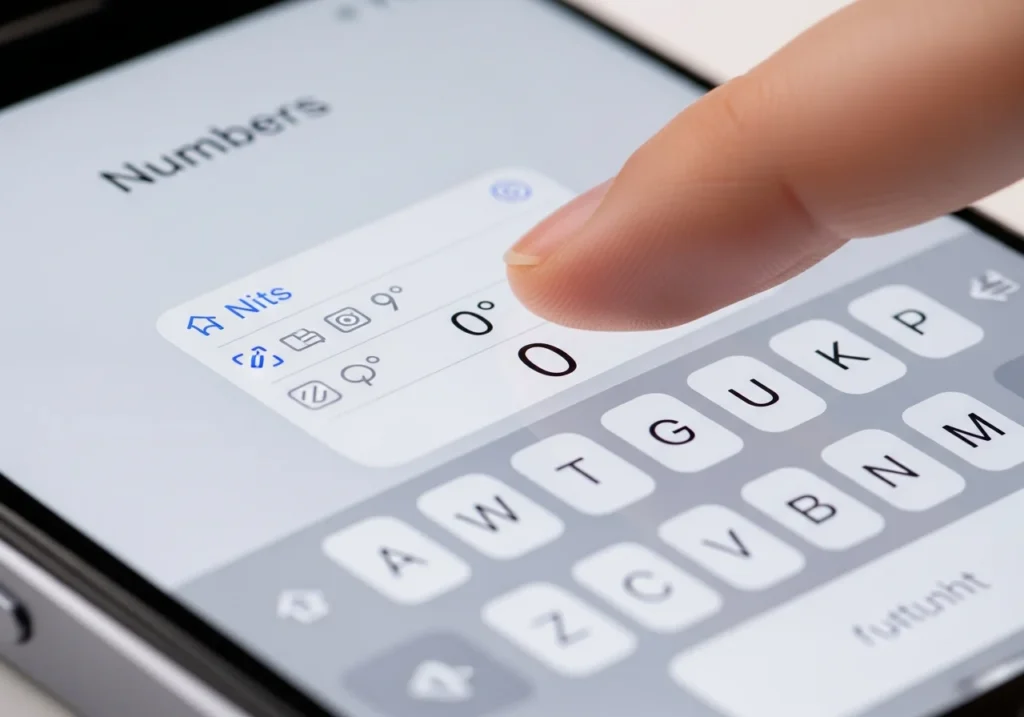
Typing the degree symbol (°) on your iPhone or iPad might seem tricky at first, but iOS makes it surprisingly simple once you know the tricks. Whether you’re writing temperatures, math problems, or GPS coordinates, this guide will show you multiple ways to type the degree symbol quickly and efficiently.
Quick Method Long-Press the “0” Key on iPhone & iPad
The fastest way to type the degree symbol is built right into the iOS keyboard.
Step-by-Step Instructions
- Open any app where you can type (Messages, Notes, Mail, etc.).
- Switch to the numeric keyboard by tapping 123.
- Press and hold the 0 key.
- A small pop-up will appear showing the ° symbol.
- Slide your finger over the ° symbol and release to insert it.
Pro tip: This method works in both iPhone and iPad numeric keyboards and is the quickest way for everyday use.
Example Sentences
- The weather today is 28° C.
- Rotate the object 90° to align it properly.
- GPS coordinates: 40.7128° N, 74.0060° W.
Method 2 Using the Emoji & Symbols Keyboard
You can also find the degree symbol through iOS’s emoji and symbols keyboard.
Where to Find the Degree Symbol
- Open your keyboard and tap the emoji icon or globe icon.
- Navigate to the Symbols section (usually the #+= key).
- Scroll until you see the ° symbol and tap to insert.
Pros & Cons
Pros:
- Useful if you don’t want to long-press numbers.
- Works across apps and keyboards.
Cons:
- Slightly slower than the long-press method.
- Requires knowing where symbols are located.
Method 3 Using Text Replacement (Shortcut)
Text Replacement lets you create custom shortcuts for frequently used symbols.
Create a Custom Shortcut
- Go to Settings → General → Keyboard → Text Replacement.
- Tap “+” to add a new shortcut.
- In Phrase, enter the ° symbol.
- In Shortcut, type something like deg or dgr.
- Save it. Now, typing deg will automatically convert to °.
Best Shortcut Tips
- Use unique shortcuts to avoid accidental replacements.
- Great for frequent typing of temperatures or angles.
- Works across iOS apps.
Method 4 Copy & Paste the Degree Symbol
When all else fails, you can always copy and paste.
Single-Tap Copy Box
Here’s the symbol:
°
Simply tap, hold, and select Copy, then paste it wherever needed.
When to Use Copy/Paste
- Older iOS versions without long-press support.
- Third-party apps with limited keyboard access.
- Quick insertion in documents or emails.
Degree Symbol for Temperature, Math & Angles
The degree symbol isn’t just for temperatures it’s widely used in math, geometry, and GPS coordinates.
Temperature Examples
- 32° F is freezing.
- Summer highs reach 40° C.
Math/Geometry Examples
- Triangle ABC has angles of 30°, 60°, and 90°.
- Rotate the vector 45° clockwise.
GPS / Coordinates Examples
- Location: 34.0522° N, 118.2437° W.
- Tracking satellites often uses decimal degrees (°).
Why Don’t I See the Degree Symbol? (Troubleshooting)
If the degree symbol doesn’t appear, check these common issues.
Check Keyboard Settings
- Go to Settings → General → Keyboard.
- Make sure English (or your language) keyboard is enabled.
Emoji Keyboard
- Some symbols only appear with the emoji/symbols keyboard enabled.
- Check if the globe icon is visible and switch keyboards.
Restart Keyboard Dictionary
- Settings → General → Reset → Reset Keyboard Dictionary.
- Fixes rare issues with missing long-press options.
Check Third-Party Keyboards
- Some third-party keyboards don’t support hidden iOS symbols.
- Switch to the default Apple keyboard to access °.
If you’re checking overall iOS sync or keyboard-related cloud issues, an Apple cloud analyzer can help you review iCloud settings, backups, and data usage to ensure everything is working smoothly.
Extra iPhone & iPad Keyboard Tips
Hidden Long-Press Characters
- Many keys have hidden symbols when long-pressed.
- Example: $ key shows € or £.
Quick Number Access
- Press and hold 123 then slide to a number to type it without switching keyboards repeatedly.
Typing Other Special Characters
- Use Text Replacement or Emoji Keyboard for symbols like ±, √, π, or µ.
Conclusion
Typing the degree symbol on iPhone and iPad is easier than most people think. Use the long-press 0 method for speed, Text Replacement for frequent use, the emoji/symbol keyboard for accessibility, or copy & paste for convenience. With these tips, you’ll never struggle to type ° again, whether for temperatures, angles, or coordinates.
FAQ
Where Is the Degree Symbol on iPhone Keyboard?
Long-press the 0 key on the numeric keyboard to find °.
Why Does My Keyboard Not Show the ° Symbol?
Check keyboard settings, enable emoji/symbols keyboard, or restart keyboard dictionary.
Can I Add the Degree Symbol to QuickType Bar?
Not natively, but using Text Replacement is the closest iOS solution.
How Do I Insert ° in WhatsApp, Instagram, or Messages?
Use any of the methods above: long-press 0, emoji keyboard, text replacement, or copy/paste.