
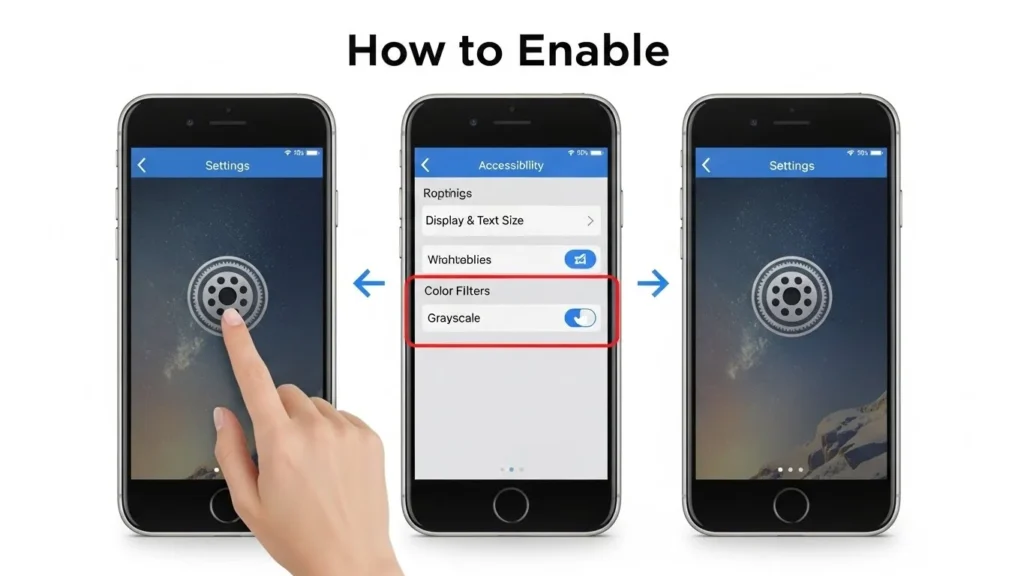
If you’ve ever noticed your iPhone screen suddenly turn black and white, you’re not alone. Many iPhone users encounter this unexpected change and wonder what’s going on. In this guide, we’ll explain iPhone black and white mode (also called grayscale), how to enable it intentionally, and why it can be a helpful feature for some users. We’ll also cover troubleshooting tips and practical benefits.
What Is iPhone Black and White Mode?
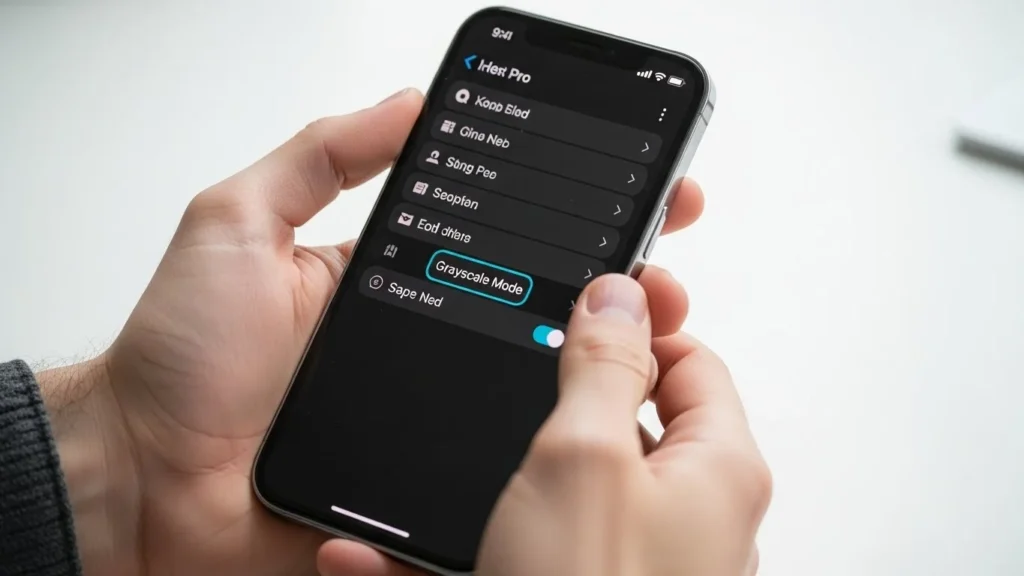
iPhone black and white mode, also known as grayscale, turns your iPhone display into shades of gray instead of full color. It’s part of iOS’s Accessibility settings, designed to help users with visual impairments, but many people also use it to reduce distractions or save battery.
Key Points:
- Grayscale / monochrome display: All colors appear as gray shades.
- Difference from color mode: Apps, images, and videos lose their color palette.
- Benefits:
- Reduces eye strain for some users
- Helps focus by removing colorful distractions
- May slightly save battery on OLED iPhones
Real-user insight: “I turned on grayscale to help curb my social media habit. Surprisingly, it really made scrolling less addictive!” – iPhone forum user
Why Your iPhone Might Suddenly Turn Black and White
Sometimes, your iPhone may switch to black and white unintentionally. Common reasons include:
- Grayscale mode enabled accidentally
- Changes in Accessibility settings
- Focus Mode or Low Power Mode effects (some automation shortcuts may trigger grayscale)
- iOS glitches or display bugs
If this happens, don’t panic it’s usually easy to restore full color.
How to Enable Black and White Mode on iPhone
You can turn on grayscale intentionally in several ways:
1. Using Accessibility Settings
- Open Settings → Accessibility.
- Tap Display & Text Size.
- Select Color Filters.
- Toggle Color Filters on and choose Grayscale.
2. Using Accessibility Shortcut
- Go to Settings → Accessibility → Accessibility Shortcut.
- Select Color Filters.
- Triple-click the side or Home button to toggle grayscale on/off.
3. Using Control Center (iOS 14+)
- If you’ve added Accessibility Shortcuts to Control Center, you can swipe down and toggle grayscale without going into settings.
How to Turn Off Black and White Mode and Restore Color
- Open Settings → Accessibility → Display & Text Size → Color Filters, then toggle off.
- Remove any Accessibility shortcuts you may have set for grayscale.
- If your iPhone still appears black and white, restart your device.
Tips and Tricks for Using Black and White Mode
- Save battery: OLED iPhones may use slightly less power since the screen displays fewer colors.
- Reduce distractions: Social media apps feel less engaging in grayscale.
- Accessibility benefits: Helps users with color blindness or visual sensitivity.
Pro tip: Combine grayscale with Night Shift or Dark Mode for more comfortable viewing.
Troubleshooting Black and White Mode Issues
- iPhone stuck in black and white: Ensure Color Filters are off and check Accessibility shortcuts.
- Grayscale not working after iOS update: Reset Display & Accessibility settings.
- Persistent issues: Contact Apple Support if your iPhone still shows monochrome display.
Also Read:
FAQs
Why is my iPhone screen black and white?
Grayscale mode may be enabled in Accessibility settings, or an iOS glitch may have caused it.
How do I switch back to color?
Disable Color Filters in Settings → Accessibility → Display & Text Size.
Can I enable grayscale temporarily or schedule it?
Yes, using Accessibility shortcuts or automation shortcuts in the Shortcuts app.
Does black and white mode save battery?
On OLED iPhones, it may slightly reduce power consumption since fewer colors are displayed.
Which iOS versions support grayscale?
iOS 8 and later include grayscale under Accessibility → Color Filters.
Final Tips
- Keep iOS updated to avoid grayscale-related bugs.
- Customize Accessibility shortcuts for quick toggling.
- Combine grayscale with other accessibility features like larger text, Night Shift, or Reduce White Point for better comfort.
Bottom line: iPhone black and white mode isn’t just an accessibility feature it’s a practical tool for focus, eye comfort, and even slight battery savings. Whether you turned it on by accident or want to experiment with it intentionally, iOS makes it easy to toggle grayscale whenever you need.