
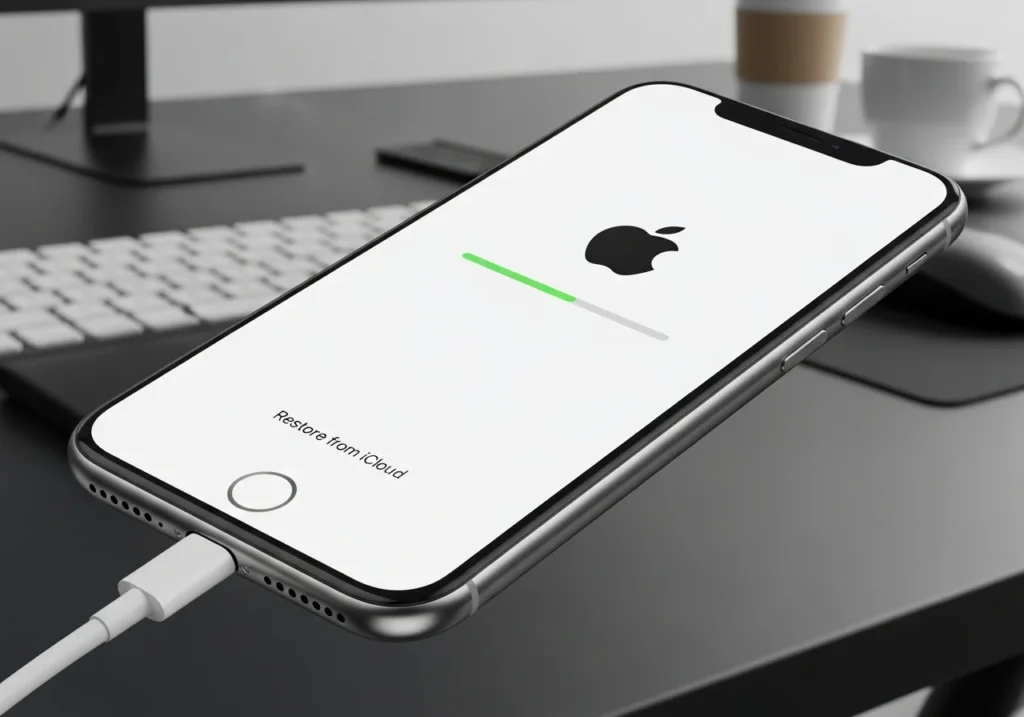
Having your iPhone get stuck during an iCloud restore can be frustrating and worrying. You might see a frozen progress bar, the “Time Remaining” stuck, or your device simply unresponsive. Don’t panic this is a common issue, and there are multiple ways to fix it and prevent it from happening again. This guide will walk you through the causes, step-by-step fixes, preventive tips, and answers to common questions.
For users who frequently deal with large backups, managing storage through an all-in-one iCloud storage dashboard can help prevent future restore problems by keeping your device and cloud space optimized.
Why Your iPhone Gets Stuck During iCloud Restore
Understanding why your iPhone is stuck during an iCloud restore can help you troubleshoot effectively. iCloud restores involve downloading your backup data, settings, apps, and media from Apple’s servers, which can be interrupted or delayed by various factors.
What Happens During an iCloud Restore
When you restore from iCloud:
- iPhone connects to Apple servers to authenticate your account.
- Backup data is downloaded to your device.
- Apps, settings, and media are restored onto your iPhone.
- Post-restore setup completes once all content is transferred.
Any disruption in these steps can cause the restore to hang.
Using a tool like an iCloud Space Analyzer can also help you identify large items in your backup that might slow down future restores.
Common Causes: Wi-Fi, Storage, Backup Size, iOS Version
- Unstable Wi-Fi: Slow or intermittent connections can prevent downloads.
- Insufficient storage: Not enough space on your iPhone can halt the restore.
- Large backups: Bigger backups take longer and increase the chance of freezing.
- Outdated iOS: Restore may fail if your device’s iOS version isn’t compatible with the backup.
iCloud Server Issues and Corrupted Backups
- Apple server outages can interrupt restores. Check Apple’s System Status page.
- Corrupted backups can cause restore failures. This often happens if the backup process was incomplete or interrupted.
How Long Should iCloud Restore Take?
Knowing what to expect can help you distinguish between a slow restore and one that is truly stuck.
Typical Times by iPhone Model
- iPhone SE, 6, 7: 30–60 minutes
- iPhone 8, X, 11: 45–90 minutes
- iPhone 12, 13, 14, 15: 1–2 hours (larger backups may take longer)
Factors That Can Extend Restore Duration
- Large photo/video libraries
- Many apps and app data
- Slow Wi-Fi or network congestion
- Background iCloud syncing of photos, emails, or messages
Signs Your Restore Is Truly Stuck
- “Time Remaining” hasn’t updated in over 2 hours
- Restore process stops progressing
- iPhone is unresponsive despite waiting
How to Fix iPhone Stuck on Restore from iCloud
Here’s a step-by-step approach to get your restore back on track.
Quick Fixes for Immediate Relief
- Make sure your device is connected to a strong Wi-Fi network.
- Ensure your iPhone has sufficient battery or is charging.
- Check Apple’s System Status for ongoing outages.
Force Restart Your iPhone
A force restart can help if the iPhone is frozen:
- iPhone 8 or later: Press and quickly release Volume Up, press and quickly release Volume Down, then press and hold Side button until Apple logo appears.
- iPhone 7 / 7 Plus: Press and hold Volume Down + Side button until Apple logo appears.
- iPhone 6s or earlier: Press and hold Home + Side (or Top) button until Apple logo appears.
Check Wi-Fi and Internet Stability
- Move closer to your router or switch to a reliable network.
- Avoid hotspots or shared public Wi-Fi during restore.
- Restart your router if connection is unstable.
Ensure Sufficient Storage
- Go to Settings > General > iPhone Storage.
- Delete unnecessary apps or large files to free space.
- iCloud restore requires enough free space for your backup.
Stop and Restart the Restore
- Go to Settings > [Your Name] > iCloud > iCloud Backup.
- Tap Stop Restore.
- Restart your iPhone and attempt restore again.
Restore Using iTunes/Finder
If iCloud restore fails repeatedly:
- Connect iPhone to a computer with iTunes (Windows/macOS Mojave or earlier) or Finder (macOS Catalina or later).
- Select your device and choose Restore Backup.
- Pick the relevant backup and follow on-screen instructions.
Use Third-Party Recovery Tools
Tools like iMazing or Dr.Fone can help recover data from backups if iCloud restore repeatedly fails. Always choose reputable tools and follow instructions carefully.
Troubleshooting Common iCloud Restore Problems
Time Remaining Estimating Frozen
- Ensure strong Wi-Fi
- Pause and restart restore
- Consider restoring via iTunes/Finder if it persists
Restore Paused or Not Responding
- Force restart the device
- Reconnect to a stable Wi-Fi network
- Make sure device has enough storage and battery
iCloud Restore Failed or Corrupted Backup
- Verify backup integrity in iCloud settings
- Try an older backup if available
- Consider using third-party tools if critical data is inaccessible
Tips to Prevent Future iCloud Restore Issues
Keep Backups Small and Organized
- Regularly delete old or unnecessary backups
- Backup only essential data
- Use iCloud Photos selectively or optimize storage
Ensure Stable Wi-Fi During Restore
- Avoid switching networks mid-restore
- Use home or office Wi-Fi instead of mobile hotspots
Maintain Adequate Storage and Power
- Keep at least 20% free storage during restore
- Plug iPhone into power source
Keep iOS and iCloud Updated
- Regularly update iOS for compatibility with iCloud backups
- Enable automatic iCloud backups for smooth future restores
Final Thoughts
An iPhone stuck on restore from iCloud can feel alarming, but in most cases, the problem can be resolved with patience, the right steps, and careful troubleshooting. Always ensure stable Wi-Fi, adequate storage, and updated iOS to prevent future issues. Using iTunes, Finder, or trusted third-party tools can also help recover data if iCloud restore fails.
FAQs
Can I Cancel an iCloud Restore Midway?
Yes, go to Settings > iCloud Backup > Stop Restore. Be aware that partial restore may leave incomplete data.
Will I Lose Data if I Stop Restore?
Most data remains in iCloud backup. However, changes made after the last backup may not be restored.
Is Force Restart Safe During Restore?
Yes, force restarting does not affect iCloud backup integrity but should only be done if your iPhone is unresponsive.
How Do I Know My Backup Is Corrupted?
Signs include repeated restore failures, freezes, or error messages. Check for backup size consistency in iCloud settings.
How Long Should I Wait Before Assuming Restore is Stuck?
Wait at least 2–3 hours for large backups or slower connections. If no progress occurs, proceed with troubleshooting steps.