
What are iPhone status icons?
iPhone status icons are small symbols displayed at the top of your screen, indicating important information about your device. These icons communicate everything from network connectivity and battery status to notifications, location services, and device modes. Recognizing these symbols helps you manage your iPhone efficiently.
Why understanding top-screen symbols is important
Being familiar with iPhone top-screen symbols allows you to:
- Quickly identify your network status and battery levels
- Understand which services or features are active (like Do Not Disturb or VPN)
- Troubleshoot issues when icons are missing or behaving unexpectedly
- Enhance productivity by using Control Center icons effectively
Devices and iOS versions covered
This guide applies to all modern iPhone models running iOS 15, 16, and 17. While the exact icon appearance may vary slightly by model, the meanings and functions remain consistent.
Network and Connectivity Icons
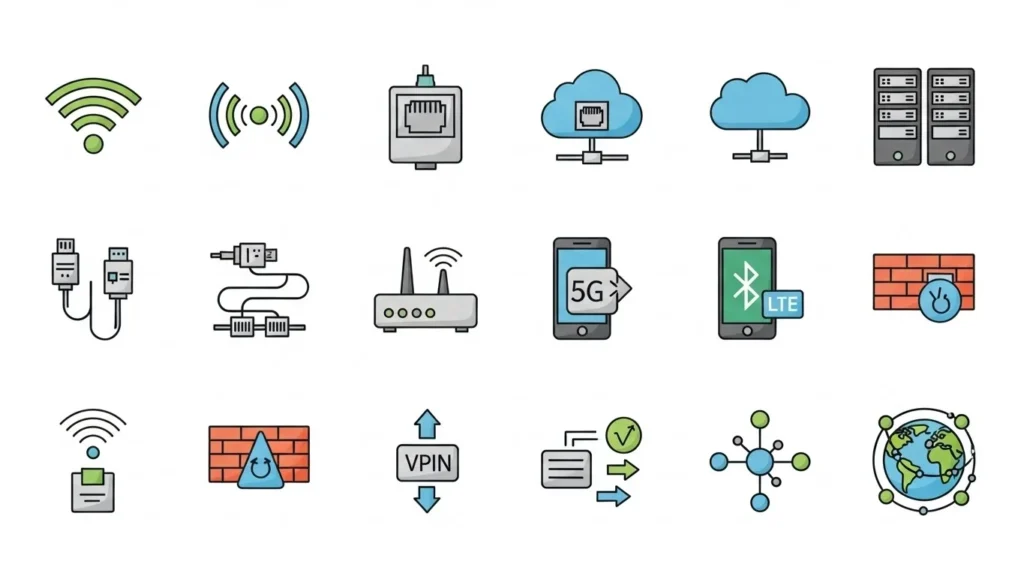
Wi-Fi icon and its meaning
- Full bars: Strong Wi-Fi connection
- Partial bars: Moderate signal
- Empty or grayed-out icon: Not connected
Tip: Tap Settings > Wi-Fi to check or switch networks.
Cellular signal and network type icons (5G, LTE, 4G)
- Signal bars: Indicate network strength
- Network letters: 5G, 4G, LTE, 3G
- No bars: No cellular signal
Note: Higher network types (like 5G) provide faster data speeds.
Airplane Mode icon
- Icon: ✈️
- Indicates all wireless connections are disabled, including cellular, Wi-Fi, and Bluetooth.
Tip: Enable/disable via Control Center for quick access.
VPN icon
- Icon: 🔒
- Shows your iPhone is connected to a Virtual Private Network for secure browsing.
Personal hotspot icon
- Icon: Two overlapping rings or chain link
- Indicates your iPhone is sharing its cellular connection with other devices.
Battery and Power Icons
Battery percentage and icon meaning
- Displays current battery level with a visual bar
- Can show percentage inside the icon via Settings > Battery > Battery Percentage
Low Power Mode icon
- Icon: ⚡ (yellow)
- Saves battery by reducing background activity and visual effects
Charging icon
- Icon: ⚡ inside battery
- Appears when your iPhone is connected to a power source
Battery health indicator
- Shows the maximum battery capacity relative to when the device was new
- Access via Settings > Battery > Battery Health & Charging
Focus and Notification Icons
Do Not Disturb (DND) icon
- Icon: Crescent moon 🌙
- Alerts are silenced; can be scheduled or manually activated
Focus mode symbols
- Icons vary by Focus type (Work, Personal, Sleep)
- Customizable in Settings > Focus
Silent mode icon
- Icon: Bell with a slash 🔕
- Indicates ringtone and alert sounds are muted
Alarm clock icon
- Icon: ⏰
- Displays when an alarm is set in the Clock app
Location services icon
- Icon: Arrow
- Appears when apps are using your device location
Screen recording icon
- Icon: Solid red bar or red dot
- Indicates active screen recording
Control Center and Miscellaneous Icons
Bluetooth icon
- Icon: ᛒ
- Shows Bluetooth is enabled; filled icon indicates active connection
AirPlay icon
- Icon: 📺 with a triangle
- Indicates your device is sharing audio/video to another screen
Orientation lock icon
- Icon: Padlock with a circular arrow 🔒
- Locks screen rotation in portrait mode
NFC icon
- Icon: Waves or N
- Indicates near-field communication is active for Apple Pay or tags
Other Control Center symbols
- Icons for Flashlight, Timer, Focus, Screen Mirroring, etc.
- Accessible by swiping down from top-right on Face ID iPhones
Troubleshooting Status Icons
Status icons not showing
- Step 1: Check Settings > Status Bar (iOS 17+)
- Step 2: Restart your iPhone
- Step 3: Reset network settings if connectivity icons are missing
Misleading or stuck icons
- Sometimes icons remain even after a feature is off
- Tip: Toggle the feature off and on or restart your device
How to reset or fix status bar symbols
- Reset All Settings: Settings > General > Transfer or Reset iPhone > Reset > Reset All Settings
- Safe method; preserves data but resets system settings
Common user questions about icons
- Why is my Wi-Fi icon gray? → Not connected to a network
- Why is the location arrow always on? → Background app activity
Tips and Best Practices
Keeping your status bar organized
- Hide rarely used icons via Settings > Control Center
- Arrange Control Center shortcuts for quick access
Understanding hidden or rare icons
- New iOS updates may introduce privacy indicators (orange or green dots)
- Check Settings > Privacy > Indicators for details
How to quickly identify unknown symbols
- Long press or tap the icon if possible
- Consult Apple Support or your iPhone user guide for new icons
FAQs
What does each iPhone status icon mean?
Refer to the sections above; icons represent connectivity, battery, notifications, or active features.
Why is my iPhone showing a new or unknown icon?
Likely a new iOS feature or app-specific symbol
Check Apple Support documentation for iOS updates
How do I hide status bar icons?
Certain icons are fixed, but Control Center shortcuts can be customized
Use Settings > Control Center to add or remove icons
Do icons change with iOS updates?
Yes, new icons may appear and older ones may get updated for design or functionality
How to read symbols in Control Center vs status bar
Status bar icons: Show ongoing device states
Control Center icons: Offer quick toggles and access to system features
Tips for understanding and managing icons
- Regularly review Control Center and Settings
- Familiarize yourself with new iOS updates to recognize new symbols
Recommended practices for top-screen icon awareness
- Keep your iPhone updated
- Use Focus and notification settings wisely
- Troubleshoot stuck or missing icons using restart or reset options