
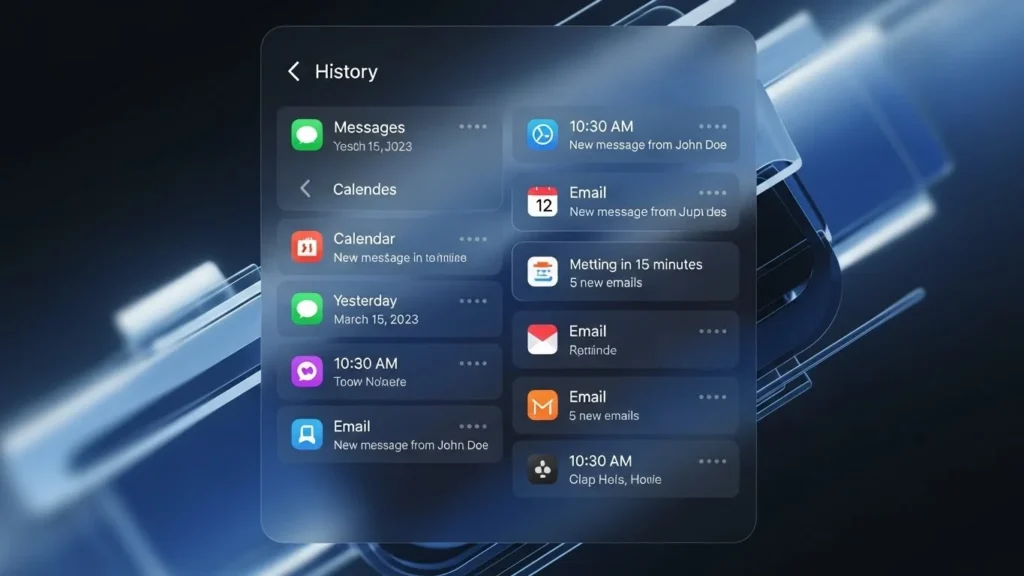
If you’ve ever missed an important alert on your iPhone or accidentally cleared a notification, you might be wondering if there’s a way to see it again. Understanding Notification Center history can help you keep track of missed notifications and stay on top of your iPhone activity.
In this guide, we’ll explain what Notification Center history is, why notifications disappear, how to view past alerts, and practical tips for managing notifications better.
What Is Notification Center History on iPhone?
Notification Center is the central hub on your iPhone where all recent notifications appear, from messages and emails to app alerts.
Here’s what you need to know:
- Active notifications: Alerts that are currently visible on your Lock Screen or Notification Center.
- Missed notifications: Notifications that appeared but weren’t acted on.
- Cleared notifications: Alerts you dismissed manually iOS does not store them permanently.
Knowing your notification history helps you catch missed updates, track messages, and ensure you don’t overlook important alerts.
Why Notifications May Disappear
Several factors can cause notifications to vanish from your iPhone:
- Accidental clearance – You may have swiped away notifications by mistake.
- iOS limitations – Cleared notifications aren’t stored permanently; iOS doesn’t offer a full notification log.
- Focus Mode / Do Not Disturb – Notifications can be silenced or hidden temporarily.
- App-specific behavior – Some apps may not show notifications in Notification Center after dismissal.
Understanding these limitations is crucial for managing your alerts effectively.
How to View Notification Center History on iPhone
While iOS doesn’t provide a permanent log of cleared notifications, you can still review recent alerts:
- Access Notification Center
- Swipe down from the top of your Lock Screen or home screen.
- Check notifications
- Scroll through the list to see unread or recent alerts.
- Use widgets
- Add widgets for apps like Mail or Messages to view missed notifications in one place.
Important: Once notifications are cleared manually, they cannot be restored in iOS.
Workarounds for Missed or Cleared Notifications
To prevent missing notifications in the future, consider these strategies:
- Enable notification badges
- Red dots on app icons indicate unread alerts.
- Use third-party notification logging apps
- Some apps can track notifications over time (note: limited by iOS privacy restrictions).
- Manage notifications better
- Prioritize important apps, customize alerts, and check Notification Center regularly.
Managing Notifications on iPhone
iOS provides multiple ways to control and organize notifications:
- Adjust app notification settings
- Go to Settings > Notifications to turn alerts on/off per app.
- Customize Notification Summary
- Schedule non-urgent notifications to appear at convenient times.
- Prioritize important notifications
- Allow alerts from high-priority apps to appear immediately, even in Focus mode.
Also Read:
Troubleshooting Notification History Issues
If notifications aren’t appearing as expected:
- Check Focus / Do Not Disturb
- Alerts may be silenced temporarily.
- Update iOS
- Bug fixes often resolve notification issues.
- Reset notification settings
- Go to Settings > General > Transfer or Reset iPhone > Reset > Reset All Settings (does not delete data).
- Restart iPhone
- Sometimes a simple reboot resolves display issues.
FAQs
Can I recover cleared notifications?
No, iOS does not store cleared notifications permanently. Using badges or third-party logging apps is the closest workaround.
Why do some notifications disappear immediately?
Focus mode, app-specific settings, or alert types can cause instant disappearance.
How can I view all notifications at once?
Swipe down on the Lock Screen or from the top of your screen to access Notification Center.
Do notification behaviors differ by iOS version?
Yes, newer versions offer enhanced notification management, but cleared notifications remain unrecoverable.
Final Tips
- Keep iOS updated New versions often improve notification reliability.
- Check Notification Center regularly Don’t rely solely on badges.
- Use badges and widgets They help track missed notifications effectively.
By understanding Notification Center history and iOS limitations, you can better manage your alerts and never miss important information again.