
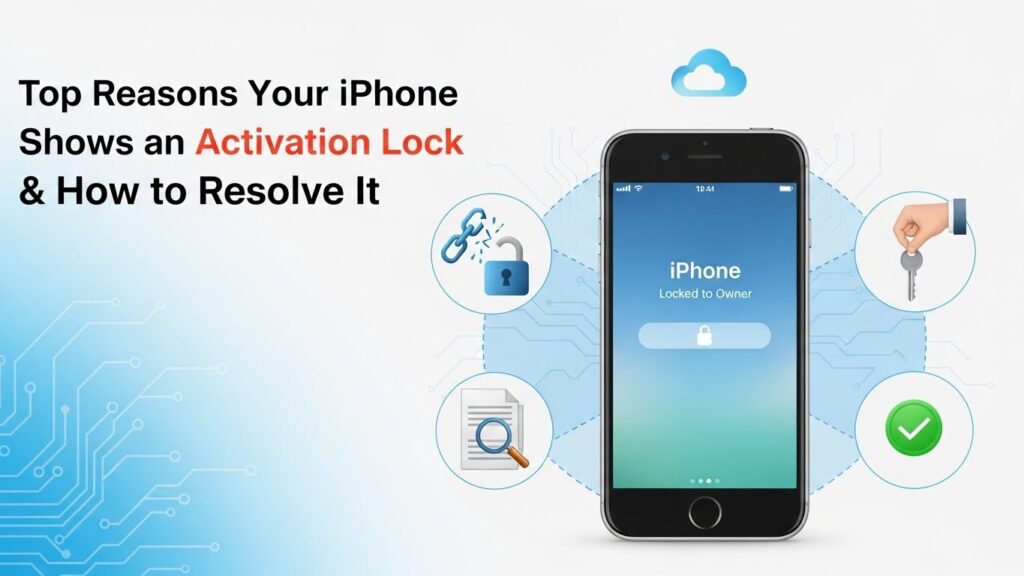
iPhone Activation Lock is a critical security feature designed to protect your device and personal data. While it ensures that your iPhone stays safe, it can also create challenges for legitimate owners who forget their Apple ID, buy second-hand devices, or need to reset their device. This comprehensive guide explains why your iPhone may show an Activation Lock, how to verify it, resolve it safely, and prevent future issues.
What is iPhone Activation Lock?
Activation Lock is a built-in security feature that prevents unauthorized access to an iPhone or iPad. When enabled, it requires the original Apple ID and password to unlock the device after it’s been erased or reset.
How Activation Lock Protects Your Device
- Prevents thieves from using or selling a lost or stolen iPhone.
- Ensures your personal data remains secure even if the device is reset.
- Works alongside Find My iPhone to track, lock, or erase your device remotely.
Devices and iOS Versions That Support Activation Lock
- iPhone 5s and later
- iPad Air and later
- iPod touch (6th generation and newer)
- iOS 7 and above
Activation Lock vs Find My iPhone
- Find My iPhone: Lets you locate, lock, or erase your device.
- Activation Lock: Automatically turns on when Find My iPhone is enabled; prevents device activation without Apple ID credentials.
Common Reasons Your iPhone Shows an Activation Lock
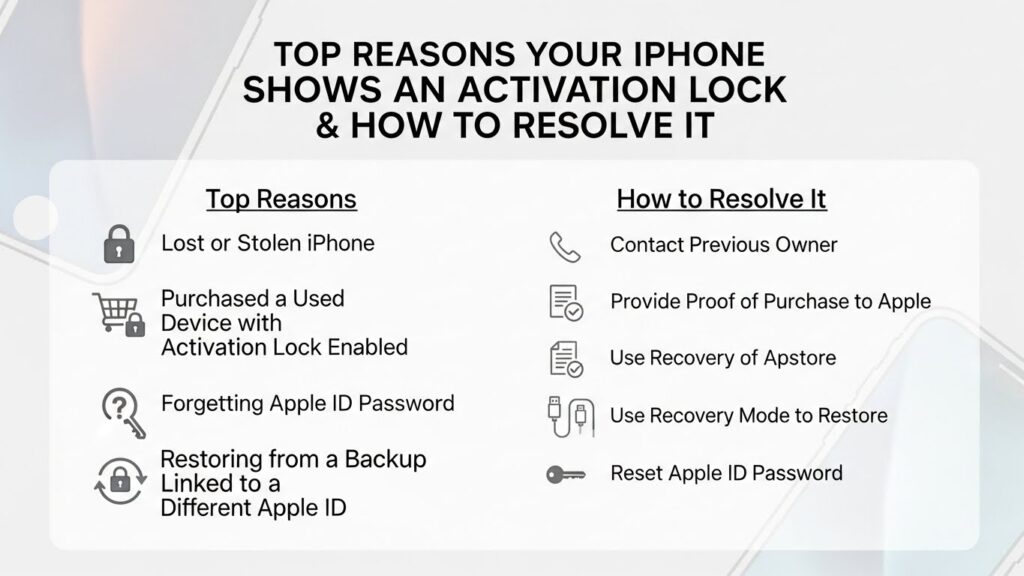
Find My iPhone Enabled Automatically
When setting up an iPhone, Find My iPhone is automatically activated. This immediately enables Activation Lock, requiring Apple ID credentials to make changes or reset the device.
Device Previously Owned or Second-Hand
If you purchase a used iPhone without the previous owner signing out of iCloud, you may encounter Activation Lock. Always verify ownership before buying.
iCloud Account Still Linked
Resetting or erasing an iPhone without signing out of the linked Apple ID triggers Activation Lock. The device remains connected to the previous account until proper credentials are provided.
iPhone Lost or Stolen
Activation Lock is triggered automatically if the device is marked as lost using Find My iPhone. This prevents unauthorized access and protects personal data.
Device Reset Without Signing Out of Apple ID
Performing a factory reset without signing out of the associated Apple ID can lock the device. Always ensure the Apple ID is removed before resetting.
How to Check If Your iPhone Has Activation Lock Enabled
Checking via Settings on the Device
- Go to Settings > [Your Name] > Find My.
- Ensure Find My iPhone is enabled.
- If enabled, Activation Lock is active on your device.
Checking Using iCloud Website
- Visit iCloud.com.
- Sign in with your Apple ID.
- Check under Find My iPhone to see linked devices and activation status.
Tools and Services to Verify Activation Lock Status
- Some third-party services claim to check Activation Lock status. Use caution and prefer official Apple methods.
- Verify directly via Apple Support for the most reliable results.
Step-by-Step Solutions to Remove Activation Lock
Using Original Apple ID and Password
- Enter the Apple ID and password used during device setup.
- Complete the activation process and regain full access.
Resetting Apple ID Password to Unlock
- Go to Apple ID account page.
- Select Forgot Apple ID or password?
- Follow on-screen steps to reset your password.
- Use the new credentials to unlock your iPhone.
Removing Device via iCloud Account
- Sign in to iCloud.com with the linked Apple ID.
- Go to Find My iPhone > All Devices.
- Select your iPhone and choose Remove from Account.
- This unlocks the device for activation.
Contacting Apple Support with Proof of Purchase
- If you cannot access the Apple ID, Apple Support can help.
- Provide a valid purchase receipt showing the device’s serial number or IMEI.
Enterprise or MDM-Managed Device Unlock Options
- Devices managed by organizations may require Mobile Device Management (MDM) removal.
- Contact your organization’s IT administrator for authorized unlock procedures.
What to Do if You Bought a Locked iPhone
Verifying Activation Lock Before Purchase
- Always ask the seller to power on the device and show the Activation Lock screen.
- Check the device’s serial number with Apple Support to ensure it’s not linked to another Apple ID.
Asking Seller to Remove Device from iCloud
- Request the seller sign out of iCloud and remove the device remotely.
- Confirm that the device can be activated with a new Apple ID.
Options if Apple ID is Unknown
- Contact Apple Support with proof of purchase.
- Avoid using unofficial “bypass” tools as they may be unsafe and illegal.
Tips to Avoid Activation Lock Issues in the Future
Always Sign Out Before Selling or Giving Away Device
- Go to Settings > [Your Name] > Sign Out.
- Disable Find My iPhone before handing over the device.
Keep Apple ID and Password Secure
- Use a secure password manager.
- Enable two-factor authentication for extra protection.
Use “Find My” Carefully When Resetting Device
- Always remove the device from your iCloud account before factory resetting.
- Verify that Activation Lock is disabled if giving the device to someone else.
Common Activation Lock Error Messages and Troubleshooting
“iPhone is Locked to Owner”
- Occurs when device is linked to a previous Apple ID.
- Resolve by signing in with original credentials or contacting Apple Support.
“Activation Lock Cannot Be Removed”
- Typically happens when iCloud is still linked.
- Confirm the Apple ID is correct and remove via iCloud.com.
Device Stuck on Activation Lock Screen
- Restart the device.
- Use Wi-Fi to ensure proper communication with Apple servers.
- Contact Apple Support if it remains stuck.
Additional Resources and Support
Apple Support Pages for Activation Lock
Official iCloud Account Recovery Guidance
Forums and Communities for Locked iPhone Solutions
- Apple Support Community
- Reddit r/iPhoneHelp
Note: Avoid unverified hacks or third-party unlock tools, as they may compromise your device and violate Apple policies. Always follow official procedures for safe and legal resolution.