
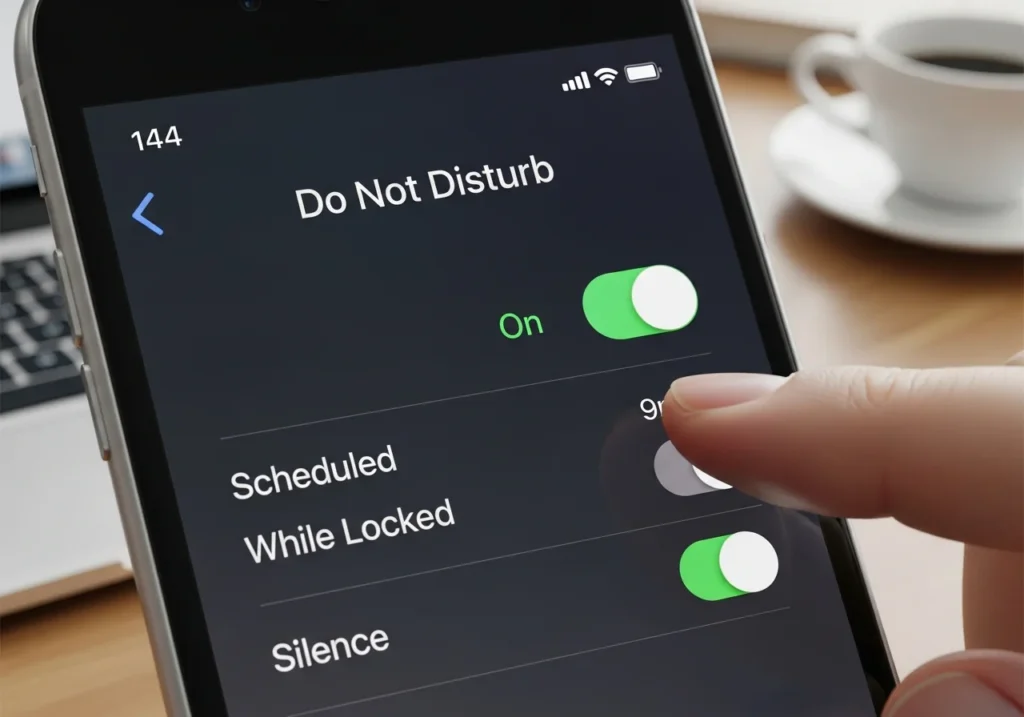
If your iPhone’s Do Not Disturb (DND) keeps turning on by itself, you’re not alone. Many users find their phone going silent unexpectedly, missing calls or notifications. This can happen due to scheduled DND, Focus modes, device sync issues, or even software glitches.
In this guide, we’ll explain why DND may activate automatically and walk you through step-by-step fixes to regain control of your notifications.
What to Know About iPhone DND Auto-Activation
Your iPhone can turn on DND automatically due to several features or settings:
- Scheduled DND: You may have set a daily schedule that turns on DND at a specific time.
- Focus Modes: Focus modes (like Work, Sleep, or Personal) can trigger DND automatically.
- Shared Devices: DND settings can sync across your iPhone, iPad, and Apple Watch.
- Smart Activation: Focus modes can turn on automatically based on location, app usage, or time.
- Software Bugs: Occasionally, iOS or watchOS updates cause DND to misbehave.
Understanding these triggers helps you pinpoint the exact cause.
Why Does Do Not Disturb Keep Turning On?
Scheduled DND or Focus Mode
If you set scheduled DND or Focus modes, your iPhone will automatically enable DND at the chosen time.
- Go to Settings > Focus > [Your Focus Mode] > Schedule
- Check if any schedules are active and adjust or turn them off
Focus Mode Auto-Activation
Focus modes can automatically activate based on triggers like location or app usage:
- Open Settings > Focus
- Tap each Focus and check Smart Activation
- Disable Smart Activation if you don’t want DND to auto-enable
iOS or WatchOS Sync Issues
If your iPhone is linked with Apple Watch or other iCloud devices, DND can sync across devices, causing it to turn on unexpectedly:
- Open Settings > Focus > Share Across Devices
- Toggle off to prevent automatic syncing
f you want to analyze iCloud data online, reviewing which devices and Focus settings are syncing through iCloud can help identify why Do Not Disturb keeps activating automatically.
Software Glitches or Bugs
Sometimes, iOS glitches or minor bugs can cause DND to behave strangely:
- Restart your iPhone
- Check for iOS updates in Settings > General > Software Update
How to Fix DND That Keeps Turning On (Step-by-Step)
1. Turn Off Scheduled DND / Focus
- Open Settings > Focus
- Select the relevant Focus mode
- Tap Add Schedule or Automation
- Delete or disable any schedules
2. Disable Share Across Devices / Sync
- Open Settings > Focus
- Scroll down to Share Across Devices
- Toggle off to prevent DND from syncing
3. Check Smart Activation / Lock Screen Triggers
- Open Settings > Focus > [Focus Mode]
- Tap Smart Activation
- Disable it if you want manual control
- Check Lock Screen options to prevent triggers from locking the screen
4. Update iOS / watchOS
- Go to Settings > General > Software Update
- Install any available updates
- If you have an Apple Watch, also update watchOS
Real-World User Scenarios
Scenario 1: DND activates every morning at 8 a.m.
- Cause: Scheduled Work Focus
- Solution: Disable the schedule in Focus settings
Scenario 2: DND turns on when opening Mail app
- Cause: Smart Activation linked to Mail app
- Solution: Disable Smart Activation for the Focus mode
Scenario 3: DND activates on iPhone and Apple Watch simultaneously
- Cause: Share Across Devices is enabled
- Solution: Toggle off Share Across Devices
Advanced Troubleshooting If DND Still Turns On
- Reset Focus Settings:
- Go to Settings > Focus > Reset All Focus
- Test Minimal Configuration:
- Only enable DND manually without schedules or triggers
- Contact Apple Support:
- If the problem persists, it may be a rare iOS DND bug
Final Tips for Managing DND and Notifications
Keep iOS Updated
Regular updates fix bugs that may affect DND behavior.
Regularly Review Focus Settings
Periodically check schedules, Smart Activation, and triggers for unexpected behavior.
Test After Making Changes
After adjustments, enable and disable DND to confirm everything works as expected.
Use Shortcuts and Automations Carefully
Automations or shortcuts can turn on DND unexpectedly. Review them in Shortcuts > Automation.
By following these steps, you can stop iPhone DND from turning on automatically, regain control of notifications, and enjoy peace of mind.
FAQs
Will disabling Share Across Devices fix DND?
Yes, this stops DND from automatically syncing between your iPhone, iPad, and Apple Watch.
Can DND sync across iPhone and Apple Watch?
Yes. If Share Across Devices is on, enabling DND on one device affects all linked devices.
Why does my iPhone stay silent even when DND is off?
Check Focus modes, schedules, and app-specific silences. Sometimes, a Focus mode is still active.
Can resetting Focus modes solve the problem permanently?
It often resolves persistent DND issues, especially if caused by corrupt schedules or triggers.
Can I Restore iMessages from iCloud if notifications were silenced?
Yes. You can restore iMessages from iCloud by signing into the same Apple ID and enabling Messages in iCloud, which restores your message history even if Do Not Disturb or Focus modes were previously enabled.