
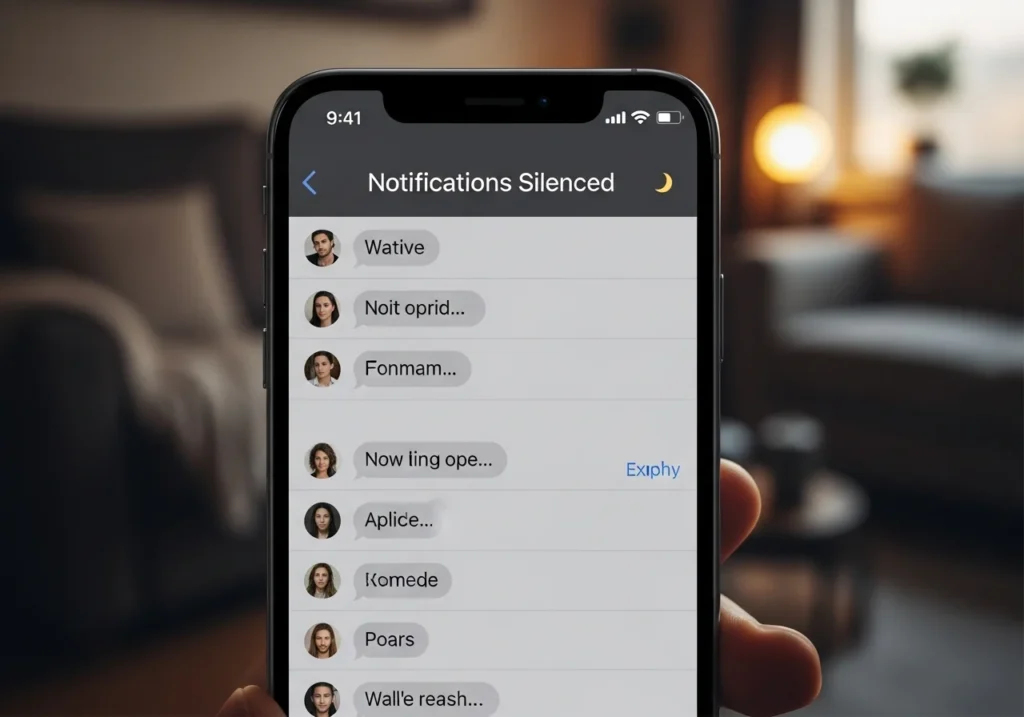
If you’ve ever sent a message on your iPhone and noticed the “Notifications Silenced” label, you might have wondered what it really means. Does it mean the person blocked you? Or did your message fail to send?
This guide explains exactly what “Notifications Silenced” means, why it appears, and how you can manage notifications effectively. We’ll also cover practical steps to resume notifications, alert someone if needed, and troubleshoot common issues. If you’re looking for a complete walkthrough, this guide on Notifications Silenced on iPhone How to Fix It explains all causes and solutions step by step.
Quick Summary What You Should Know
- Notifications silenced usually appear due to Focus Mode, Do Not Disturb, or a muted conversation.
- Messages are still delivered, but alerts are hidden until the recipient checks their phone.
- You can use “Notify Anyway” if a message is urgent.
- This does not mean you are blocked.
What Causes Notifications to Be Silenced
Focus Mode / Do Not Disturb
When a user enables Focus or Do Not Disturb (DND), iOS temporarily hides notifications to prevent distractions. This can apply to messages, calls, and app alerts.
Hide Alerts / Mute Conversation
Individual conversations can be silenced. If a contact or group chat is muted, any new messages will show “Notifications Silenced,” but messages are still received silently.
iOS Device Settings / Cross-Device Sync
Notifications can also be silenced based on device-specific settings or iCloud sync. For example, silencing a conversation on one device may sync across all your Apple devices. To avoid unexpected notification behavior across devices, it helps to optimize iCloud usage so settings and message sync remain accurate and up to date.
How to Resume Notifications on iPhone
1. Disable Focus Mode
- Swipe down from the top-right corner of your iPhone to open Control Center.
- Tap the Focus / Do Not Disturb icon to turn it off.
- Check if notifications resume normally.
2. Adjust Individual Contact Notification Settings
- Open the Messages app.
- Select the conversation labeled Notifications Silenced.
- Tap the contact’s name or group at the top → Hide Alerts toggle → switch off.
3. Ensure Messages Notifications Are Enabled
- Open Settings → Notifications → Messages.
- Ensure Allow Notifications is turned on.
- Check Lock Screen, Notification Center, and Banners options.
How to Notify Someone When Notifications Are Silenced
Using “Notify Anyway”
- If your message is urgent, tap Notify Anyway on the message you just sent.
- This bypasses Focus/DND, alerting the recipient immediately.
Alternative Communication Methods
- Send a message via another app (WhatsApp, email, etc.) if the recipient may not see iMessages.
- Make a phone call if it’s urgent.
Respectful Approaches for Urgent Messages
- Avoid repeated messages if notifications are silenced.
- Use polite language to explain urgency.
What “Notifications Silenced” Does NOT Mean
Not a Block
- Seeing this label does not mean you’re blocked. Messages are still delivered.
Messages Still Delivered
- Even with notifications silenced, the recipient receives all messages; they just won’t see alerts immediately.
Immediate Response Is Not Guaranteed
- The recipient may read messages later, depending on Focus/DND schedules or personal habits.
Real-World Scenarios & Edge Cases
“Notifications Silenced” Remains After Focus Is Off
- Occasionally, notifications stay muted due to iOS bugs or cached settings.
- Restarting the device usually resolves this.
Differences Between iMessage and SMS
- iMessage: Shows “Notifications Silenced” for Focus/DND or muted chats.
- SMS: May not display this, but alerts can still be silenced.
Individual vs Group Conversation Behavior
- Group chats may behave differently; one person’s Focus Mode does not silence notifications for everyone.
Tips for Managing Notifications Effectively
- Customize notifications per app and contact: Go to Settings → Notifications.
- Use Focus Mode strategically: Schedule work, sleep, or personal time without missing urgent alerts.
- Keep iOS updated: Updates fix bugs that may affect notifications.
- Respect privacy while communicating: Don’t bypass silenced notifications unnecessarily.
Optional Screenshot/Icons Placeholder:
- Control Center Focus toggle
- Hide Alerts switch in Messages
- Notify Anyway button
Disclaimer:
- This guide reflects iOS behavior as of the latest updates. Exact steps may vary slightly depending on device model and iOS version.
FAQs
Can Someone Tell If You Silenced Their Notifications?
No, silencing notifications is private. The sender only sees “Notifications Silenced.”
Will “Notify Anyway” Always Work?
Usually yes, but if the recipient’s device is offline or in DND with strict settings, it may be delayed.
Does This Affect Group Chats?
Yes, group messages may show “Notifications Silenced” if any participant has muted the thread or enabled Focus Mode.
Can Device Bugs Trigger “Notifications Silenced”?
Rarely, yes. Restarting the device or updating iOS often fixes persistent issues.