
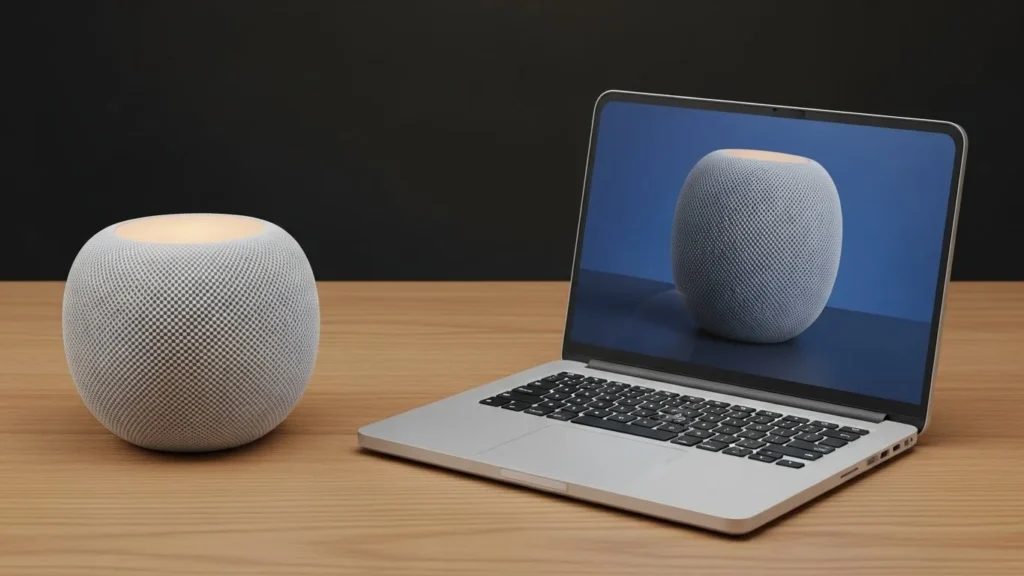
Apple’s HomePod and HomePod mini are smart speakers designed to deliver high-quality audio and seamless integration with your Apple ecosystem. Whether you’re a first-time user or upgrading your setup, knowing how to set up and troubleshoot your HomePod is essential to get the most out of it.
This guide will walk you through step-by-step setup instructions, common issues and fixes, and advanced tips for using Siri, AirPlay, and smart home automation.
Preparing Your Devices
Before starting, make sure your devices are ready for a smooth setup.
iPhone/iPad Compatibility
- Ensure your iPhone or iPad runs iOS 16 or later (HomePod mini may require iOS 15+ depending on model).
- Sign in to iCloud with the same Apple ID you want to use for HomePod.
- Confirm that two-factor authentication is enabled for iCloud.
Note: HomePod works best when paired with compatible Apple devices older iPhones may experience limited functionality.
Update iOS or iPadOS
- Go to Settings > General > Software Update.
- Download and install any available updates.
Tip: Keeping iOS updated ensures HomePod setup compatibility and smooth Siri performance.
Check Wi-Fi and Bluetooth
- Confirm that your iPhone/iPad is connected to a stable Wi-Fi network.
- Turn on Bluetooth: Settings > Bluetooth > toggle on.
Why it matters: HomePod relies on Wi-Fi and Bluetooth to pair with devices and stream music seamlessly.
Also Read:
Do Alarms Go Off on Do Not Disturb?
How to Share Notes on iPhone
Step-by-Step HomePod Setup
Follow these steps to set up your HomePod or HomePod mini.
1. Plug in HomePod
- Connect the HomePod to power.
- Wait until the top display shows a white spinning light, indicating it’s ready to set up.
2. Pair with iPhone/iPad
- Unlock your iPhone and bring it close to the HomePod.
- A setup pop-up should appear automatically.
- Follow the on-screen instructions to:
- Choose a room for your HomePod
- Enable personal requests
- Share settings like Apple Music and iCloud
Tip: If the pop-up doesn’t appear, restart both devices and try again.
3. Customize Settings
- Open the Home app.
- Tap HomePod > Settings to:
- Adjust volume and bass
- Set Siri language and voice
- Enable multi-user recognition
4. Multi-room or Stereo Pairing
- In the Home app, tap Add Accessory.
- Follow prompts to pair a second HomePod for stereo sound or multi-room audio.
Note: Stereo pairing requires two HomePods in the same room.
Troubleshooting Common Issues
If setup or usage doesn’t go smoothly, here’s how to solve common problems.
HomePod Fails During Setup
Cause: Weak Wi-Fi or iOS version mismatch.
Solution:
- Ensure your device is on the latest iOS.
- Restart your HomePod and iPhone.
- Retry setup near your router.
HomePod Not Responding
Cause: Software glitch or network interruption.
Solution:
- Disconnect HomePod from power for 10 seconds.
- Reconnect and check if the top light spins.
- Reset if the issue persists (see Reset section).
Wi-Fi Connectivity Problems
Cause: Weak signal or router settings.
Solution:
- Move HomePod closer to the router.
- Restart your router and HomePod.
- Confirm Wi-Fi password is correct.
Siri Not Responding
Cause: Microphone blocked or Siri disabled.
Solution:
- Check Settings > Siri & Search.
- Ensure “Listen for Hey Siri” is enabled.
- Test voice by saying, “Hey Siri, what’s the weather?”
Audio or AirPlay Issues
Cause: Interference or incorrect settings.
Solution:
- Ensure iPhone and HomePod are on the same Wi-Fi.
- Restart both devices.
- Check AirPlay icon in Control Center for correct output.
Multiple User Recognition Problems
Cause: iCloud or Home app misconfiguration.
Solution:
- Confirm all users are signed into iCloud and Home app.
- Enable Recognize My Voice for each user.
Advanced Tips & Tricks
Siri Shortcuts
- Open the Shortcuts app.
- Create custom commands for HomePod automation (e.g., “Good Morning” routine).
- Assign voice commands for daily tasks, reminders, or HomeKit scenes.
Smart Home Automation
- Use the Home app to control lights, thermostats, and locks via HomePod.
- Combine triggers (like time of day) with Siri routines for hands-free automation.
Routines and Multi-room Audio Setup
- Schedule routines (morning music, bedtime lights) in the Home app.
- Group HomePods in rooms for synchronized playback across your house.
Resetting and Updating HomePod
Soft Reset vs Factory Reset
- Soft Reset: Disconnect power for 10 seconds and reconnect.
- Factory Reset: Press the top until spinning red light appears, then follow prompts.
Warning: Factory reset deletes all settings and paired accounts.
Updating HomePod Software
- Open the Home app.
- Tap HomePod > Settings > Software Update.
- Install updates to fix bugs and improve functionality.
FAQs
How do I set up HomePod mini for the first time?
Follow the step-by-step instructions in the Step-by-Step Setup section above.
Why isn’t my HomePod connecting to Wi-Fi?
Check network signal, password accuracy, and router settings. Restart devices if needed.
Can multiple users use HomePod at the same time?
Yes, enable multi-user recognition in HomePod settings.
How do I reset HomePod without losing music settings?
Use a soft reset (disconnect and reconnect power) instead of a factory reset.