
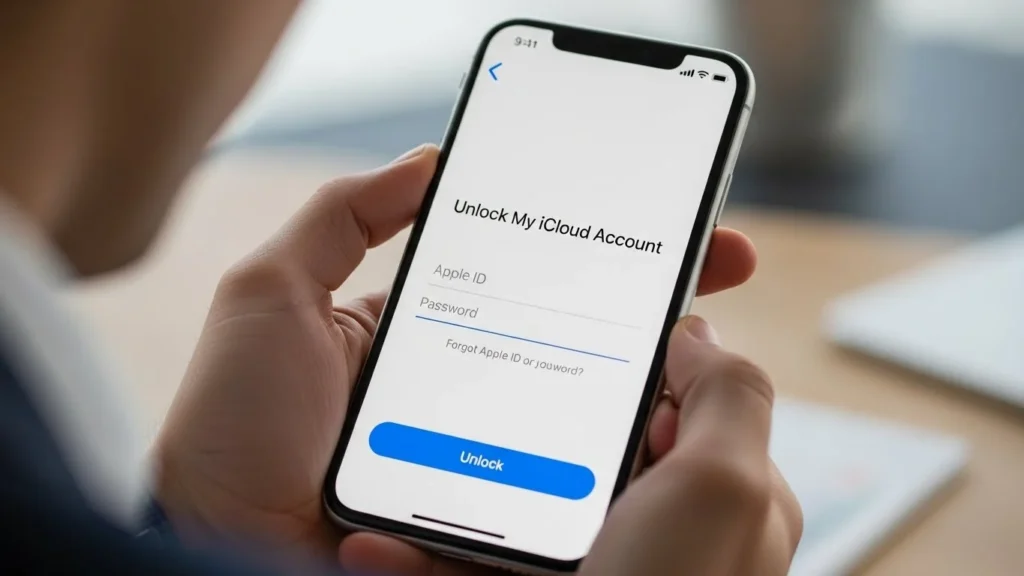
If your iCloud or Apple ID account is locked, don’t worry this is a common security measure from Apple. The goal is to protect your data. In most cases, you can unlock your account safely within minutes using Apple’s official methods.
This guide explains why your iCloud account gets locked, how to identify the type of lock, and step-by-step instructions to unlock it the right way without scams, risks, or complicated steps.
What Causes an iCloud Account to Get Locked?
Apple automatically locks an account whenever something looks unusual. Common reasons include:
- Entering the wrong Apple ID password too many times
- Suspicious sign-in attempts from a new device or location
- Two-factor authentication issues
- Account disabled for security reasons
- Activation Lock triggered after a device reset without signing out
- Unauthorized access attempts
These locks are designed to protect your photos, messages, and personal data.
How to Check What Type of Lock You Have
Before unlocking your iCloud account, identify the exact lock message you see. The message usually appears on your iPhone, Mac, or when signing in on the web.
1. “Your Apple ID Has Been Locked for Security Reasons”
This means Apple spotted suspicious activity or too many failed login attempts.
2. “This Apple ID Has Been Disabled”
Often caused by billing issues, password attempts, or security triggers.
3. “Activation Lock”
This appears when someone tries to set up an iPhone without the owner’s Apple ID credentials.
4. “Account Locked for Too Many Attempts”
Triggered when you repeatedly enter the wrong password or verification code.
Once you know the message, follow the matching solution below.
Also Read:
iCloud Two-Factor Authentication
How to Unlock Your iCloud Account (Official Apple Methods)
These are the safest and recommended solutions. Always try them before anything else.
1. Unlock via Apple’s Official Recovery Portal (iforgot.apple.com)
This is the quickest way to unlock a locked Apple ID.
Steps:
- Go to iforgot.apple.com.
- Enter your Apple ID email.
- Follow the on-screen steps (password reset or verification).
- Choose a verification method:
- Trusted phone number
- Trusted device
- Email verification
- Create a new password when prompted.
- Sign in again on your iPhone or Mac.
This method works for most lock messages.
2. Reset Your Apple ID Password
If you forgot your password or entered it incorrectly multiple times, resetting it unlocks your account immediately.
On iPhone/iPad:
- Open Settings.
- Tap your name > Password & Security.
- Tap Change Password.
- Follow the instructions using your device passcode.
On the Web:
- Visit appleid.apple.com.
- Choose Forgot Apple ID or password?
- Verify your identity.
- Create a new password.
3. Approve Login Using a Trusted Device
When you try signing in from a new device, Apple sends a verification code to your existing device.
To approve:
- Look for a pop-up on your trusted iPhone/Mac.
- Tap Allow.
- Enter the verification code on the new device.
If you no longer have access to your trusted device, proceed to Account Recovery (below).
4. Fix Two-Factor Authentication Issues
If the verification code isn’t arriving:
- Ensure your trusted device is connected to the internet.
- Check SMS if you added a phone number.
- Try the “Didn’t get a code?” option.
- Use a backup phone number if available.
5. Complete Account Recovery (When You Lost Access to Everything)
If you cannot receive verification codes or access trusted devices:
Use Account Recovery:
- Go to iforgot.apple.com.
- Complete identity checks.
- Apple may take a few hours to several days to verify you.
- You’ll receive instructions via email or SMS once approved.
Important: Apple controls this process — no one can speed it up. Avoid anyone claiming they can.
How to Unlock Activation Lock (Legitimate Methods Only)
Activation Lock is a powerful anti-theft feature that requires the owner’s Apple ID to set up the device.
You can remove Activation Lock ONLY by:
1. Entering the Apple ID and Password
The fastest and official solution.
2. Using Proof of Purchase
If you forgot the Apple ID, Apple can remove Activation Lock only if you provide valid proof of purchase.
Not Allowed / Risky:
- IMEI unlock services
- iCloud bypass tools
- Jailbreak-based unlocks
- Fake unlock websites
These methods are unsafe, unreliable, and violate Apple policies.
What to Do If You Forgot Your Apple ID Email
Try these simple steps:
1. Check Your Other Email Accounts
Search for emails from Apple like:
- “Your Apple ID was used…”
- “Receipt from Apple”
2. Use Apple’s Lookup Tool
Go to iforgot.apple.com → Look it up.
3. Check on Your Device
On iPhone:
Settings → Tap your name → Apple ID email shown at top.
When to Contact Apple Support
Contact Apple Support if:
- You cannot pass account recovery
- You don’t receive verification codes on any device
- Activation Lock cannot be removed using your credentials
- Your Apple ID is disabled for billing or security reasons
Apple may ask for:
- Your device serial number
- Proof of purchase
- Your trusted phone number
Safety Warnings Avoid Scams
Many websites claim to “unlock” iCloud or Activation Lock for a fee. These are often scams.
Avoid anything that claims to unlock via:
- IMEI number
- Remote software
- “Instant unlock tools”
- Social media sellers
- Email unlockers
Only Apple can unlock a locked or Activation-Locked account.
FAQs
How long does Apple take to unlock my iCloud account?
Most accounts unlock instantly after resetting the password.
Account Recovery may take a few hours to several days.
Will unlocking delete my data?
No. Unlocking your Apple ID does not erase data on your iPhone or iCloud.
Can someone unlock my iCloud without the password?
Only Apple can and only with valid proof of purchase.
I bought a used iPhone with Activation Lock. What now?
You must contact the seller and ask them to remove the device from their iCloud.
If they refuse, Apple will only help if you have proof of purchase.
Why does my Apple ID keep getting locked?
Likely due to repeated incorrect passwords or suspicious login attempts.
How to Prevent Your iCloud Account From Getting Locked Again
- Use a strong but memorable password
- Add multiple trusted phone numbers
- Keep your recovery email updated
- Enable two-factor authentication
- Avoid signing in on untrusted devices
- Don’t share your Apple ID with anyone
- Be cautious of phishing emails pretending to be Apple