
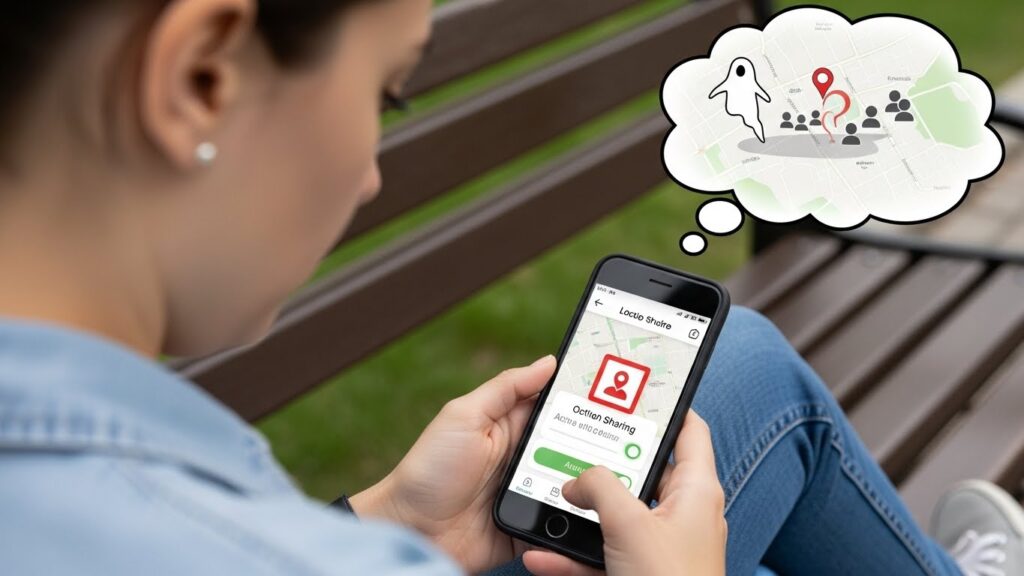
In today’s world, location sharing on your iPhone can be incredibly useful but sometimes, you may want more privacy. Maybe you’re setting personal boundaries, avoiding constant tracking, or just prefer to keep certain contacts from seeing your whereabouts. Whatever the reason, it’s possible to stop sharing your location with one person without alerting them. In this guide, we’ll walk you through beginner-friendly, step-by-step methods to regain control over your iPhone location sharing.
Understanding iPhone Location Sharing
How Location Sharing Works on iPhone
iPhones let you share your location using Find My or iMessage. This allows friends and family to track your device in real-time, which can be convenient but it also requires trust.
Key points:
- Find My App: Shows your device’s location to selected contacts.
- iMessage Sharing: Lets a contact see your current location for a limited time (one hour, one day, or indefinitely).
- Your location may still appear active if a contact previously saved your info or if iOS caching delays updates.
Difference Between Find My App and iMessage Location Sharing
| Feature | Find My | iMessage |
| Duration | Until manually turned off | Temporary (1h, 1 day) or indefinite |
| Notifications | Contact may see your location stop if blocked | Contact may not notice if sharing is ended |
| Use case | Continuous tracking, device recovery | Short-term sharing |
Why Some Contacts Might Still See Your Location
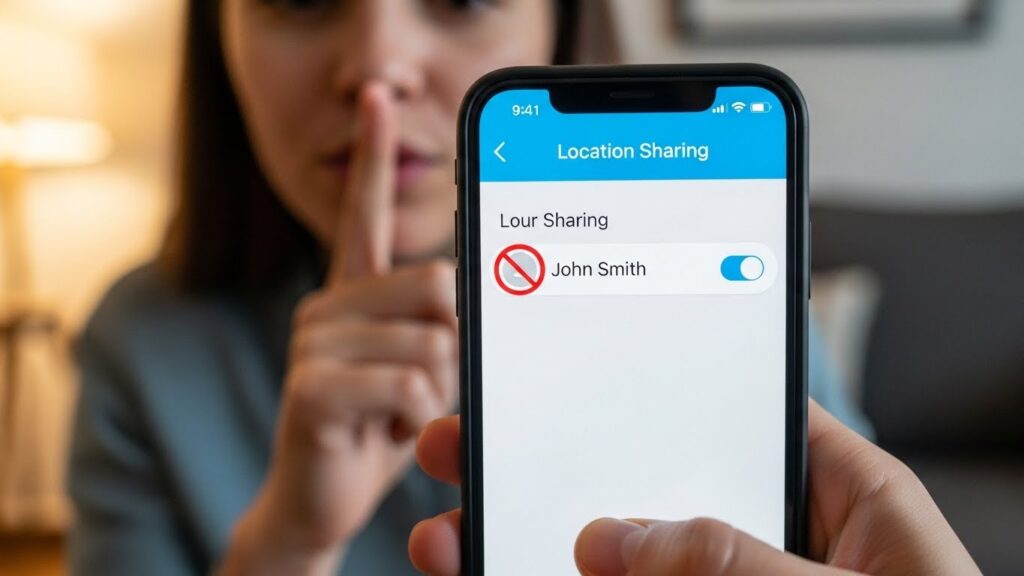
Even after turning off sharing, some contacts might see your location due to:
- iCloud syncing delays
- Family Setup devices
- Cached location data in apps
Why You Might Want to Stop Sharing Your Location
Privacy Concerns
Sharing your location with one person can feel invasive. Limiting visibility helps maintain control over your personal space.
Personal Boundaries or Safety Reasons
If someone is overly watchful or monitoring your movements, stopping location sharing can protect your safety and peace of mind.
Family or Friend Tracking Considerations
Even well-intentioned family or friends may unintentionally overstep boundaries. Selective location sharing ensures you stay reachable without being constantly tracked.
Also Read: Notifications Silenced on iPhone: What It Means and How to Fix It
How to Stop Sharing Location With One Person Without Them Knowing
1. Using the Find My App to Stop Sharing With a Specific Contact
- Open the Find My app.
- Tap the People tab.
- Select the contact you want to stop sharing with.
- Scroll down and tap Stop Sharing My Location.
- Confirm your choice.
✅ Benefit: Contact won’t receive a notification, and you remain visible to others.
⚠️ Limitation: iOS versions earlier than 13 may alert the person.
2. Temporarily Stopping Location Sharing Without Alerts
- Open Settings → Privacy & Security → Location Services.
- Tap Share My Location.
- Toggle Share My Location off.
- To resume, toggle it back on.
💡 Tip: Using this method temporarily hides your location from all contacts.
3. Blocking a Contact to Hide Location
- Open Settings → Phone → Blocked Contacts → Add New.
- Select the contact.
⚠️ Caveat: Blocking may prevent all communications (calls, messages) from that person, not just location sharing.
4. Using Airplane Mode or Disabling Location Services
- Airplane Mode: Temporarily prevents your iPhone from sharing location.
- Disable Location Services: Go to Settings → Privacy & Security → Location Services → Turn Off.
📝 Note: This method hides location from all apps and contacts, not just one person.
Troubleshooting Location Sharing Issues
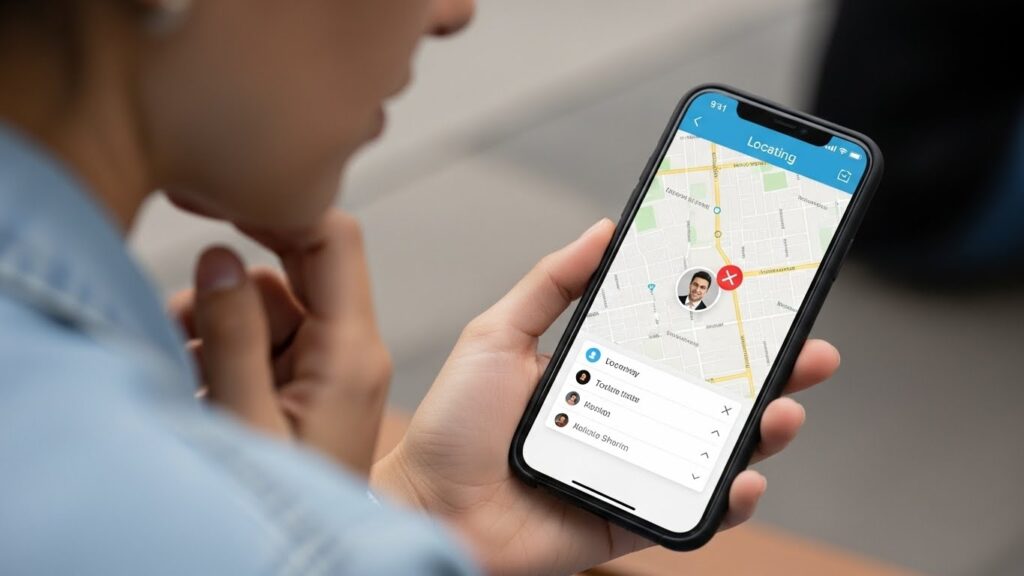
Someone Still Sees Your Location After Disabling
- Ensure iCloud is signed out or updated.
- Check if a Family Setup device is still sharing location.
- Restart your iPhone to clear cached data.
iPhone Shows Active Location Sharing by Mistake
- Update iOS to the latest version.
- Reboot the device.
- Recheck Find My app settings.
Steps to Ensure Your Location Is Hidden Completely
- Stop sharing location in Find My.
- Disable temporary iMessage sharing.
- Turn off location services if necessary.
- Double-check your Family Setup devices.
Tips for Maintaining Location Privacy
- Regularly manage your Location Settings for apps and contacts.
- Use Hide My Location selectively for specific contacts.
- Review app permissions that access location.
- Keep iOS updated for the latest privacy features.
Final Thoughts
Your location is private, and you have the right to control who sees it. By using Find My, iMessage settings, or system-level controls, you can selectively hide your location without alerting others.
- Keep iOS updated to ensure the latest privacy features.
- Regularly review location settings to maintain control.
- Consider app and device permissions for complete privacy.
With these steps, you can enjoy peace of mind while using your iPhone safely and privately.
FAQs
Can someone tell if I stop sharing my location?
Usually, no. Contacts won’t get a notification unless iOS alerts them in older versions.
How do I stop sharing location temporarily?
Turn off Share My Location in settings or enable Airplane Mode.
Does blocking a contact hide my location permanently?
Yes, but it also blocks calls and messages.
Can I hide location from one person but share with others?
Yes, use the Find My app to stop sharing with just that contact.
Why does Find My still show me as “active”?
This can happen due to cached data or Family Setup devices restart or update your iPhone to resolve.